API Tutorial
Complete Guide: Login to Twitter and Post Tweets Using API
Learn how to securely authenticate with Twitter accounts and automate tweet posting using TwitterAPI.io with proper 2FA setup and proxy configuration.
Core Requirements
- Ensure your Twitter account has 2FA enabled (not QR code method)
- Use a high-quality Static Residential proxy
- Two-step API login process (get login_data → get session)
- Use session for tweet posting and other operations
1Setting Up Twitter Two-Factor Authentication
Step 1.1: Access Security Settings
Navigate to Twitter Security Settings
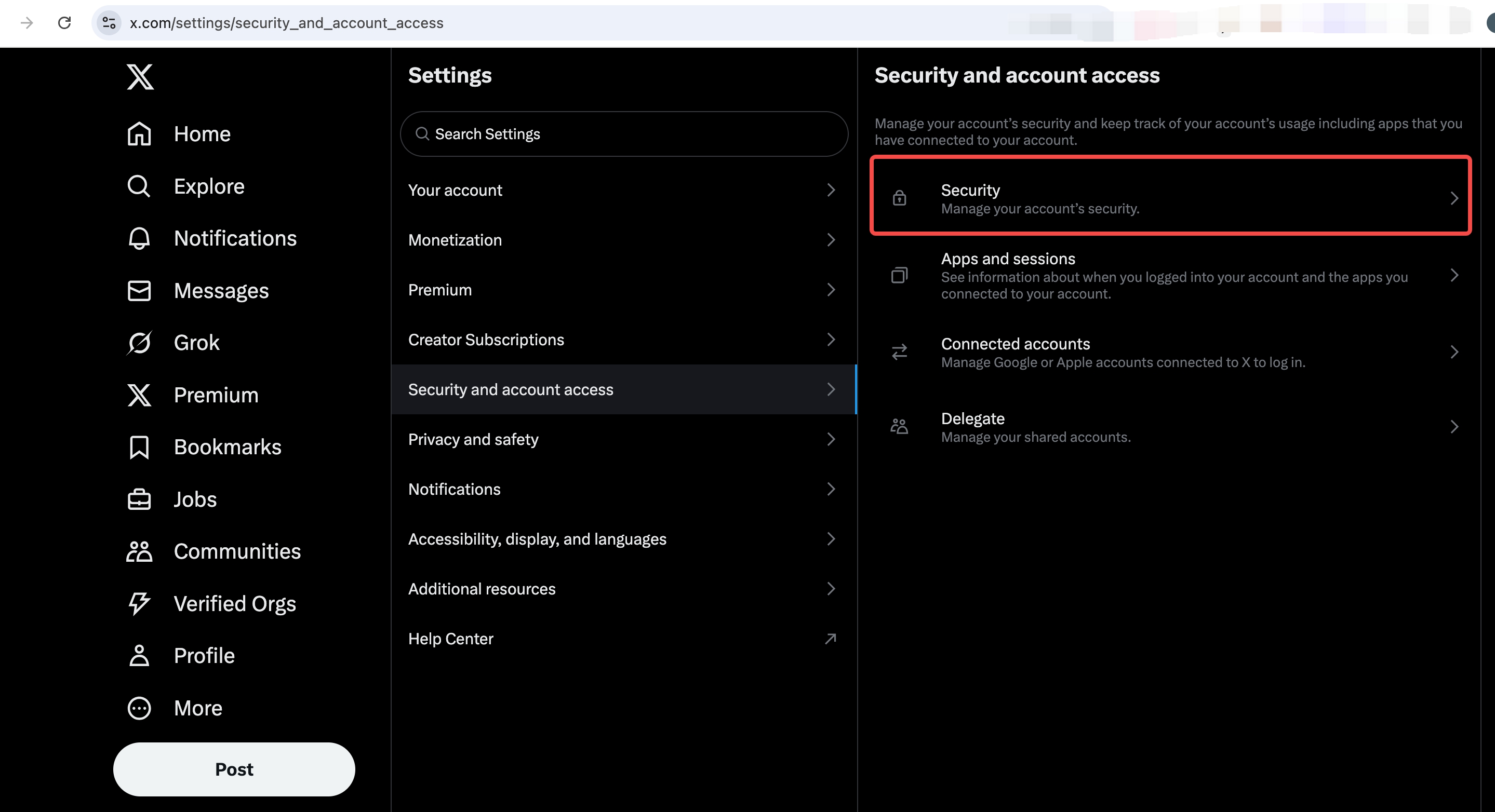
Go to your Twitter account settings and click on "Security and account access" to manage your account's security features.
Step 1.2: Find Two-Factor Authentication
Locate Two-Factor Authentication Option
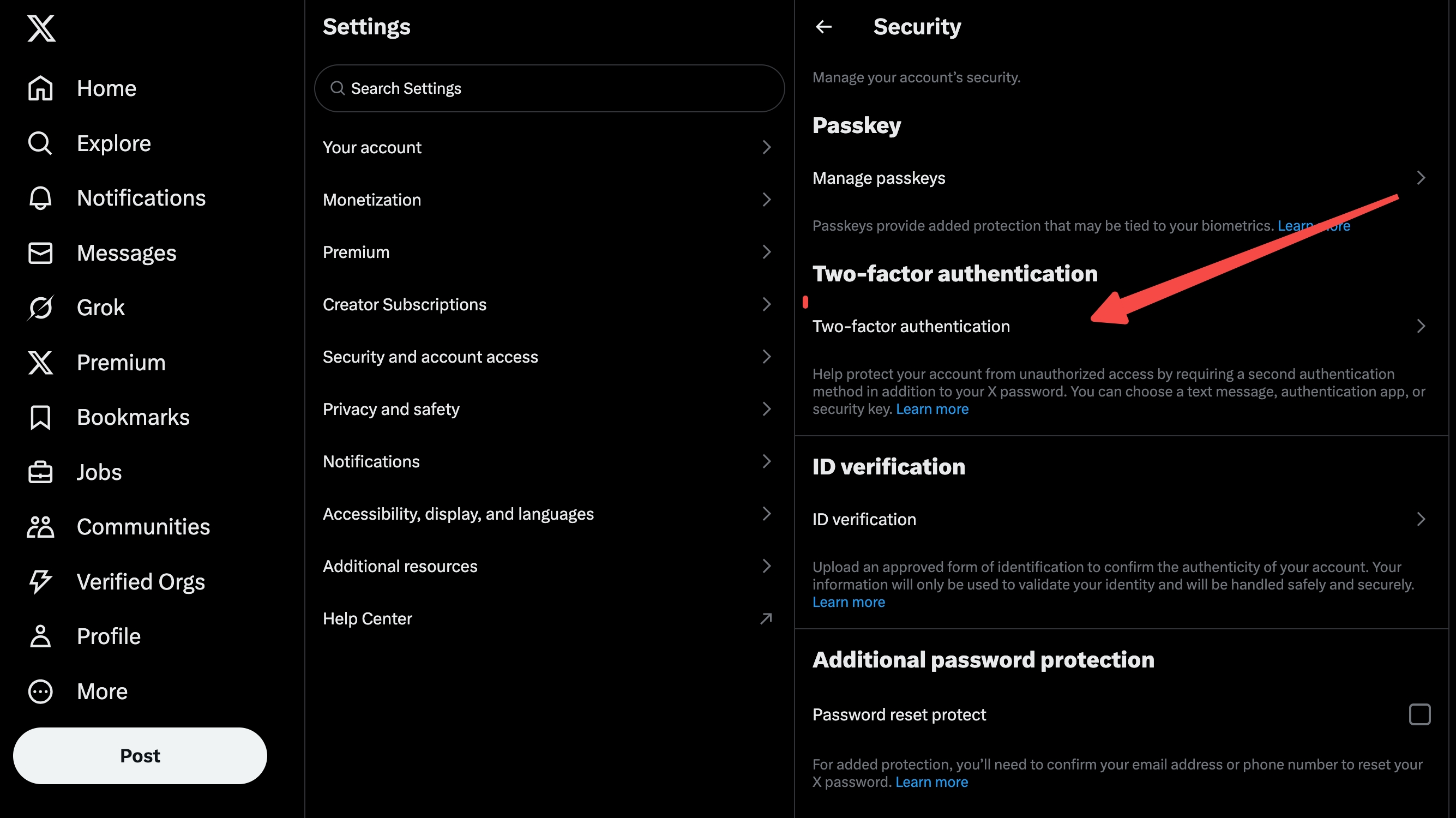
In the Security section, find and click on "Two-factor authentication" to begin setting up enhanced account protection.
Step 1.3: Select Authentication App
Choose the Authentication App Method
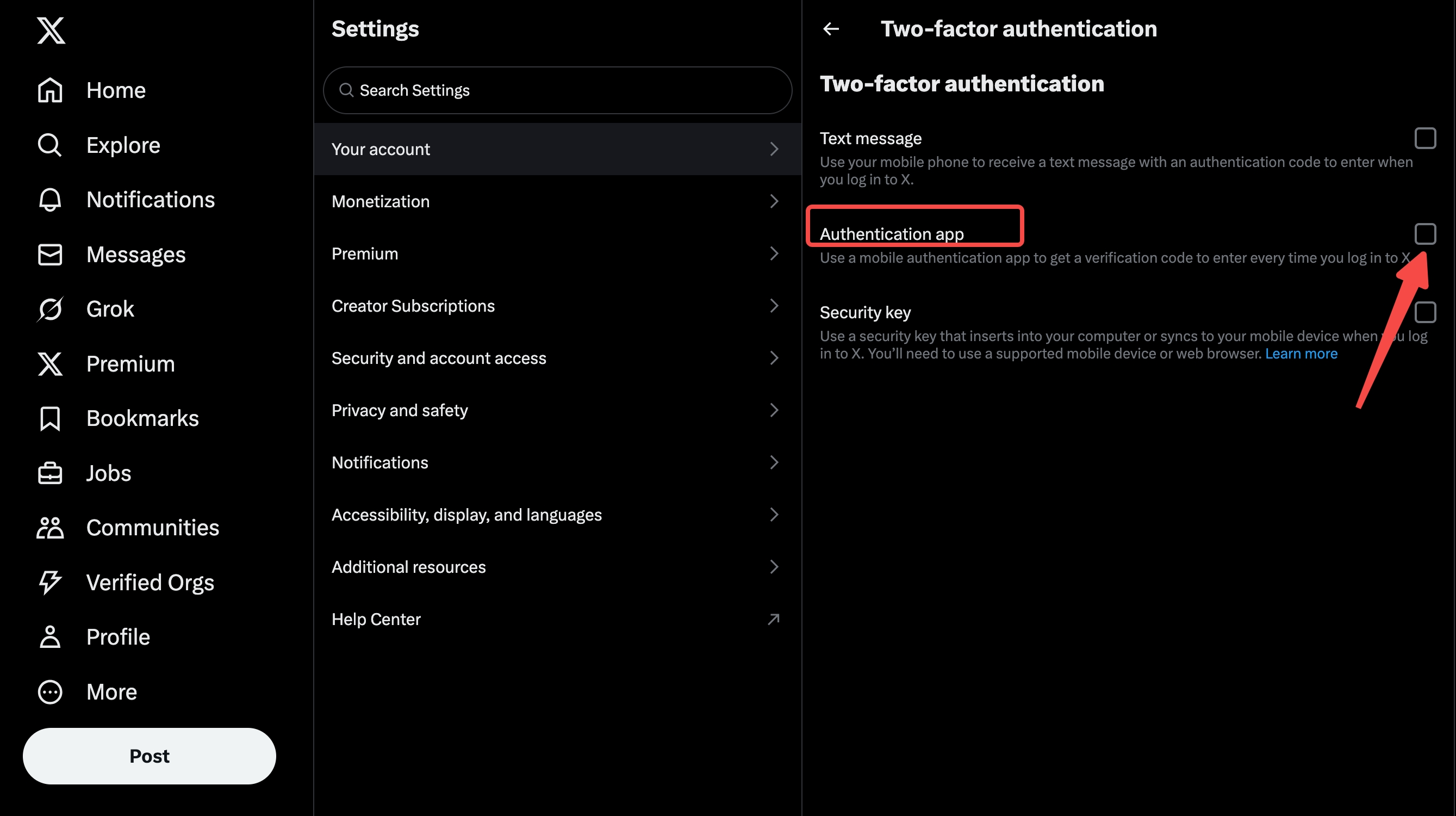
Choose "Authentication app" from the available two-factor authentication methods for the most secure and reliable option.
Step 1.4: Begin Setup
Start Two-Factor Authentication Setup
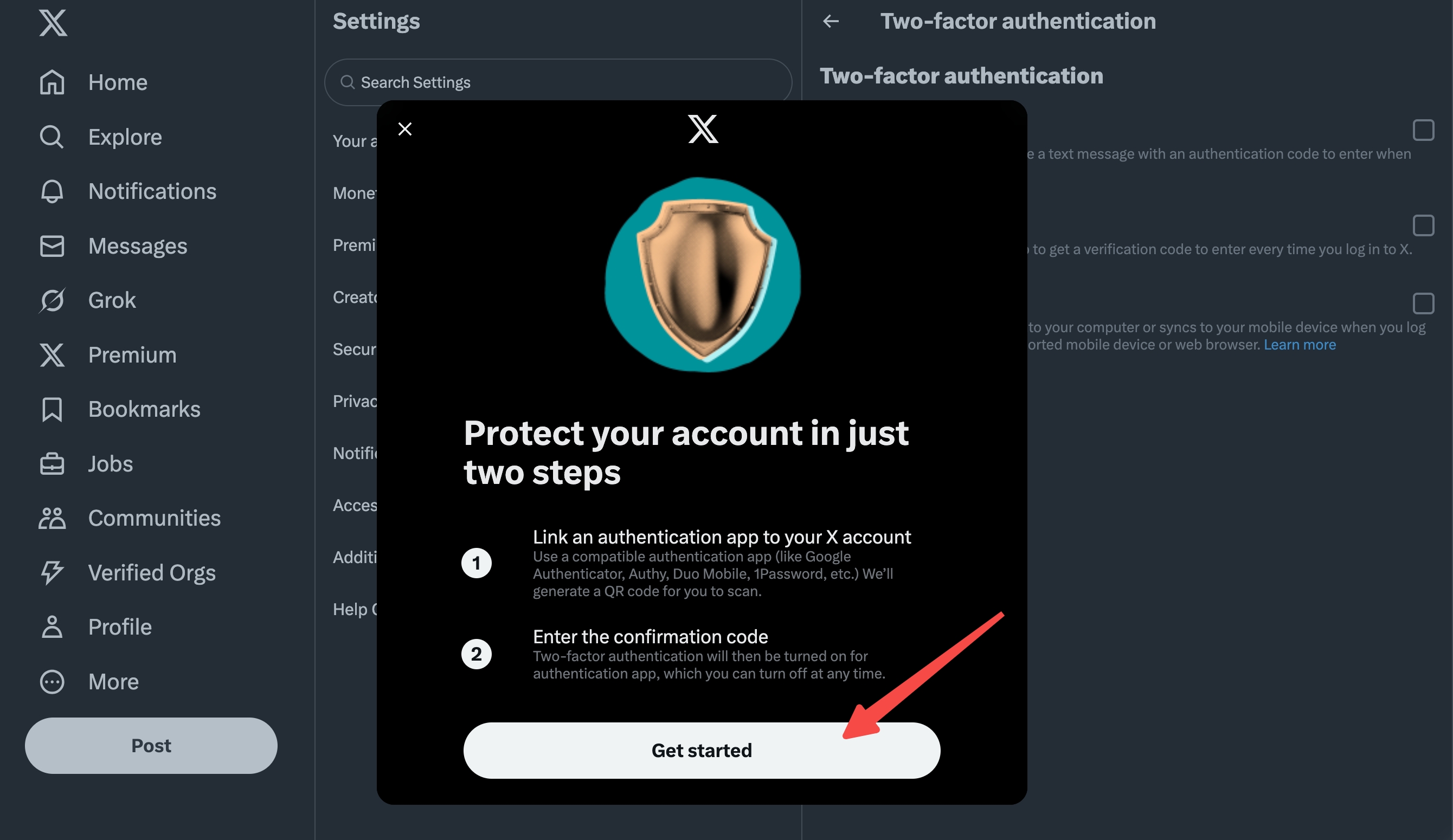
Click "Get started" on the protection dialog to begin the simple two-step process for securing your Twitter account.
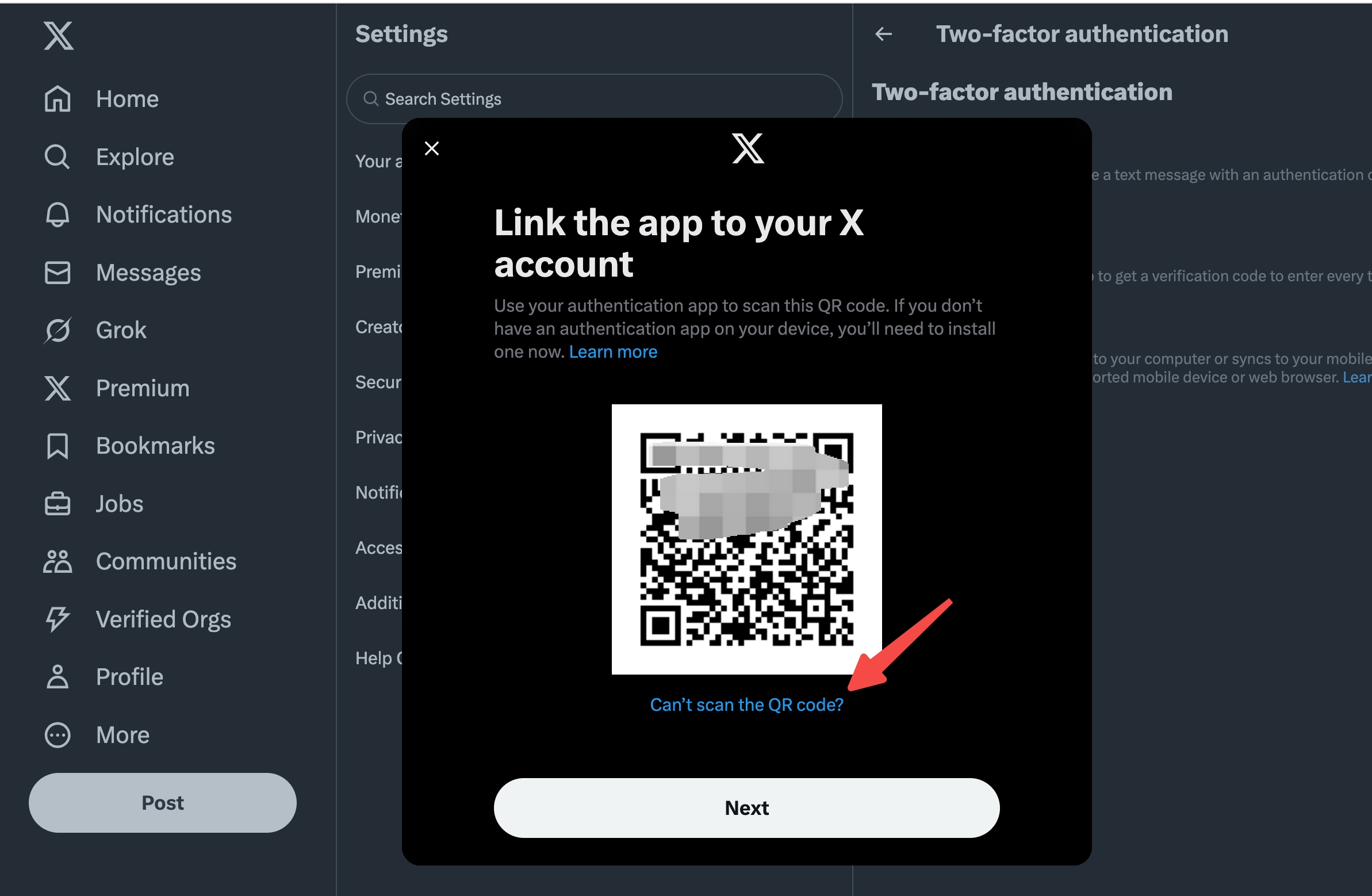
Step 1.5: Get Secret Key
Reveal Your 2FA Secret Key
Click "Can't scan the QR code?" to reveal your unique secret key (e.g., "WJ5QV62VGNV") needed for code generation.
Save this secret key securely - you'll need it to generate 2FA codes.
Step 1.6: Copy Secret Key
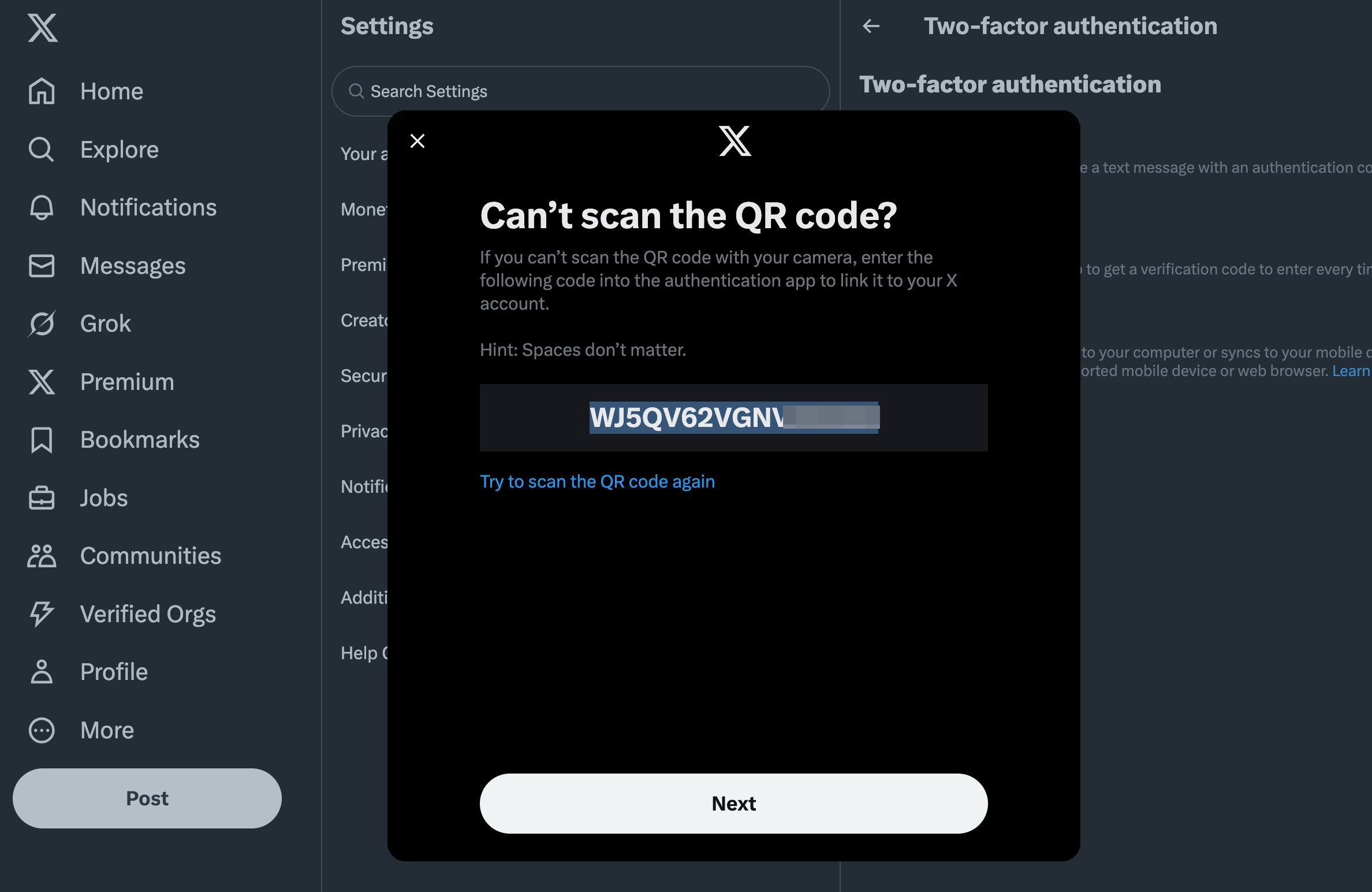
Save Your Secret Key and Proceed
Copy your 2FA Secret Key and click "next". Twitter will need you to input a "confirmation code" (2FA code).
Step 1.7: Generate 2FA Code
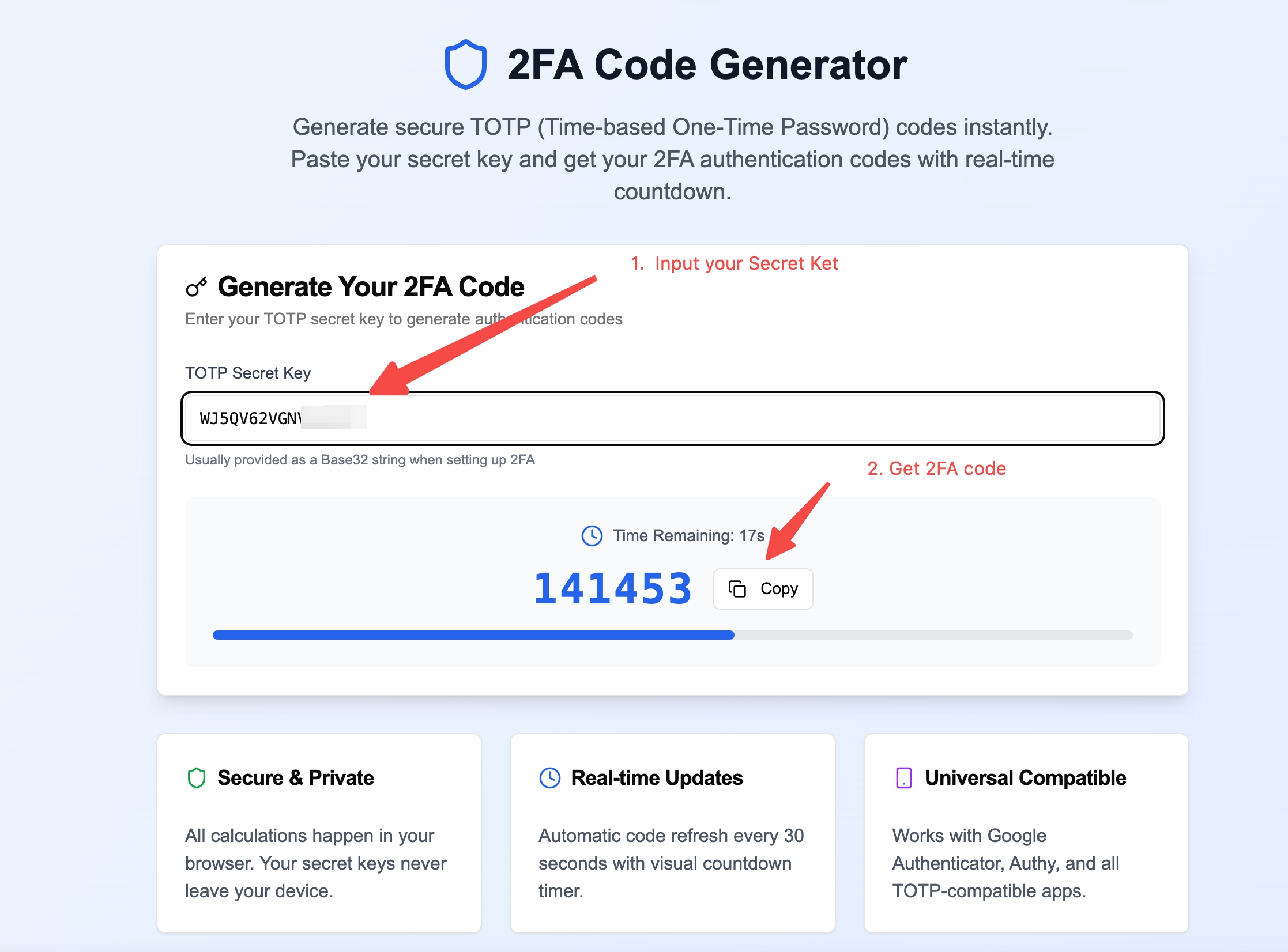
Use OTP Generator to Get Your Code
Open https://otp6.com/, input the secret key from step 5, and get your 2FA code.
The 2FA code is valid for 30 seconds. You must enter it quickly.
Step 1.8: Confirm Setup
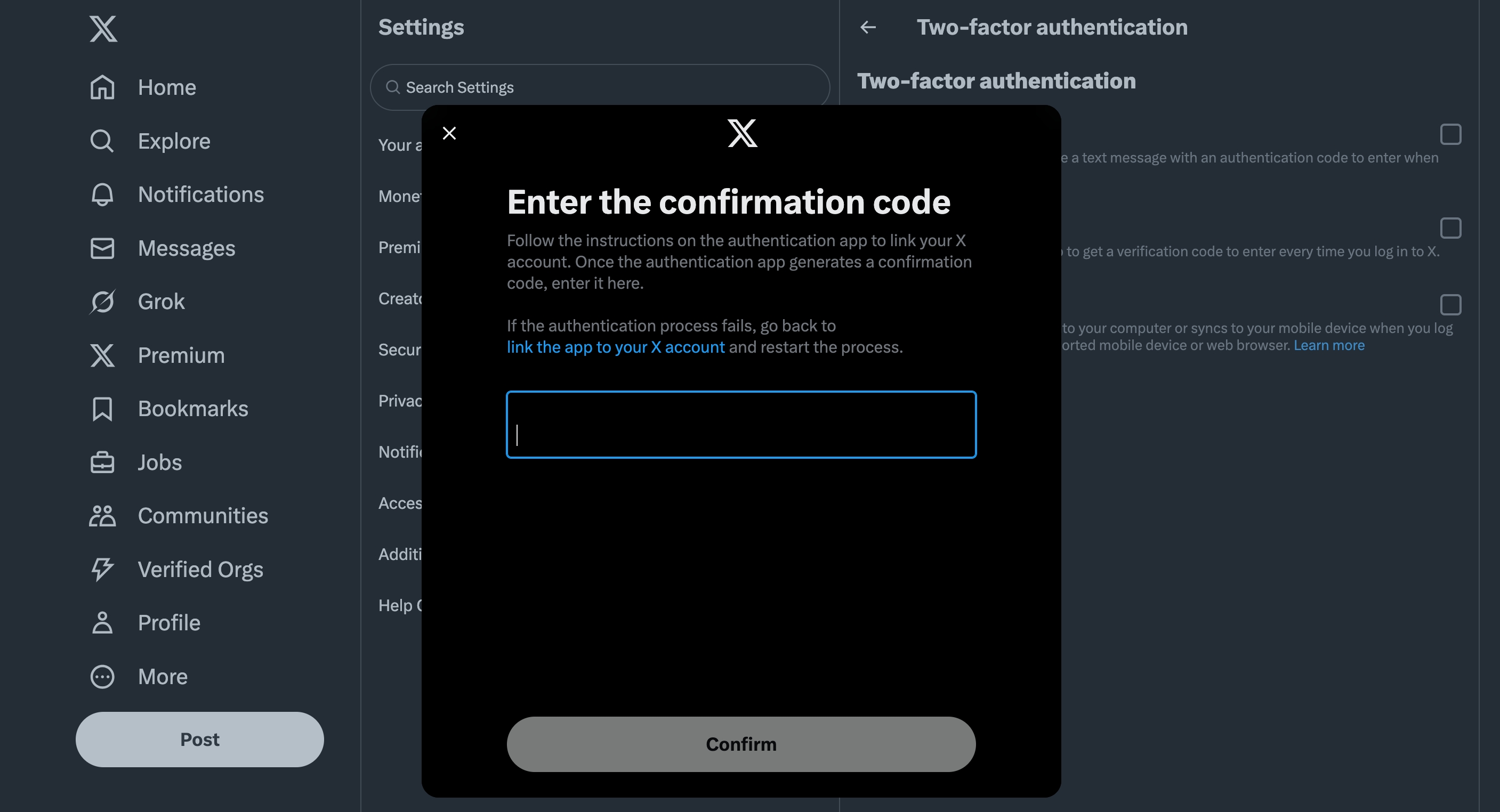
Complete 2FA Setup
Input the 2FA code from step 7 and click confirm. At this point, you have successfully set up the 2FA code for your account.
Congratulations! Your Twitter account is now secured with 2FA.
2Get Static Residential Proxy
Recommended Proxy Service
Get high-quality Static Residential proxies
Get Static Residential proxy from Webshare.io for reliable and stable connections.
Use the same proxy throughout the entire process (login and posting) for best results.
.jpeg)
3Two-Step Login Process
Step 3.1: Initial Login
Login with Email/Username to Get login_data
Use email or username to login, input your proxy settings, and obtain the login_data from the API response.
POST /twitter/login
{
  "username": "your_email_or_username",
  "password": "your_password",
  "proxy": "your_proxy_settings"
}.jpeg)
Step 3.2: Complete Authentication
Use login_data and 2FA Code to Get Session
Use the login_data from step 3.1 and a fresh 2FA code from https://otp6.com/ to complete authentication and get your session.
POST /twitter/login/2fa
{
  "login_data": "from_step_3.1",
  "totp_code": "123456",
  "proxy": "same_proxy_as_step_3.1"
}.jpeg)
4Post Tweets and Perform Actions
Create Tweet API
Use Session to Post Tweets
Use the /twitter/create_tweet API, pass in your session and proxy to post tweets or perform other actions like liking tweets.
POST /twitter/create_tweet
{
  "session": "your_session_from_step_3.2",
  "text": "Hello from TwitterAPI.io!",
  "proxy": "same_proxy_used_for_login"
}
Remember to use the same static proxy throughout the entire process for consistency.
.jpeg)
Common Login Issues
Issue 1: Ensure your proxy is correct and working properly.
Issue 2: Double-check that your password is correct.
Issue 3: If email login fails, try using your username instead, and vice versa.
Frequently Asked Questions
How long does my session last?
Session duration is controlled by Twitter and depends on factors like your account registration time, proxy quality, and whether you perform any unusual operations.
Will my account get banned?
There is a possibility of account suspension. To minimize risk, avoid behaving like a bot.
High-risk behavior: Newly registered accounts posting large volumes of tweets will likely be banned quickly.
Ready to Get Started?
Start using TwitterAPI.io today and automate your Twitter operations securely.
Get Started Now