Twitter (X) Webhook Setup: Get Real-Time Tweets POSTed to Your URL
This is the hands-on setup guide: write a filter rule, point TwitterAPI.io at your webhook URL, switch the rule on, and every tweet that matches is POSTed to your server as JSON. You can do it in the dashboard with no code, or with four API calls (add_rule, update_rule, get_rules, delete_rule). Either way, no X developer account and no OAuth are needed.
If you are still choosing between X's own push products (the X Activity API, the Account Activity API, Filtered Stream Webhooks) and a rule-based webhook, start with our real-time X API overview and X webhook pricing comparison, then come back here to set it up.
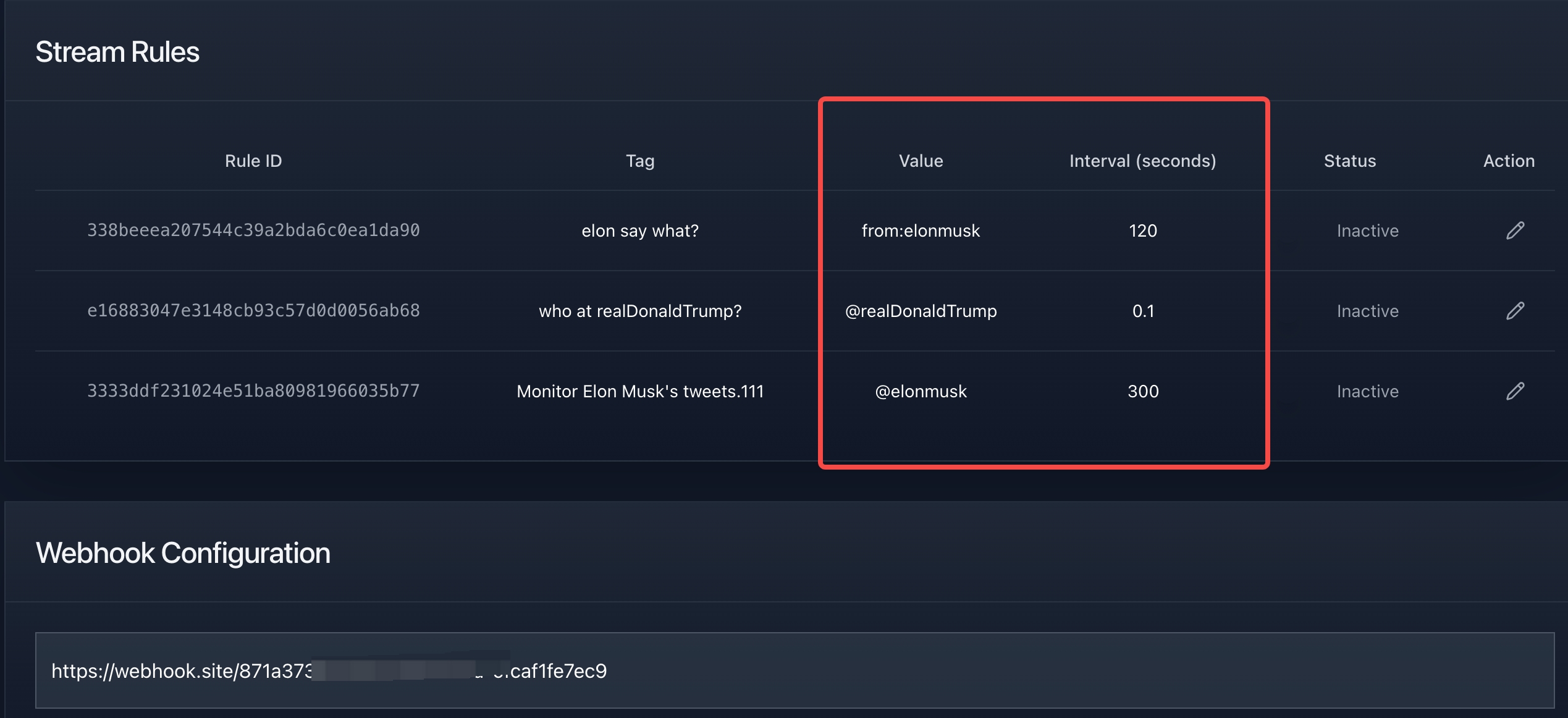
What are Webhooks and Why Are They Important for Twitter Data?
Webhooks are a way for applications to communicate automatically, allowing one service to send data to another when specific events occur. For Twitter data analysis, webhooks offer several key advantages:
- No client loop to run - TwitterAPI.io runs your search query on the interval you choose
- Near real-time delivery - matches are pushed as soon as a check finds them (as often as every 0.05 s)
- No persistent connection - your server only needs to accept an HTTPS POST
- Flexible processing - route each batch by its rule tag to Slack, a database, or a queue
A webhook is one of two delivery transports for filter rules. The other is a WebSocket connection your client keeps open; it is covered in the WebSocket setup guide for real-time tweets. The same rules feed both, so you can switch transports without rewriting them.
Using Webhook.site to Quickly Test Twitter Data Reception
Before building a formal data processing system, it's crucial to verify webhook functionality. Webhook.site is an excellent tool that allows you to quickly generate temporary webhook URLs and view received data in real-time.
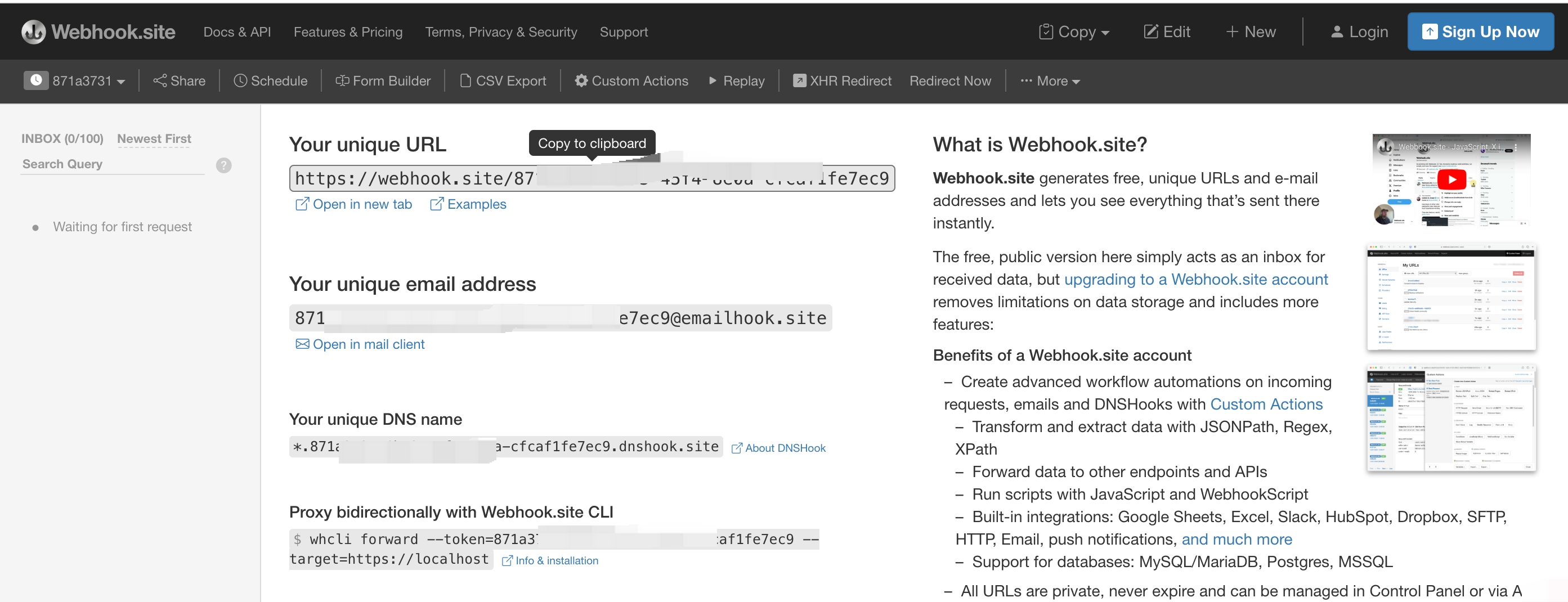
Setting Up a Webhook.site Test Environment
- Visit Webhook.site
- A unique webhook URL will be automatically generated
- Copy this URL for use in TwitterAPI.io setup
- Keep the Webhook.site window open to view incoming requests
Every push carries your API key in the X-API-Key header, and Webhook.site shows request headers to anyone who has the inbox URL. Keep the test short, use a narrow rule, switch the rule off when you are done, and move to a receiver you host (or a local tunnel to your own machine) before running anything for real.
Setting Up Tweet Filter Rules and Webhook in TwitterAPI.io
Setup has two independent parts: the webhook URL is one setting on your account, and each filter rule decides which tweets are sent to it. Set the URL first, because an active rule is billed on every check whether or not it has somewhere to deliver.
Step 1: Set Your Webhook URL
- Log in and open the Webhook page of the dashboard (Dashboard, then Webhook)
- Paste your URL (the Webhook.site address while testing) and save it
- Press the test button: it sends a POST with
event_type: "test_webhook_url"and shows whether your endpoint answered
There is one webhook URL per account, and it serves both filter rules and Twitter Stream account subscriptions. If you need different destinations, route by rule_tag inside your receiver.
Step 2: Create a Filter Rule
- Open the Tweet Filter Rules page and click "Add rule"
- Enter a tag (up to 255 characters) so you can recognize the rule in each payload
- Write the rule value: a Twitter search query of up to 255 characters (examples below)
- Set the check interval in seconds: from 0.05 to 86,400 (one day). Each check is billed, so shorter intervals mean more checks and more credits
Step 3: Switch the Rule On
- New rules start switched off, so nothing is checked or billed yet
- Turn the rule on; from then on it runs on its interval and pushes matches to your URL
- Watch the first batches arrive on Webhook.site, then switch the rule off again until production
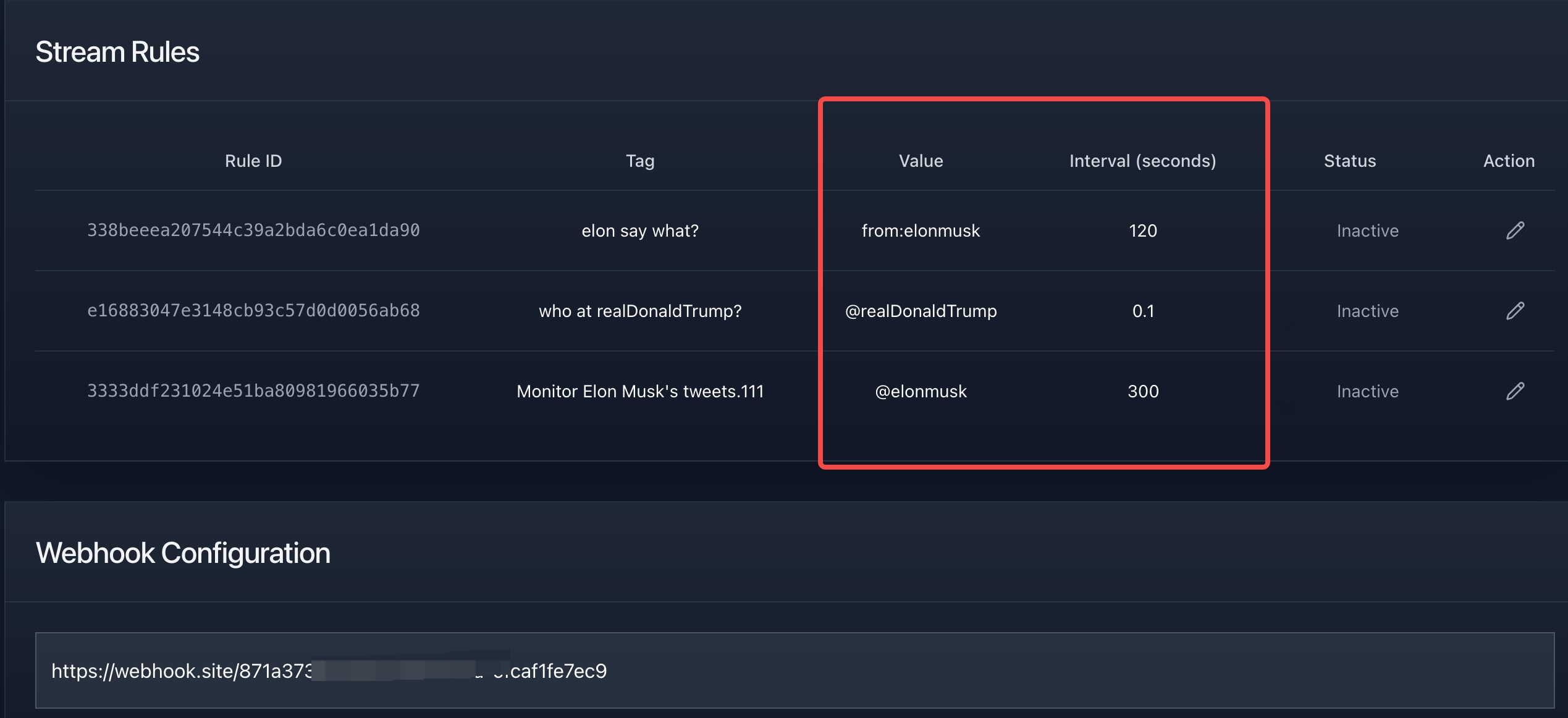
Filter Rule Examples for Real-Time Tweets
A rule value is the same query syntax as Advanced Search, so you can try a query on the search endpoint first and paste it into the rule once the results look right. Narrow rules keep both noise and the bill down.
| Job | Rule value |
|---|---|
| New posts from a few accounts | from:XDevelopers OR from:OpenAI |
| Brand mentions, original posts only | "YourBrand" -is:retweet lang:en |
| Replies and mentions aimed at an account | to:YourBrand OR @YourBrand |
| A hashtag, only posts with some traction | #AI min_faves:10 |
| Keywords in one language | (crypto OR bitcoin) lang:en -is:retweet |
One rule can combine several accounts or keywords with OR as long as the value stays within 255 characters, which is usually cheaper than one rule per account because every rule pays its own empty-check minimum.
Set Up the Webhook Rule with the API
Everything the Filter Rules page does is also available as four endpoints on https://api.twitterapi.io, authenticated with your X-API-Key header:
POST /oapi/tweet_filter/add_rulewithtag,valueandinterval_seconds; returnsrule_id,statusandmsg. The new rule is not active yet.POST /oapi/tweet_filter/update_rulewith every field again (rule_id,tag,value,interval_seconds) plusis_effect:1switches the rule on,0switches it off.GET /oapi/tweet_filter/get_ruleslists your rules withrule_id,tag,valueandinterval_seconds.DELETE /oapi/tweet_filter/delete_rulewithrule_idin a JSON body removes a rule for good.
import os
import requests

BASE = "https://api.twitterapi.io"
HEADERS = {"X-API-Key": os.environ["TWITTERAPI_IO_KEY"]}

rule = {"tag": "brand-mentions", "value": '"YourBrand" -is:retweet lang:en', "interval_seconds": 60}

# 1. Create the rule (it starts switched off)
r = requests.post(f"{BASE}/oapi/tweet_filter/add_rule", headers=HEADERS, json=rule, timeout=15)
r.raise_for_status()
created = r.json()
if created.get("status") != "success":
    raise SystemExit(created.get("msg"))
rule_id = created["rule_id"]

# 2. Switch it on: update_rule needs every field, plus is_effect=1
r = requests.post(
    f"{BASE}/oapi/tweet_filter/update_rule",
    headers=HEADERS,
    json={"rule_id": rule_id, **rule, "is_effect": 1},
    timeout=15,
)
print(r.json())  # {"status": "success", "msg": ...}

# 3. List what is configured
for item in requests.get(f"{BASE}/oapi/tweet_filter/get_rules", headers=HEADERS, timeout=15).json().get("rules", []):
    print(item["rule_id"], item["tag"], item["value"], item["interval_seconds"])

# 4. When you are done testing: switch off (is_effect=0) or delete
requests.delete(f"{BASE}/oapi/tweet_filter/delete_rule", headers=HEADERS, json={"rule_id": rule_id}, timeout=15)
The webhook URL itself is not part of these calls: matches go to the URL saved on your account in Step 1. Parameter details are in the add_rule reference and the update_rule reference.
Understanding the Webhook Payload
Each delivery is a POST with a JSON body. Real matches carry event_type: "tweet"; the dashboard test button sends event_type: "test_webhook_url" to the same URL, so check the type before you process anything. The tweets array holds the same tweet objects the Advanced Search endpoint returns (camelCase fields, the author nested under author):
{
  "event_type": "tweet",
  "rule_id": "<your rule_id>",
  "rule_tag": "brand-mentions",
  "rule_value": "\"YourBrand\" -is:retweet lang:en",
  "timestamp": "<Unix time in milliseconds>",
  "tweets": [
    {
      "id": "<tweet id>",
      "url": "https://x.com/<userName>/status/<tweet id>",
      "text": "The tweet that matched your rule",
      "createdAt": "<Ddd Mmm DD HH:MM:SS +0000 YYYY>",
      "lang": "en",
      "likeCount": 12,
      "retweetCount": 3,
      "replyCount": 1,
      "quoteCount": 0,
      "viewCount": 840,
      "author": {
        "userName": "<userName>",
        "name": "Display Name",
        "followers": 1520,
        "isBlueVerified": false
      }
    }
  ]
}
timestamp is a Unix time in milliseconds. One POST can carry several tweets, and a tweet that matches two of your rules can arrive once per rule, so de-duplicate by id. Read fields defensively: older examples on the web use snake_case names such as like_count or author.username, which are not what this payload contains.
Security Considerations
TwitterAPI.io includes your API key in the HTTP headers when sending webhook requests, allowing you to verify the authenticity of the request:
X-API-Key: your_api_key_hereImportant Security Note
Verifying Webhook Requests in Production
There is no HMAC signature: the check is that the X-API-Key header equals your own key. Compare it in constant time, answer 401 on a mismatch, and acknowledge real deliveries before doing any slow work. Each delivery is a single POST with a 1-second timeout: answer 200 within 1 second. A non-200 answer or a timeout is a failed delivery, and failed deliveries are not retried, so a receiver that calls Slack or a database inline can lose batches. A minimal Flask receiver:
import hmac, json, os, queue, threading
from flask import Flask, request

API_KEY = os.environ["TWITTERAPI_IO_KEY"]
jobs = queue.Queue()
seen = set()  # use Redis or a database table in production
app = Flask(__name__)

@app.post("/twitter-webhook")
def receive():
    if not hmac.compare_digest(request.headers.get("X-API-Key", ""), API_KEY):
        return "", 401
    jobs.put(request.get_data())  # acknowledge first, process later
    return "", 200

def worker():
    while True:
        payload = json.loads(jobs.get())
        if payload.get("event_type") != "tweet":  # e.g. the "test_webhook_url" ping
            continue
        for tweet in payload.get("tweets") or []:
            if tweet["id"] in seen:
                continue
            seen.add(tweet["id"])
            author = (tweet.get("author") or {}).get("userName")
            print(payload.get("rule_tag"), author, tweet.get("url"))

threading.Thread(target=worker, daemon=True).start()
If your server is down for a while, the tweets it missed are not queued for you. Close the gap with a scheduled Advanced Search over the same query for the period you were offline.
Managing Costs and Optimizing Usage
Important
Optimization Strategies
- Set precise filter conditions - Use more specific filters to reduce the number of matching tweets
- Combine accounts or keywords with OR - one rule pays one empty-check minimum instead of several
- Adjust check intervals - Set appropriate time intervals based on your actual needs
- Regularly review active rules - Delete rules that are no longer needed
- Monitor usage - Track your usage on the TwitterAPI.io dashboard
From Testing to Production: Complete Integration Process
After successfully testing the webhook, you may want to integrate it into your production system. Here are the recommended steps:
- Develop endpoint - Create a server endpoint to receive webhook data
- Implement verification - Verify the X-API-Key of incoming requests
- Data processing - Process tweet data according to your business needs
- Error handling - Implement robust error handling and retry mechanisms
- Monitoring - Set up monitoring to ensure your webhook is working correctly
Common Application Scenarios
TwitterAPI.io's webhook functionality is suitable for various application scenarios:
- Brand monitoring - Receive tweets mentioning your brand
- Competitor analysis - Track competitors' social activities
- Market research - Collect user opinions on specific topics
- Real-time notifications - Receive updates from important accounts or topics
- Sentiment analysis - Analyze public sentiment about specific products or services
Worked examples that build on this setup:
- Monitoring Twitter through the API: polling versus filter-rule push, with costs for each
- Twitter to Discord bot: forward matching tweets to a Discord channel
- Monitoring accounts for new tweets in real time: watch specific accounts rather than search queries
- Tweet filter rules in the dashboard: create, pause and edit the rules this guide uses
Cost Considerations and Optimization
TwitterAPI.io's pricing is straightforward, but it's important to understand how your monitoring strategy affects costs:
API Pricing
- When tweets are found: $0.00015 per tweet returned
- When no tweets are found: $0.00015 per check (the 15-credit minimum)
- Per 1,000 tweets delivered: $0.15 on the TwitterAPI.io rate card, against $5.00 for 1,000 post reads ($0.005 each) on X's pay-per-usage rate card (docs.x.com/x-api/getting-started/pricing), about 33x
Cost Optimization Tips
- Adjust monitoring frequency based on account activity
- Lengthen the interval for quiet accounts; the chart above is the empty-check floor
- Watch several accounts in one rule with OR instead of one rule each
Cost Example Calculations
Let's compare different monitoring strategies for a 30-day month:
Scenario 1: Checking every 5 minutes
- 288 checks per day × 30 days = 8,640 API calls per month
- If 20% of calls find tweets (average 2 tweets each):
- 1,728 calls with tweets: 1,728 × 2 tweets × $0.00015 = $0.5184
- 6,912 calls without tweets: 6,912 × $0.00015 = $1.0368
- Total monthly cost: $1.5552
Scenario 2: Checking every 30 minutes
- 48 checks per day × 30 days = 1,440 API calls per month
- If 60% of calls find tweets (average 3 tweets each):
- 864 calls with tweets: 864 × 3 tweets × $0.00015 = $0.3888
- 576 calls without tweets: 576 × $0.00015 = $0.0864
- Total monthly cost: $0.4752
By optimizing your check frequency, you can significantly reduce costs while still capturing the tweets you need.
Troubleshooting
If your webhook isn't working, check the following:
- Rule status - New rules start switched off; turn the rule on (or call update_rule with is_effect 1)
- Paused rules - A rule paused because credits ran out stops delivering until you top up
- Webhook URL - It is set once on the dashboard Webhook page, not per rule; use the test button there
- Filter conditions - Run the rule value through Advanced Search to confirm it matches recent tweets
- Server response - Return 200 within 1 second; a non-200 or a timeout is a failed delivery and is not retried
- Verification - Compare the X-API-Key header with the API key shown on your dashboard
- Field names - Read camelCase fields (likeCount, author.userName), not snake_case
Conclusion
Using TwitterAPI.io's webhook functionality is an efficient, code-free way to receive real-time Twitter data. Through testing with Webhook.site, you can quickly validate and understand the data flow, then seamlessly integrate it into your production system.
Getting started requires just a few simple steps:
- Sign up for a TwitterAPI.io account
- Set up tweet filter rules and webhook URL
- Build powerful applications using the received data
Remember to manage your active rules to control costs and optimize your Twitter data usage.
Still have questions? Check out our API documentation or contact us.