How to Retrieve Tweets with Twitter API v2
How to Retrieve Tweets with Twitter API v2
Want to access tweets using Twitter API v2? Here’s a quick guide:
To retrieve tweets, you’ll need a Twitter Developer Account, API credentials, and an understanding of endpoints like /2/tweets and /2/tweets/search/recent. The API v2 offers features like fetching conversation threads, user details, and media metadata. Authentication uses OAuth 2.0 with a Bearer Token, which you’ll include in your HTTP requests.
Key Steps:
- Set Up Your Developer Account: Apply at developer.twitter.com, create a project, and register an app to generate API keys.
- Authenticate: Use the Bearer Token for app-only access. Store credentials securely.
- Fetch Tweets: Use endpoints like
/2/tweetsfor specific tweet IDs or/2/tweets/search/recentfor keyword-based searches. - Add Details: Use parameters like
expansionsandfieldsto include user info, media, or engagement stats. - Handle Pagination: Use
next_tokento retrieve more than 100 tweets per request. - Avoid Errors: Test authentication, manage rate limits (900 requests/15 minutes), and handle missing data carefully.
With these tools, you can retrieve tweets efficiently for analysis or comprehensive data collection projects.
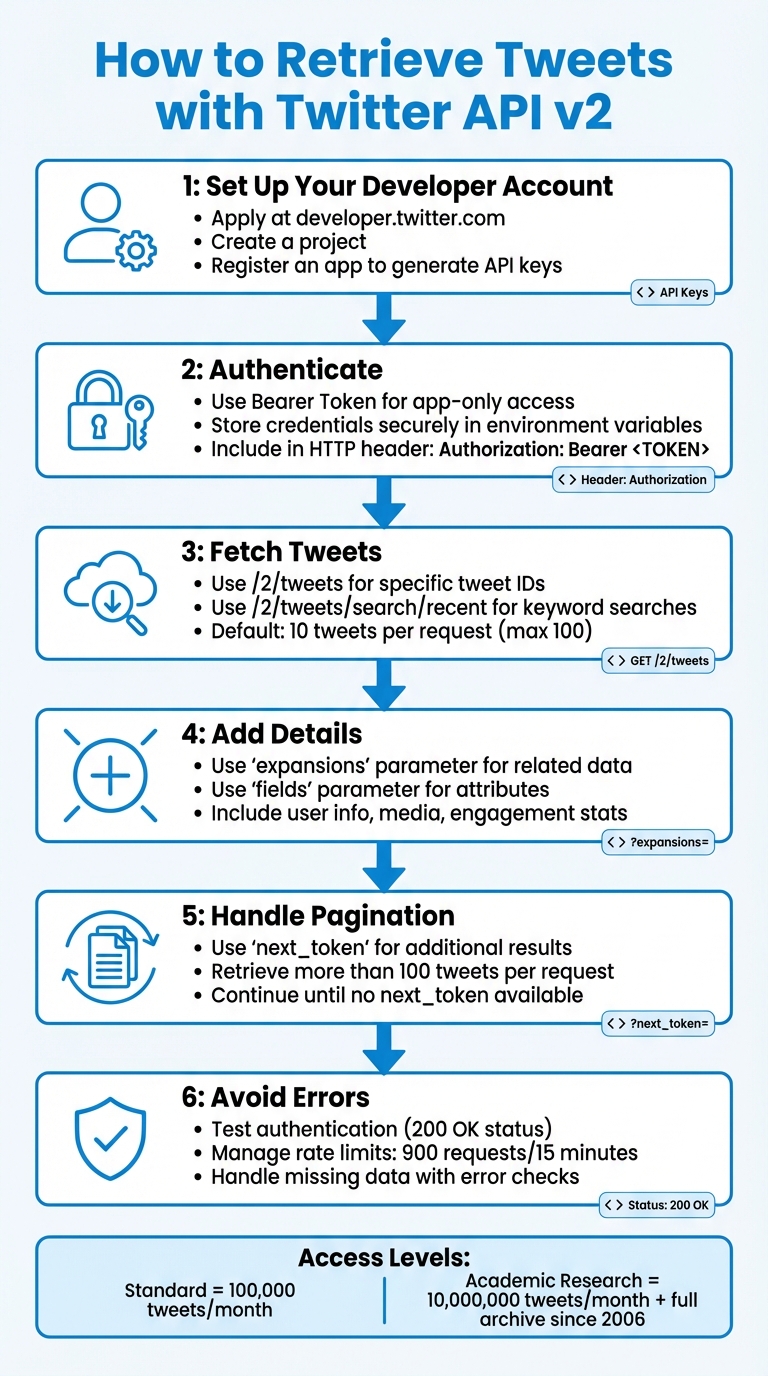
Twitter API v2 Tweet Retrieval Process: 6 Key Steps
How to use the Twitter API v2 in Python using Tweepy
sbb-itb-9cf686c
Prerequisites for Using Twitter API v2
To retrieve tweets using Twitter API v2, you'll need a Twitter Developer Account and specific credentials. Here's a breakdown of the steps to get started.
Setting Up a Twitter Developer Account
First, you need a standard Twitter account to apply for developer access at developer.twitter.com. During the application process, you'll be asked to provide details about your intended use case, country, and coding experience.
It's important to clearly outline your plans for data analysis, Direct Messaging usage, and data-sharing practices. This helps avoid application denial. Once approved, you'll gain access to the Developer Portal, where you'll create a Project. A project acts as an organizational container for your work. Within this project, you'll register an App, which is essential for generating your API credentials. As Suhem Parack, Developer Advocate, explains:
"An app is a container for your API keys that you need in order to make an HTTP request to the Twitter API".
Your access level determines the API's limits. For instance, the standard product track allows free access to up to 100,000 tweets per month. On the other hand, the Academic Research track provides access to 10,000,000 tweets per month, along with full-archive search capabilities dating back to 2006. However, Academic access requires a more detailed application and manual approval.
Obtaining Authentication Credentials
Once your app is set up, the Developer Portal will generate three essential credentials: the API Key, API Secret Key, and Bearer Token. The Bearer Token is particularly important for OAuth 2.0 authentication, which is used to access public data like tweets without the complexities of official API authentication.
Make sure to save these credentials as soon as they are generated. Some keys cannot be retrieved again. As Laura O'Mahony, Data Scientist, advises:
"All of these keys should be treated like passwords, and not shared or written in your code in plain text".
To protect your credentials, store your Bearer Token in an environment variable rather than embedding it directly in your code. For example, you can set it in your terminal with the following command:
export BEARER_TOKEN='your_token'
If you need your application to post tweets (write access), you'll also need to enable user authentication and set your app permissions to "Read and write."
These credentials will play a crucial role in the next steps, which cover authenticating with Twitter API v2.
Authenticating with Twitter API v2
OAuth 2.0 Bearer Token Authentication
OAuth 2.0 Bearer Token is one of the easiest ways to access public Twitter data. This "App-Only" method allows your application to operate independently, without tying it to a specific user account. It’s perfect for fetching tweets without needing user permissions.
To authenticate, include the Bearer Token in the HTTP header like this: Authorization: Bearer <TOKEN>. You’ll generate this token in the Developer Portal when setting up your app. Make sure to store it securely in environment variables to keep it safe.
If you’re using Tweepy, the tweepy.Client class lets you pass the Bearer Token directly:
import tweepy
client = tweepy.Client(bearer_token='YOUR_BEARER_TOKEN')
For manual HTTP requests, you can use libraries like requests. Just include the token in the header like this: headers={'Authorization': 'Bearer <TOKEN>'}.
Once the token is set up, it's time to test your authentication. If you find the official API's rate limits or pricing restrictive, you might also consider exploring Twitter API alternatives for your project.
Testing Authentication
Testing ensures that your authentication setup is working as expected. A successful test returns a JSON response with an HTTP status code of 200 OK. On the other hand, a 401 Unauthorized error usually means there’s an issue with your header or token.
For a quick test, you can use curl in your terminal. Replace XXXXXX with your actual token:
curl --request GET 'https://api.twitter.com/2/tweets/search/recent?query=from:twitterdev' --header 'Authorization: Bearer XXXXXX'
If you prefer a visual tool, Postman is a great option. Create a new GET request to https://api.twitter.com/2/tweets/search/recent?query=from:twitterdev. Then, under the Headers tab, add Authorization as the Key and Bearer YOUR_TOKEN_HERE as the Value. Make sure there’s a space after the word "Bearer" to avoid errors.
For Python users, you can initialize a tweepy.Client with your Bearer Token and make a simple call. If the client fetches data without raising an exception, your authentication is good to go.
Retrieving Tweets by ID
Once you're authenticated, you can start retrieving tweets using their unique IDs.
Using the /2/tweets Endpoint
The /2/tweets endpoint is the primary tool for fetching tweets when you know their IDs. Each tweet is assigned a unique numerical ID, and this endpoint allows you to retrieve one or multiple tweets in a single request.
For a single tweet, the URL looks like this:
https://api.twitter.com/2/tweets/1846987139428634858.
If you need to retrieve multiple tweets simultaneously, you can pass the IDs as a comma-separated list:
https://api.twitter.com/2/tweets?ids=1846987139428634858,1866332309399781537.
This method is much more efficient than sending separate requests for each tweet. By default, only the tweet ID and text are returned unless you specify additional parameters.
Adding Parameters for Expansions and Fields
To get more detailed information, you can include expansions and fields parameters in your request. Expansions allow you to pull in related data, such as user profiles or media, while fields let you specify which attributes you want for those objects.
For example, adding expansions=author_id along with user.fields=username,profile_image_url,verified will include details about the tweet's author in the includes section of the JSON response. If you're interested in engagement metrics, you can use tweet.fields=public_metrics,created_at to get retweet counts, likes, and the posting time.
Here’s an example combining several parameters:
https://api.twitter.com/2/tweets?ids=1846987139428634858&tweet.fields=created_at,public_metrics,lang&expansions=author_id&user.fields=username,verified.
This request will return the tweet text, engagement stats, language, posting time, and author details - all in one response, formatted neatly with separate sections for related data.
If the tweet includes images or videos, you can use expansions=attachments.media_keys alongside media.fields=url,preview_image_url,type to retrieve media URLs. The media details will appear in the includes section of the response, keeping the primary tweet data uncluttered.
Next, we’ll dive into searching for recent tweets using these same parameter techniques.
Searching for Recent Tweets
If you don't have tweet IDs, the recent search endpoint is your go-to for finding tweets using keywords, hashtags, and X API alternatives. This endpoint lets you access public tweets from the past 7 days, returning 10 tweets per request by default. However, you can increase this to up to 100 tweets by using the max_results parameter.
The endpoint URL looks like this:
https://api.twitter.com/2/tweets/search/recent?query=your_search_terms.
By default, the response includes only the tweet ID and text. To get more details, you’ll need to include tweet.fields and expansions parameters for additional data. Once you’ve got this set up, you can focus on crafting precise search queries with keywords and operators.
Constructing Queries with Operators
Creating effective queries means combining keywords, hashtags, and operators to refine your search results. Here’s how it works:
- A space between words acts as an "AND" operator, meaning both terms must appear. For example,
climate changematches tweets containing both words. - Use
ORto find tweets containing either term, likeclimate OR environment. - To exclude certain content, place a hyphen before the term or operator. For instance,
-is:retweetexcludes retweets, ensuring only original tweets appear. - The
from:operator filters tweets from a specific account. For example,from:TwitterDevretrieves tweets only from that user.
Here’s an example of a more complex query:
climate change has:images -is:retweet lang:en.
This query searches for original English tweets about climate change that include images. Keep in mind the character limit for queries: 512 characters for Standard access and 1,024 characters for Academic Research.
| Operator | Description | Example |
|---|---|---|
keyword |
Matches a keyword or phrase | climate |
#hashtag |
Matches a hashtag | #Caturday |
from: |
Matches tweets from a user | from:TwitterDev |
-is:retweet |
Excludes retweets | -is:retweet |
has:images |
Matches tweets with images | has:images |
lang: |
Filters by language code | lang:en |
Just like retrieving tweets directly, you can enrich search results by specifying fields and expansions to get detailed information.
Handling Pagination and Rate Limits
Since the API limits each request to 100 tweets, you’ll need to handle pagination for larger datasets. After each request, check the meta object in the JSON response for a next_token. Use this token in the next_token parameter of your next request to continue fetching results.
If you’re working in Python, the tweepy.Paginator utility can make pagination easier by managing the next_token for you and combining results into one set. When automating pagination, it’s smart to define both a limit (total tweets you want) and max_results (tweets per request) to avoid hitting rate limits.
The API allows up to 900 requests in a 15-minute window. If you exceed this, you’ll get an HTTP 429 status code. Tools like Tweepy can help by enabling wait_on_rate_limit=True, which automatically pauses and retries when needed. With these strategies, you’re ready to dive into advanced queries and ensure smooth data retrieval.
Advanced Query Examples and Best Practices
Building on the earlier methods for retrieving tweets, these advanced techniques focus on refining data collection and managing potential errors effectively.
Python Code Samples for Common Scenarios
Fetching tweets becomes much simpler with tools like Tweepy (v4.0+) or the requests library. Tweepy stands out for its built-in features like authentication and pagination, making it an ideal choice for most use cases. To keep your credentials secure, always store them in environment variables, as highlighted in the Prerequisites section.
Take this example: In June 2021, researcher Selen Arslan used the Twitter API v2 Academic Research track to gather 18,250 tweets related to postpartum health. Her Python script, built with Tweepy, retrieved 50 original English tweets daily throughout 2021 using the query (postpartum OR #postpartum) lang:en -is:retweet. She organized the data into a CSV file, which included metrics like likes, retweets, and replies. As Arslan put it:
"Tweepy is an open source Python package that gives you a very convenient way to access the Twitter API with Python".
When collecting large datasets, it’s crucial to set a total tweet limit and specify max_results for each request to maintain control over the retrieval process. Tweepy’s wait_on_rate_limit=True option is especially helpful, as it automatically handles rate limits. Since the API only provides tweet IDs and text by default, always request additional fields using tweet_fields and expansions to get richer data.
For smoother operations, robust error handling is essential. Let’s dive into some strategies for managing common issues.
Error Handling and Troubleshooting
Even with advanced queries, errors can arise, so having a plan to address them is key to maintaining data integrity.
One frequent issue is the 401 Unauthorized error, which usually indicates a problem with your Bearer Token - it might be missing, expired, or incorrect. A successful API call should return a status code of 200. If you hit the rate limit, the API will respond with an HTTP 429 status code.
Not all tweets include the same metadata, so it’s important to handle missing fields carefully. For example, use checks like if 'geo' in tweet before accessing optional data to avoid KeyError exceptions. When dealing with timestamps, ensure your start_time and end_time parameters follow the ISO 8601 format: YYYY-MM-DDTHH:mm:ssZ. Andrew Edward, a researcher at Carnegie Mellon University, offers this tip:
"If more results exist for your query, Twitter will return a unique next_token that you can use in your next request".
Conclusion
Following the steps outlined above can help you efficiently retrieve tweets using Twitter API v2. Start by setting up your Twitter Developer account and registering an app to generate the necessary API credentials: API Key, API Secret Key, and Bearer Token. For read-only operations, authenticate with OAuth 2.0 Bearer Token by including it in your HTTP request header.
Select the appropriate search endpoint based on your needs: use /2/tweets/search/recent for tweets from the past 7 days or /2/tweets/search/all for full-archive access (available with the Academic Research track). To retrieve more tweets, manage pagination through the next_token provided in the response metadata. This ensures you can gather all relevant data.
By default, the API only returns Tweet IDs and text, but you can access additional metadata - like author details, timestamps, or public metrics - by including expansions and fields parameters in your request. Standard search requests allow up to 100 tweets per call (or up to 500 for full-archive searches). Continue paginating until the next_token is no longer available, indicating all tweets have been retrieved.
Keep your API keys secure and handle errors carefully to maintain consistent data collection. Be mindful of API usage limits and pricing, as discussed earlier, to avoid interruptions. With these practices in place, you'll be well-prepared to make the most of Twitter's data for your projects. For a deeper dive into modern data access, check out this Twitter API guide.
FAQs
Which Twitter API v2 access level do I need for my use case?
To decide on the right Twitter API v2 access level, think about what you need:
- Free Tier: Suitable if you only need to post tweets without retrieving data.
- Basic Tier: Works well for small-scale data reading/writing or building prototypes.
- Elevated Tiers (Pro, Enterprise): Provide full-archive search, higher usage limits, and advanced capabilities.
If your goal is to retrieve tweets or analyze data, you'll probably need the Basic tier or something more advanced, depending on your specific use case.
When should I use /2/tweets vs /2/tweets/search/recent?
To access particular tweets by their unique IDs, use the /2/tweets endpoint. This allows you to fetch full details or content of individual tweets efficiently.
For searching tweets from the past 7 days, the /2/tweets/search/recent endpoint is your go-to. It’s perfect for gathering recent tweet data based on specific keywords or queries that match your criteria.
How do I handle pagination and rate limits safely?
To handle pagination effectively, utilize the next_token from the API response to fetch additional pages, continuing this process until no token is provided. You can adjust the max_results parameter (with a limit of 100) to specify the number of tweets per response. Keep an eye on the response headers to track rate limits, including remaining requests and reset times, and plan retries accordingly. Tools such as TwitterAPI.io can simplify pagination and assist in managing historical data with ease.
Tags
Related articles
Ready to get started?
Try TwitterAPI.io for free and access powerful Twitter data APIs.
Get Started Free