How to Clear Your Twitter (X) History: Searches, Watch History, and Posts
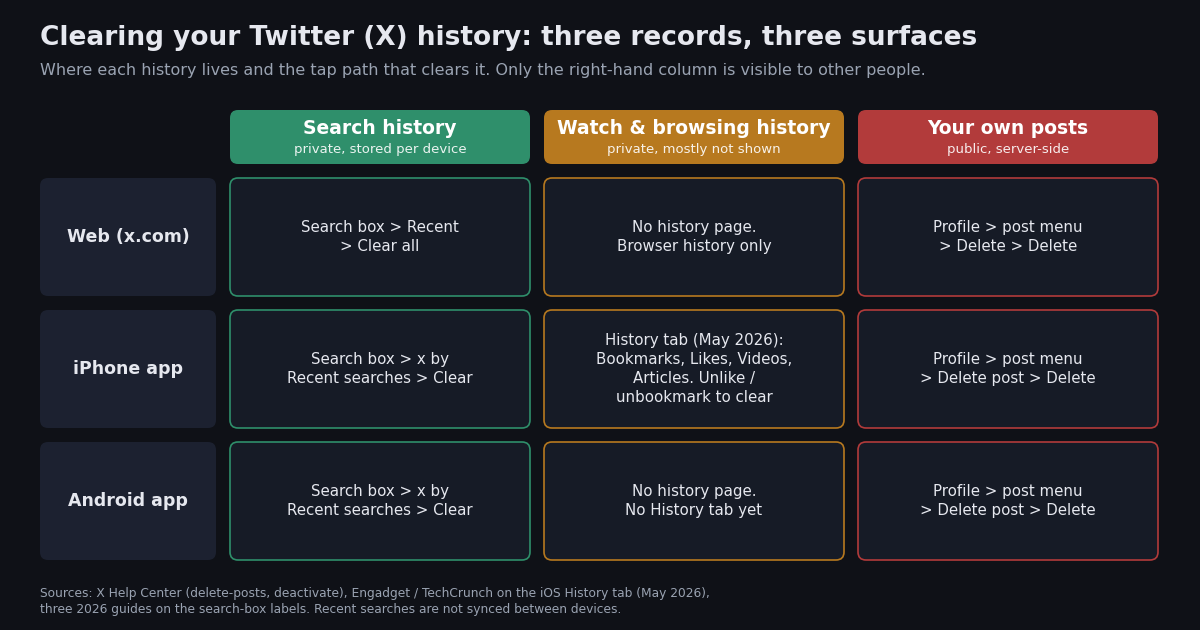
Searching for how to clear your Twitter (X) history usually starts with one embarrassing autocomplete suggestion in the search box, and ends with a bigger question: what else does X remember about me, and how much of it can I actually remove? The answer depends on which of three records you mean. Your search history is a short list of terms stored on each device. Your watch and browsing history barely exists as a page you can open, except in the iPhone app's History tab. Your own posts are the one history everybody else can see, and the only one with real consequences if it stays up.
This page is about clearing all three, with exact steps for the web, iPhone, and Android, and a clear line between what disappears from view and what X keeps on its servers. If you are instead trying to see or export your history, the sibling guides on whether X has a watch history and on exporting a tweet timeline through the API cover that; this page only covers removal.
The last section is for anyone with years of posts to go through: a short Python script that lists every post on your timeline through a read endpoint, filters the ones you might want gone, and writes the IDs to a CSV. Deleting is a separate, logged-in action on your own account, and the bulk-delete tutorial linked below handles that side.
The three histories, and where each one lives
Most guides answer this query with the search-box steps and stop. That leaves out the two records people are often more worried about. The table maps all three, where each one is stored, and whether clearing it on one device clears it everywhere.
Two distinctions matter before you start. First, only the posts row is public. Nobody can open your recent searches or your History tab; X describes the History tab as private to the account owner, and the search list lives on your device. If your worry is someone borrowing your phone, the first two rows matter; if your worry is an employer or a journalist, only the posts row does. Second, the watch-history row is thin on purpose. X has no watch-history page on the web or Android, and the sibling guide on whether Twitter (X) has a watch history walks through every place X does keep a record; this page only covers what you can remove.
Clear your Twitter (X) search history: web, iPhone, Android
The search list is the easiest of the three to clear, and the one that fools people, because it is stored per device. Clearing it on your laptop leaves the same terms on your phone. The steps below were checked against three independent 2026 guides, which agree on the menu labels; X's help center documents search operators but not the clear button itself, so treat the exact wording as current rather than guaranteed.
Repeat per device and per browser. A second browser on the same computer keeps its own list, and so does a private window until you close it. Logging out clears recent searches on that device too, which is a quick way to do it before handing a phone to someone, but it does not touch any other device.
Saved searches are a separate list. Historically you could keep up to 25 saved searches per account, synced across devices. As of this review, X's own help page for saving searches states that saved searches are currently not available on x.com, and a March 2026 report described the Save search button disappearing from the Android app and web client. If your app still shows saved searches, each one has a trash icon or a remove option beside it; if it does not, there is nothing left to clear on that surface.
What this does and does not remove. Clearing the list removes the autocomplete suggestions and the Recent dropdown. It does not change search results, and it does not remove the record of the search from X's servers; X's privacy policy describes retaining usage information such as searches and interactions as part of log data, without a published retention period for that specific category. The archive you can download from Settings includes your saved searches but not the device-side recent list, as the 2026 guides we checked also note.
Watch and browsing history: what you can actually clear
This is where most "clear your Twitter history" articles overpromise. On the web and on Android, X shows no list of the posts you scrolled past, the videos that autoplayed, or the profiles you opened, and X's help center does not document such a page (help.x.com, verified 2026). There is nothing to clear because there is nothing shown.
The exception arrived in May 2026. X renamed the Bookmarks button in the iPhone app to History and gave it four sections: Bookmarks, Likes, Videos, and Articles. Engadget and TechCrunch reported the rollout, quoting X's head of product, Nikita Bier, on catching up with long-form content; the Videos and Articles sections fill automatically from long videos you watched and articles you opened, and X has not said when Android will get it. How to clear each section:
Bookmarks. Open History, then Bookmarks, and remove each post with the bookmark icon, or use the Clear all bookmarks option in the menu where your app shows it. Bookmarks are private to you on every surface.
Likes. Open History, then Likes, and unlike each post. Likes have been hidden from other users since 2024, as the same reports note, so this is housekeeping rather than damage control.
Videos and Articles. X has not documented a clear or pause control for these two sections in its help center, and the launch coverage does not mention one. Some third-party guides describe a Clear watch history option under the Video tab's settings; we could not confirm that path in X's own documentation this session, so if your app shows it, use it, and if it does not, assume the list clears only when the underlying like, bookmark, or account goes.
Browsing data outside the app. Two things still record what you looked at. Your browser keeps every x.com post you opened as its own page, and clearing that is a browser setting, not an X setting. Separately, X's documentation for X for Websites, the embed and share widgets on third-party sites, states that browsing data collected through those widgets is deleted, obfuscated, or aggregated within 30 days (docs.x.com, verified 2026). That is the only retention figure X publishes for browsing-type data.
Interests X inferred about you. Under Settings and privacy, then Privacy and safety, then Content you see, X lists topics and interests it has inferred and lets you untick them. That trims what the recommendation system uses; X does not describe it as deleting the underlying data.
Erase your own posts: one at a time, and the 3,200 wall
Your posts are the only history other people can read, so this is the part with consequences. X's help center gives the same six steps on every surface: tap your profile icon, tap Profile, find the post, tap the icon at the top of the post, tap Delete post, then tap Delete to confirm (help.x.com, verified 2026). The deletion shows up on x.com, iOS, and Android at once. You can only delete your own posts; a reply you wrote under someone else's post is yours and can go, but their post stays.
Reposts and quotes. Undoing a repost removes it from your profile instantly: open the post and tap the repost icon again. When you delete an original post, reposts of it disappear with it because they are the same post; quote posts written by other people stay up, with the quoted content shown as unavailable. X's help center does not spell out the quote case, but it is consistently reported and easy to confirm by quoting and deleting a test post.
The 3,200 wall. The official X API's user timeline endpoint is documented as returning at most the 3,200 most recent posts, reposts, replies, and quotes for an account (docs.x.com, verified 2026), and the profile page you scroll through is widely reported to stop around the same depth. For an account with more history than that, the posts beyond the wall are still live and still searchable, but you cannot reach them by scrolling. The way through is the archive: Settings and privacy, then Your account, then Download an archive of your data; X emails a link, which its help center says can take 24 hours or longer. The archive's tweets file lists every post with its ID, and bulk tools and scripts take that file as input.
Where bulk deletion is covered. There is no delete-all button in X. The bulk-delete tutorial linked below covers the write side: the official delete endpoint, pacing, a dry run, and what the free tools actually give you. The last section of this page covers the read side, listing and choosing, which is where the API saves the most time.
What is actually deleted versus what X keeps
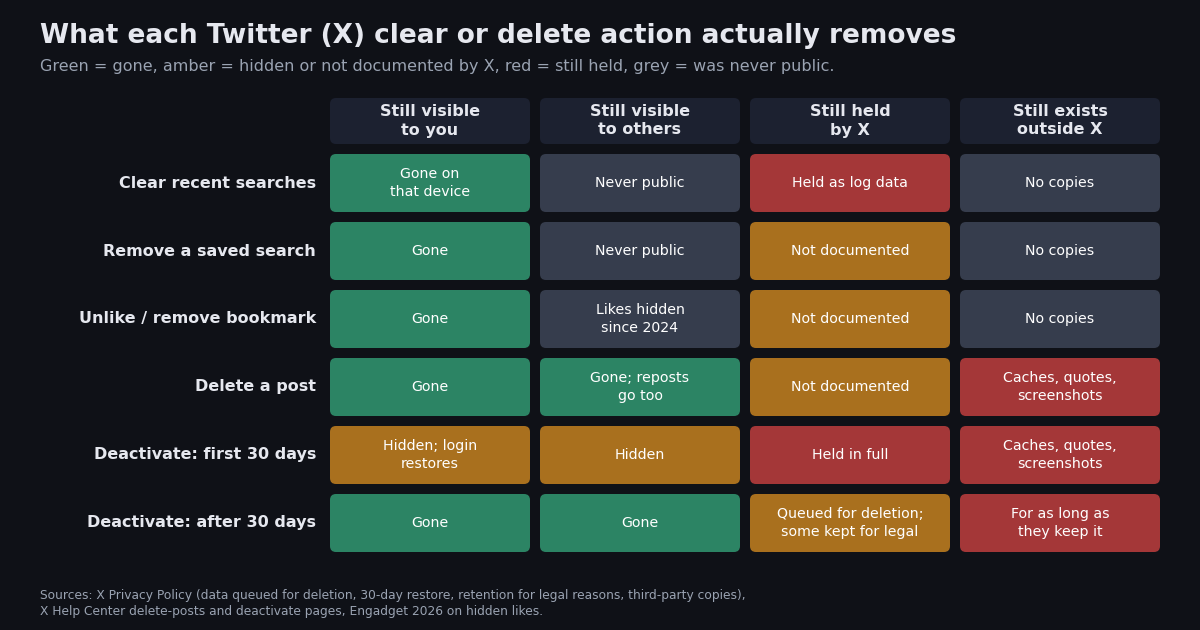
Every clear and delete action on X changes what is displayed. Whether it changes what is stored is a different question, and X's privacy policy is the only authority on it. The policy says that when you deactivate, your account is deactivated and your data is queued for deletion, that restoring is possible for up to 30 days, and that X may keep some information longer where it is required to by law or for other legitimate purposes; it also notes that public content may already have been copied by others, including search engines, which X does not control. Everything in the matrix below follows from those sentences plus the help-center pages cited on this page.
Three rows deserve a note. The deleted-post row is where expectations and reality diverge most: X removes the post from every surface it controls, but a quote post by someone else, a screenshot, a cached copy on a search engine, or a copy in a third-party archive is outside X's deletion. X's help center has a dedicated article on removing your profile from Google search results, which is a sign of how often that question comes up; the practical answer is to delete the post first, then request removal of the stale cached copy from the search engine.
The two deactivation rows are the only ones where X describes deleting data rather than hiding it, and even there the 30-day restore window means the data is intact for a month. If your goal is that a post stop being retrievable as fast as possible, deletion of the post is faster than deactivation; if your goal is that X stop holding the account's data, deactivation followed by 30 days of not logging in is the only documented route.
Clear it for good: deactivation and the 30-day window
If the goal is to erase the account's history rather than tidy it, deactivation is the route X documents. The help center describes it as the first step of permanent deletion: Settings and privacy, then Your account, then Deactivate your account, then confirm with your password. From that moment your handle and profile are not viewable on x.com or in the apps, and a 30-day clock starts (help.x.com, verified 2026).
Do not log in. Any login during the 30 days reactivates the account and the clock restarts. The help center is explicit that not logging in during the window is how X knows you want the account permanently deleted, and that after the window the account is gone and cannot be restored. Third-party guides add a practical warning: turn off any app or browser extension that holds a session, because an automatic refresh can count as a login.
Download the archive first. Once the account is deleted, X will not produce one. Request it from Settings and privacy, then Your account, then Download an archive of your data, and wait for the email; the help center says the file can take 24 hours or longer to prepare.
Delete the posts before you deactivate if speed matters. During the 30 days the posts are hidden, not deleted, and anyone who guesses you will reactivate can simply wait. Deleting the posts you care about before deactivating removes them from X's surfaces immediately and is the order the 2026 guides we checked recommend.
What deletion still does not reach. Mentions of your old handle in other people's posts stay up, quote posts keep their text, and search engines may keep cached copies for a while after the account disappears. X's privacy policy and help center both say X does not control copies that third parties already made. For cached search results, the search engine's own removal request is the only lever.
At scale: list every post with the API and choose what to delete
Everything above is for a human with a phone. If you have thousands of posts, the slow part is not deleting; it is deciding. Scrolling a profile to find the posts from a particular year, with a particular word, or with no engagement at all is impractical past a few hundred, and the X app has no filter for it. A read endpoint turns that into a CSV you can sort in a spreadsheet.
GET /twitter/user/last_tweets takes a userName (or userId), a cursor, and an includeReplies flag, and returns up to 20 posts per page under a tweets array with has_next_page and next_cursor for the next page; each post carries id, url, text, createdAt, likeCount, retweetCount, replyCount, viewCount, and isReply (docs.twitterapi.io, verified 2026). The script below pages through your own timeline, applies three filters you can edit (older than a date, containing a word, below a like count), and writes every post to a CSV with a flag column. Nothing is deleted; you open the CSV, read the flagged rows, and decide.
Cost. Timeline reads are priced per post returned: 15 credits per post, which is $0.15 per 1,000 posts, with a 15-credit minimum per request, so a full 20-post page costs $0.003 and an empty page costs the minimum (twitterapi.io/pricing, verified 2026). Listing 1,000 posts is about $0.15; listing the 3,200 that the official timeline cap allows is about $0.48. The official X API prices the same reads at $0.005 per post on its pay-per-use tier (docs.x.com pricing, verified 2026), so 1,000 posts cost $5 there, roughly 33 times the price, and 3,200 cost $16. New twitterapi.io accounts that pass the automatic bot check get $1 in free credits, one per person, which expires after 31 days; that covers a few thousand posts on its own.
The write side stays human-paced. Deleting is a logged-in action on your own account. The bulk-delete tutorial linked below uses the official delete endpoint with a dry run and pacing; whichever tool you use, delete in batches you have read, keep the CSV as your own record, and never point a script at an account that is not yours.
Past the 3,200 cap. If has_next_page turns false before you reach the oldest posts you know exist, the remaining ones are reachable by date range through search operators: from:yourhandle since:2015-01-01 until:2015-12-31 on GET /twitter/tweet/advanced_search returns a year at a time. The history export guide linked below shows that backfill pattern end to end.
import csv
import os
from datetime import datetime, timezone

import requests

BASE = "https://api.twitterapi.io"
HEADERS = {"X-API-Key": os.environ["TWITTERAPI_IO_KEY"]}  # key from twitterapi.io/dashboard
X_DATE = "%a %b %d %H:%M:%S %z %Y"  # createdAt format used by the API

# Edit these three filters. A post is flagged if it matches ANY of them.
OLDER_THAN = datetime(2020, 1, 1, tzinfo=timezone.utc)
CONTAINS = ["old company", "draft"]  # case-insensitive substrings
MAX_LIKES = 0  # flag posts with this many likes or fewer


def list_posts(handle):
    """Yield every post on the account's timeline, newest first, 20 per page."""
    cursor = ""
    while True:
        r = requests.get(
            f"{BASE}/twitter/user/last_tweets",
            params={"userName": handle, "cursor": cursor, "includeReplies": "true"},
            headers=HEADERS,
            timeout=30,
        )
        r.raise_for_status()
        body = r.json()
        yield from body.get("tweets") or []
        if not body.get("has_next_page") or not body.get("next_cursor"):
            break
        cursor = body["next_cursor"]


def flag(post):
    created = datetime.strptime(post["createdAt"], X_DATE) if post.get("createdAt") else None
    text = (post.get("text") or "").lower()
    reasons = []
    if created and created < OLDER_THAN:
        reasons.append("old")
    if any(w.lower() in text for w in CONTAINS):
        reasons.append("keyword")
    if (post.get("likeCount") or 0) <= MAX_LIKES:
        reasons.append("no_likes")
    return "+".join(reasons)


if __name__ == "__main__":
    handle = "yourhandle"  # your own account
    rows = []
    for p in list_posts(handle):
        rows.append({
            "id": p.get("id"), "url": p.get("url"), "createdAt": p.get("createdAt"),
            "isReply": p.get("isReply"), "likes": p.get("likeCount"),
            "reposts": p.get("retweetCount"), "views": p.get("viewCount"),
            "text": (p.get("text") or "").replace("\n", " "), "flag": flag(p),
        })
    with open(f"{handle}-posts-review.csv", "w", newline="", encoding="utf-8") as fh:
        w = csv.DictWriter(fh, fieldnames=list(rows[0].keys()))
        w.writeheader()
        w.writerows(rows)
    flagged = sum(1 for r in rows if r["flag"])
    print(f"listed {len(rows)} posts; {flagged} flagged for review -> {handle}-posts-review.csv")
    print("Nothing was deleted. Read the flagged rows, then delete at a human pace.")
"""List your own Twitter (X) posts so you can choose which to delete.

Usage: python review_posts.py <your_handle>
Writes <handle>-posts-review.csv with one row per post and a `flag` column.
Needs TWITTERAPI_IO_KEY in the environment. Reads only; deletion is a separate,
logged-in action on your own account (see the bulk-delete tutorial).
"""
import csv
import os
import sys
from datetime import datetime, timezone

import requests

BASE = "https://api.twitterapi.io"
HEADERS = {"X-API-Key": os.environ["TWITTERAPI_IO_KEY"]}
X_DATE = "%a %b %d %H:%M:%S %z %Y"

OLDER_THAN = datetime(2020, 1, 1, tzinfo=timezone.utc)
CONTAINS = ["old company", "draft"]
MAX_LIKES = 0


def get(url, params):
    r = requests.get(url, params=params, headers=HEADERS, timeout=30)
    r.raise_for_status()
    return r.json()


def profile(handle):
    data = get(f"{BASE}/twitter/user/info", {"userName": handle}).get("data") or {}
    return data.get("statusesCount") or 0


def list_posts(handle):
    cursor = ""
    while True:
        body = get(f"{BASE}/twitter/user/last_tweets",
                   {"userName": handle, "cursor": cursor, "includeReplies": "true"})
        yield from body.get("tweets") or []
        if not body.get("has_next_page") or not body.get("next_cursor"):
            break
        cursor = body["next_cursor"]


def flag(post):
    created = datetime.strptime(post["createdAt"], X_DATE) if post.get("createdAt") else None
    text = (post.get("text") or "").lower()
    reasons = []
    if created and created < OLDER_THAN:
        reasons.append("old")
    if any(w.lower() in text for w in CONTAINS):
        reasons.append("keyword")
    if (post.get("likeCount") or 0) <= MAX_LIKES:
        reasons.append("no_likes")
    return "+".join(reasons)


if __name__ == "__main__":
    handle = sys.argv[1] if len(sys.argv) > 1 else "yourhandle"
    total = profile(handle)
    print(f"@{handle} reports {total:,} posts on its profile; listing the reachable timeline...")
    rows = []
    for p in list_posts(handle):
        rows.append({
            "id": p.get("id"), "url": p.get("url"), "createdAt": p.get("createdAt"),
            "isReply": p.get("isReply"), "likes": p.get("likeCount"),
            "reposts": p.get("retweetCount"), "views": p.get("viewCount"),
            "text": (p.get("text") or "").replace("\n", " "), "flag": flag(p),
        })
    if not rows:
        print("no posts returned; check the handle and that the account is public")
        sys.exit(0)
    with open(f"{handle}-posts-review.csv", "w", newline="", encoding="utf-8") as fh:
        w = csv.DictWriter(fh, fieldnames=list(rows[0].keys()))
        w.writeheader()
        w.writerows(rows)
    flagged = sum(1 for r in rows if r["flag"])
    print(f"listed {len(rows):,} posts ({len(rows) / 20:.0f} pages, about ${len(rows) * 0.00015:.2f}); "
          f"{flagged:,} flagged -> {handle}-posts-review.csv")
    if total > len(rows):
        print(f"{total - len(rows):,} older posts are beyond the timeline; use advanced_search with "
              f"from:{handle} since:/until: to reach them by year")
    print("Nothing was deleted. Review the CSV, then delete in batches you have read.")
Questions readers ask
How do I clear my Twitter (X) search history?
Tap or click the search box. On the web a Recent dropdown appears; click Clear all, or the x next to one term. In the iPhone and Android apps, tap the magnifying glass, tap the search box, and tap the x next to Recent searches, then Clear; swipe left (iPhone) or tap and hold (Android) to remove a single term. The list is stored per device, so repeat it on each phone and browser.
Does clearing search history on the X app also clear it on the website?
No. Recent searches are kept on the device or browser you typed them on, and every 2026 guide that tested it reports that clearing the app leaves the web list intact and vice versa. Saved searches were the synced list, and X's help center currently says saved searches are not available on x.com.
Can other people see my Twitter (X) search history?
No. Recent searches live on your device, and X does not show them on your profile or to anyone else. The only way another person sees them is by using your unlocked phone or browser. X itself keeps searches as part of the usage data its privacy policy describes, without a published retention period for that category.
Does Twitter (X) have a watch history I can clear?
Not on the web or Android; there is no page listing the posts or videos you viewed, so there is nothing to clear. Since May 2026 the iPhone app has a History tab with Bookmarks, Likes, Videos, and Articles. Bookmarks and Likes clear by removing items; X has not documented a clear control for the Videos and Articles sections, and some guides describe one that we could not confirm in X's help center.
How do I erase all my tweets at once?
X has no delete-all button; its help center documents deleting one post at a time from your profile with Delete post, then Delete. For bulk removal you need your downloadable archive plus a tool or script that deletes through the official API, at a human pace. The script on this page lists and filters your posts for review; the bulk-delete tutorial linked below covers the deletion step.
What does X keep after I delete a post or clear my history?
Clearing searches and deleting posts remove them from every surface X controls, but X's privacy policy describes deleted data as queued, with a 30-day restore window after deactivation, and some data kept longer where the law requires. Copies that already left X, such as search-engine caches, quote posts, screenshots, and third-party archives, are outside X's deletion entirely.
How do I delete my Twitter (X) history permanently?
Delete the posts you care about first, download your archive, then deactivate from Settings and privacy, then Your account, then Deactivate your account, and do not log in for 30 days. X's help center says the account is permanently deleted after that window and cannot be restored. Mentions of your handle in other people's posts and cached copies on search engines can still remain.
Why can I not scroll back to my oldest tweets to delete them?
The official X timeline is documented as reaching at most the 3,200 most recent posts, and the profile page stops at about the same depth. Older posts are still live. Reach them through the archive download, which lists every post with its ID, or by date range with search operators such as from:yourhandle since: and until:, which the history export guide linked below shows how to automate.
Continue
- X Help Center: How to delete a post (the six-step path on web, iOS, and Android)
- X Help Center: How to deactivate your account (30-day window before permanent deletion)
- X Help Center: How to access your X data (the downloadable archive)
- X Privacy Policy: data queued for deletion on deactivation, 30-day restore, retention for legal reasons, third-party copies
- twitterapi.io docs: Get User Last Tweets (userName, cursor, includeReplies; tweets[], has_next_page, next_cursor)
- X API pay-per-usage pricing (docs.x.com): $0.005 per post read, the official and more expensive route
- Twitter (X) API overview: the hub for reading X data
- Does Twitter (X) have a watch history? Every record X keeps and how to see it
- Mass delete tweets: bulk API workflow, pacing, and free tool options
- Export a Twitter (X) account's tweet history with the API
- How to download tweets via the API: a Python guide
- twitterapi.io pay-per-call pricing: $0.15 per 1,000 posts
Stop reading. Start building.
Starter credits cover real testing on real data. Google sign-in, no card, no application queue.
Get an API key