Does Twitter (X) Have a Watch History?
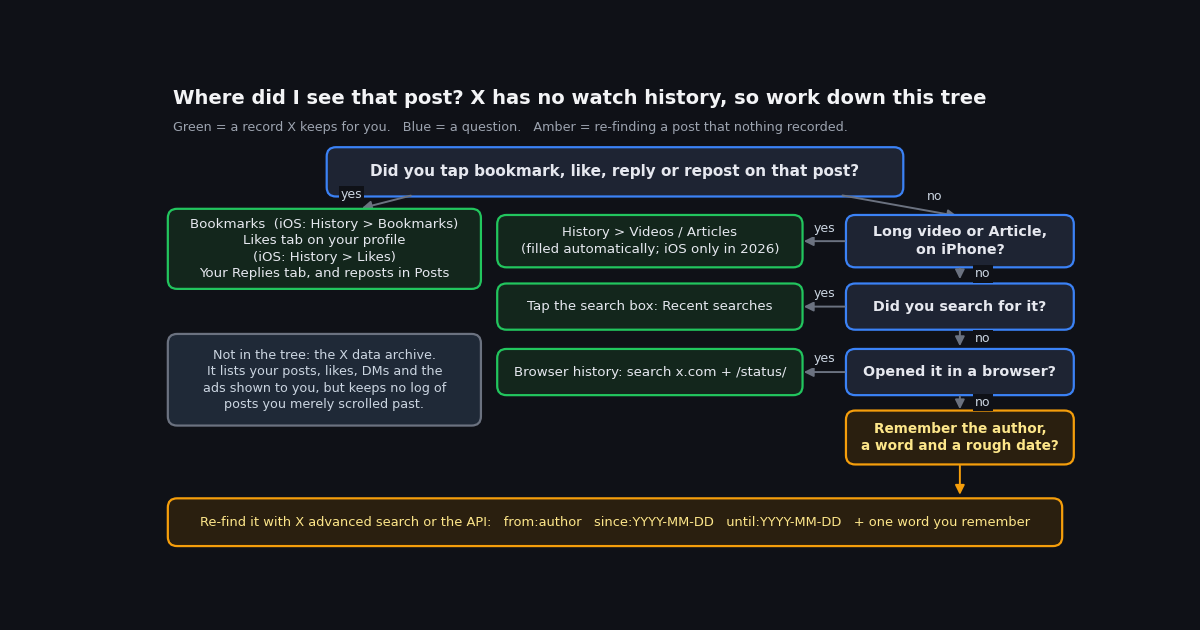
You saw a post two days ago, did not like it, did not bookmark it, and now you need it. On YouTube you would open Watch history and be done in a minute. On X there is no such page, and most of the articles ranking for "twitter watch history" spend a thousand words to avoid saying so. This page says it in the first sentence and then does the useful part: every record X actually keeps about what you did, where each one lives in the app and on the web, how far back it goes, and whether you can clear it.
It also covers the one real change in this area. In 2026 the iPhone app replaced its Bookmarks button with a History tab that includes automatically filled Videos and Articles sections. That is the closest thing X has ever had to a watch history, and it is narrower than people assume, so the section on it spells out exactly what lands there.
The last section is for the post you cannot find anywhere: a recovery decision tree, the browser-history trick, and a short script that re-finds a post from an author, a keyword, and a rough date through X's search operators.
The short answer, and the full map of what X records
X does not have a watch history. There is no page that lists the posts that passed through your timeline, the videos that autoplayed, or the accounts you tapped on, and X's help center has no article describing one (help.x.com, verified 2026). Some guides describe a "recently viewed posts" page under Settings; we could not find it in X's help center or in any navigation path X has announced, so treat those claims with caution and check the places below instead.
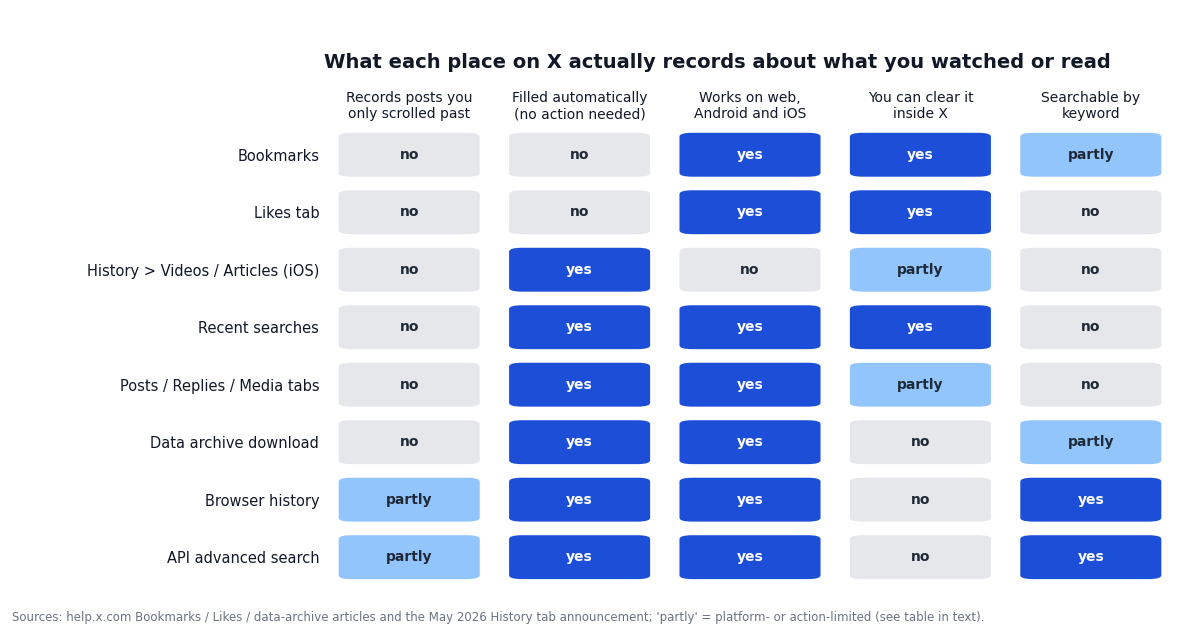
What X does show you is a set of records of things you did on purpose, plus one automatic record that is limited to the iPhone app. The table lists every one of them, what it actually records, how far back it reaches, whether you can clear it, and where it lives.
The pattern is simple once you see it: every row except the History tab's Videos and Articles sections records an action you took. If you only looked at a post, nothing in your account points back to it, and the last two rows are the only way home.
Bookmarks: the save-for-later record, and how folders and search work
Bookmarks are the record X designed for "I want to come back to this". They are private: the help center states that Bookmarks are only viewable to you within your account, and the author of a post is never told who bookmarked it (help.x.com, verified 2026). The steps differ slightly by platform.
Save a post on iPhone. Open the post, then tap the bookmark icon in the row of actions under it. X confirms that the post has been bookmarked.
Save a post on the web or Android. Tap or click the Bookmark icon in the action row under the post. On some builds it sits under the share icon instead, as Add post to Bookmarks.
Open your bookmarks. Web: Bookmarks in the left navigation. Android: your profile picture, then Bookmarks in the side menu. iPhone in 2026: your profile picture, then History, then the Bookmarks tab (the History tab replaced the Bookmarks entry; see the History section).
Remove one or all. Tap the bookmark icon again on a post inside your Bookmarks timeline to drop it, or tap the more icon at the top of the Bookmarks timeline to remove all of them at once (help.x.com, verified 2026).
Folders need Premium. The help center lists Bookmark Folders as a Premium feature; a free account can save posts but cannot sort them into folders. Guides we checked in 2026 report that a post can sit in several folders and still shows in the All Bookmarks view.
Searching bookmarks. The Bookmarks page has a keyword search box on the web and the iPhone app; guides we checked in 2026 report it is missing on Android and matches plain keywords only. If your bookmarks run into the hundreds, the archive download (later section) gives you the same list as a file you can grep.
One honest limit: bookmarking is manual. If you are reading this because you did not bookmark the post, this section only helps next time. Make the bookmark tap a habit for anything you might want back, since it is the only private record that costs nothing and appears on every platform.
Your Likes tab: private to others since 2024, and moved on iPhone in 2026
Every post you ever liked is listed under the Likes tab, newest first, and the help center confirms you reach it from your own profile page (help.x.com, verified 2026). One exception from the same article: likes on posts from accounts that protect their posts do not appear in your Likes tab unless the viewer follows that author.
Who can see it. Nobody but you. X made likes private for everyone in 2024: the Likes tab disappeared from other people's view of your profile, while like counts on posts stayed public and only a post's author can see who liked it (X Engineering announcement, widely reported in 2024). If you landed here because your likes vanished from a friend's profile, that is why, and the sibling page on why you cannot see likes on Twitter walks the whole visibility matrix.
Where it is on the web and Android. Open your profile and choose the Likes tab in the row under your bio (Posts, Replies, Media, Likes; Premium accounts also see Highlights).
Where it is on iPhone in 2026. The Likes tab moved into the new History tab: tap your profile picture, then History, then Likes. If Likes seems to have vanished from your profile on iPhone, this is where it went.
Clearing it. Unlike each post with the heart icon. There is no bulk unlike button in X itself; the archive's like.js file lists every liked post ID if you want to work through them with a script, within X's automation rules and at a human pace.
The Likes tab is the second-best watch-history substitute after Bookmarks because many people like reflexively, so it often contains posts you do not remember liking. Scroll it by eye for the day you think you saw the post; it is in reverse chronological order.
The History tab on iPhone: the only automatic record, and what it leaves out
In 2026, X's head of product Nikita Bier announced a new History tab on iOS "to help you keep track of all your favorite content on X", with the words: "Bookmarks, Long Videos, Articles and Likes will live here, so you can always come back and continue watching or reading. The Timeline moves fast, so we hope this creates a better place for catching up on long-form content." (x.com/nikitabier, 2026). The Bookmarks entry in the side menu was renamed History, and inside it are four tabs: Bookmarks, Likes, Videos, and Articles.
Two tabs are yours, two are X's record of your attention. Bookmarks and Likes are the lists you already had. Videos and Articles are new and fill automatically: Videos from the long videos you watched, Articles from the X Articles you opened. You never save anything into them, which is why they look odd the first time you open them.
What does not land there. Regular posts, images, and short clips that autoplayed in your feed. The announcement names only long videos and articles, and that matches what people see in the tab. So for the usual "I saw a tweet and lost it" problem, the History tab does not help; for a long video you watched part of, it does.
Platforms. X announced the tab for iOS only. Guides tracking the rollout reported that, later in 2026, Android and the web still showed a plain Bookmarks item, and X's own help article on Bookmarks had not been updated to mention History (contextbolt.com). If you do not see History on iPhone, update the app; the rollout was phased.
Clearing Videos and Articles. X has not documented a clear button inside the tab. Bookmarks and Likes inside History clear the same way as before. If a tracked video embarrasses you, the practical options are the usual ones: turn off personalized ads on the Ads preferences screen under Settings and privacy, Privacy and safety, and accept that the list itself stays until X ships a control.
Treat the History tab as a long-form reading list that X maintains for you, not as a watch history in the YouTube sense. That framing also tells you what it will probably stay: a product for Articles and long video, the two formats X is pushing creators toward.
Search history: recent searches, saved searches, and clearing both
If you found the post through search, the search term is still there even though the post is not. X keeps two lists: recent searches, which appear automatically when you tap the search box, and saved searches, which you create on purpose. Only the terms are stored, never the results.
See recent searches. Tap or click into the search box on any platform and the Recent list drops down under it. In guides we checked in 2026, recent searches are stored per device, so your iPad will not show what you searched on your phone; the search box on x.com keeps its own list.
Clear one or all. On the dropdown, tap the X next to a single term to remove it, or Clear all (confirm when asked) to wipe the list. There is no setting that stops X from keeping recent searches; clearing is the only control.
Save a search (Android app; the help center documents Android only, and iOS may differ). Run the search, tap the overflow icon at the top of the results, then Save. The next time you tap the search box the Saved list appears. To remove one, open the search box and tap the X next to the saved term. The help center notes saved searches are currently not available on x.com, so treat them as an app feature (help.x.com).
X Pro (the former TweetDeck). Its search icon keeps its own dropdown of previous searches with a Clear history link at the bottom (help.x.com, verified 2026).
A search term is often the fastest route back to a lost post. If you remember searching "solar flare" that afternoon, re-run the term, switch the results to Latest, and scroll to the right day; you are reconstructing the exact list you scrolled before.
Your own activity: Posts, Replies, Media, and Highlights tabs
If you replied to or reposted the post you are after, your profile has it. The tabs under your bio are Posts (your posts and reposts), Replies (your replies with the post you answered shown above each one), and Media (your posts that carry a photo or video). The Replies tab is the one people forget: a reply you left two weeks ago is still there with the original post attached, even if you never liked or bookmarked that post.
Highlights is a Premium-only tab that shows posts you chose to feature. Premium subscribers add a post to it from the post's three-dot menu with Add/remove from Highlights, and the tab was rolled out to paid users in 2023 (TechCrunch, 2023). It is a curation tool for your own work rather than a history, but it is a handy place to pin the things you need to re-find.
Reposts. A repost lands in your Posts tab with the original author's post embedded. Undoing the repost removes it from the tab, so if you want the record, leave the repost in place or bookmark the original before you undo.
Quote posts are ordinary posts of yours with the quoted post embedded, so they live in Posts and in Media if they carry media.
None of these tabs need Premium except Highlights, and all of them are on the web, Android, and iPhone. Check Replies before you try anything more elaborate; it catches a surprising share of lost posts because replying is something people do without remembering.
The X data archive: what it contains, and the view log it does not
The archive is the fullest record X will hand you, and it is also where the watch-history question gets its final answer, because it does not contain one. The help center describes the download as HTML and JSON files covering your profile information, your posts, your Direct Messages, your Moments, your media, your follower and following lists, your address book, Lists, "interest and demographic information that we have inferred about you", and "information about ads that you've seen or engaged with on X" (help.x.com, verified 2026). A list of ordinary posts you viewed is not among them.
Request it. Web: More in the left navigation, then Settings and privacy, then Your account, then Download an archive of your data; confirm your password and choose Request archive. Mobile apps: your profile picture, then Settings and privacy, then Your account, then Download an archive of your data, confirm your password, then Request archive. X emails you and sends an in-app notification when it is ready; the wait is typically a day or more in reports we checked, so request it before you need it.
What is in the zip. A Your archive HTML viewer plus a data folder of JavaScript-wrapped JSON files. Guides that document the format (tweetarchivist.com, verified 2026) list tweets.js (your posts), like.js (the ID, link and text of every post you liked; no timestamp), account.js, profile.js, follower.js, following.js, direct-messages.js, ad-impressions.js (ads shown to you, with the interests X inferred), and personalization.js (ad-targeting data). The same guides state that the archive does not include impressions or reach for your posts.
What the archive can do for the watch-history problem. Two things. First, like.js is a searchable file: open it in a text editor and search for a word you remember, which is faster than scrolling the Likes tab when you have liked thousands of posts. Second, ad-impressions.js is the one place X shows you a passive log, and it is only ads: each entry records an ad you were shown and when. If you want to see how X tracks attention, that file is the proof; if you want the organic posts you scrolled past, it is not there.
Protect it. The archive contains your DMs and address book. Store it encrypted and do not upload it to third-party "archive viewer" sites unless you have read how they handle the file.
Nothing recorded it? Browser history, then re-find it by author, word and date
When the post was never bookmarked, liked, replied to, or searched for, you have two routes left: your browser's own history (if you used a browser) and search by what you remember.
Browser history. Every post you opened as its own page has a URL of the form x.com/<handle>/status/<id>, and the browser keeps those like any other page. In Chrome open chrome://history and search for status; in Safari use History > Show All History and type x.com; in Firefox, Library > History. Posts that only scrolled past inside the timeline never got their own URL, so they will not be there, but anything you clicked into or expanded will. This is the only passive record of post views that exists anywhere, and it is on your device, not on X.
X advanced search, by hand. Open x.com/search-advanced on the web (help.x.com documents it, verified 2026). Fill in a word you remember, the account under From these accounts, and the date range, then sort the results by Latest. If you only remember the day, set a three-day window either side; if you only remember the author, leave the words empty and scroll.
The same search through an API, when you have more than one candidate. The same operators work in the search query of twitterapi.io's GET /twitter/tweet/advanced_search endpoint: from:handle, since:YYYY-MM-DD, until:YYYY-MM-DD (exclusive), and plain words. The endpoint takes query, queryType (Latest or Top), and a cursor for the next page, and returns up to 20 posts per page with id, text, url, createdAt, engagement counts, and the author object (docs.twitterapi.io, verified 2026). Unix-timestamp forms since_time: and until_time: are also accepted if you need hour precision. The script below checks several possible authors for a word inside a window around the day you remember.
Cost. Search results are billed at $0.15 per 1,000 tweets, minimum $0.00015 per call (twitterapi.io/pricing, verified 2026), so a full 20-post page costs about $0.003 and a five-author sweep is around $0.015. The official X API bills post reads at $0.005 each on its pay-per-use plan (docs.x.com, verified 2026): $0.10 for the same 20-post page, roughly 33 times more, plus a developer account first. For one lost post the web form is free and enough; the API route is for people who do this often or want it inside a tool.
If you have the post ID but not the date, the free tweet-ID timestamp tool on this site turns the ID into the exact posting time, which narrows the search window to minutes.
import os
from datetime import date, timedelta
import requests

HEADERS = {"X-API-Key": os.environ["TWITTERAPI_IO_KEY"]}  # from twitterapi.io/dashboard
BASE = "https://api.twitterapi.io"


def search_window(author, words, seen_on, days=3):
    """One page of posts by `author` containing `words`, +/- `days` around `seen_on`."""
    start = seen_on - timedelta(days=days)
    end = seen_on + timedelta(days=days + 1)  # until: is exclusive, so add a day
    query = f"from:{author} {words} since:{start.isoformat()} until:{end.isoformat()}"
    r = requests.get(
        f"{BASE}/twitter/tweet/advanced_search",
        params={"query": query, "queryType": "Latest", "cursor": ""},
        headers=HEADERS,
        timeout=30,
    )
    r.raise_for_status()
    return r.json().get("tweets") or []


if __name__ == "__main__":
    candidates = ["handle_one", "handle_two", "handle_three"]  # accounts that might have posted it
    seen_on = date.today() - timedelta(days=2)  # the day you think you saw it
    for handle in candidates:
        for t in search_window(handle, "solar flare", seen_on):
            print(t.get("createdAt"), t.get("url"))
            print("   ", (t.get("text") or "").replace("\n", " ")[:120])
"""Re-find a post you saw on X but never liked, bookmarked, or searched for.

You need three things you probably still remember: who posted it, one word or
phrase from it, and roughly when you saw it. Widens the date window step by step
until something matches. Needs TWITTERAPI_IO_KEY in the environment.

Usage: python refind.py <handle> "<words>" <YYYY-MM-DD>
"""
import os
import sys
from datetime import date, timedelta
import requests

HEADERS = {"X-API-Key": os.environ["TWITTERAPI_IO_KEY"]}
BASE = "https://api.twitterapi.io"


def search(query, max_pages=3):
    """Walk up to `max_pages` pages of advanced search (20 posts per page)."""
    hits, cursor = [], ""
    for _ in range(max_pages):
        r = requests.get(
            f"{BASE}/twitter/tweet/advanced_search",
            params={"query": query, "queryType": "Latest", "cursor": cursor},
            headers=HEADERS,
            timeout=30,
        )
        r.raise_for_status()
        data = r.json()
        hits.extend(data.get("tweets") or [])
        if not data.get("has_next_page"):
            break
        cursor = data.get("next_cursor") or ""
    return hits


def refind(author, words, seen_on):
    for days in (1, 3, 7, 14):  # widen the window until something matches
        start = seen_on - timedelta(days=days)
        end = seen_on + timedelta(days=days + 1)  # until: is exclusive
        query = f"from:{author} {words} since:{start.isoformat()} until:{end.isoformat()}"
        hits = search(query)
        if hits:
            return days, hits
    return None, []


if __name__ == "__main__":
    author = sys.argv[1] if len(sys.argv) > 1 else "some_handle"
    words = sys.argv[2] if len(sys.argv) > 2 else "solar flare"
    seen_on = date.fromisoformat(sys.argv[3]) if len(sys.argv) > 3 else date.today() - timedelta(days=2)
    days, hits = refind(author, words, seen_on)
    if not hits:
        print("Nothing matched within two weeks. Try fewer words, or a different author.")
        sys.exit(0)
    print(f"{len(hits)} candidate post(s) within {days} day(s) of {seen_on}:\n")
    for t in hits:
        print(t.get("createdAt"), t.get("url"))
        print("   ", (t.get("text") or "").replace("\n", " ")[:140])
Questions readers ask
Does Twitter (X) have a watch history?
No. There is no page listing the posts you scrolled past or the videos that autoplayed, on web, Android, or iPhone, and X's help center documents no such feature. The iPhone app's History tab, added in 2026, is the closest thing: it automatically lists long videos you watched and articles you opened, alongside your Bookmarks and Likes, but it does not cover ordinary posts.
How do I see recently viewed tweets on X?
You cannot see a list of viewed posts inside X. Check, in order: Bookmarks, your Likes tab, your Replies tab, the recent-searches dropdown in the search box, and (on iPhone) History > Videos and Articles. If none of them has it, search your browser history for status to find posts you opened as a page, or re-find the post with X advanced search using the author, a word, and a date range.
How can I see videos I watched on Twitter?
On the iPhone app in 2026, tap your profile picture, then History, then the Videos tab; it fills automatically with long videos you watched. Short clips that autoplayed in the feed are not listed, and Android and the web do not have the History tab yet. On those platforms the only records are videos you liked or bookmarked.
Can other people see my watch history or search history on X?
No. There is no watch history to see, recent searches are only visible on your own device, Bookmarks are private, and since 2024 your Likes tab is hidden from everyone except you. The author of a post can still see that you liked it, and like counts stay public.
Does the X data archive include the posts I viewed?
No. The archive covers your posts, likes, Direct Messages, media, follower and following lists, Lists, inferred interests, and the ads you were shown, according to X's help center. The only passive log in it is ad-impressions.js, which records ads, not organic posts. like.js lists every post you liked and is handy to search by keyword.
How do I clear my search history on Twitter (X)?
Tap into the search box so the Recent list appears, then tap Clear all and confirm, or tap the X next to a single term. Saved searches are removed separately: open the search box, find the term under Saved, and tap the X beside it. In X Pro, open the search dropdown and click Clear history at the bottom.
How do I find a tweet I saw but did not like or bookmark?
Use what you remember. Open x.com/search-advanced, enter a word from the post, the account under From these accounts, and a date range a few days either side of when you saw it, then sort by Latest. If you have several possible authors or do this often, the same from:, since: and until: operators work through the advanced-search API endpoint; the script on this page runs the search and prints matching post URLs.
Is the History tab available on Android or the web?
In 2026, X had announced the History tab for iOS only, and Android and the web still show the plain Bookmarks entry according to guides tracking the rollout. Your Likes tab is still on your profile on those platforms. If you use an iPhone and do not see History, update the app, since the rollout was phased.
Continue
- X Help Center: About Bookmarks (saving, viewing, removing, privacy, Premium folders)
- X Help Center: How to like a post and where the Likes tab lives
- X Help Center: How to save searches and remove saved searches
- X Help Center: How to access and download your X data (what the archive contains)
- Nikita Bier (X head of product): History tab announcement for iOS (2026)
- twitterapi.io docs: Advanced Search endpoint (query, queryType, cursor, response fields)
- Twitter (X) API overview: the hub for reading X data
- Why you cannot see likes on Twitter (X) since 2024
- Does X show who viewed your profile?
- Search tweets by date with since: and until:
- Find old tweets with the archive tweet finder guide
- Twitter (X) advanced search operators through the API
- Free tweet ID to timestamp tool
- twitterapi.io pay-per-call pricing
Stop reading. Start building.
Starter credits cover real testing on real data. Google sign-in, no card, no application queue.
Get an API key