Can You Edit a Tweet? How Editing Works on X
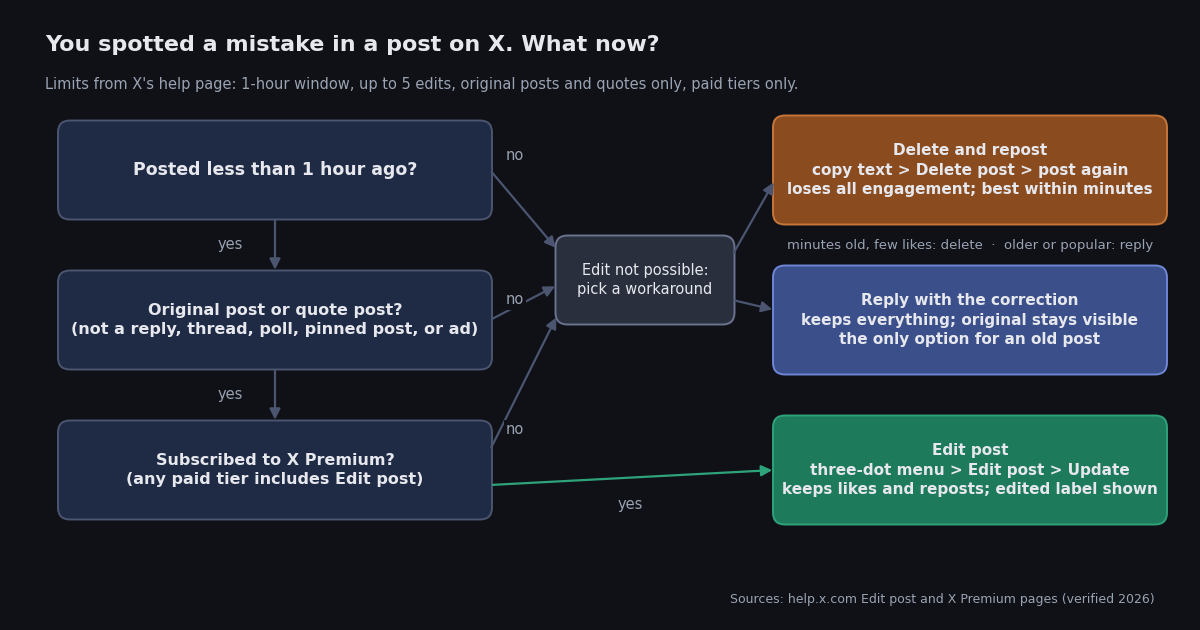
A typo in a post that is already getting replies is the most common reason anyone searches for an edit button. The short version: X has one, it works, and most people cannot use it because it is part of the paid Premium bundle. This page explains who gets it, the exact taps on the app and the clicks on the web, the limits X puts on it, and what readers actually see once you have changed a post.
It also covers the part most guides skip: what to do when you do not have Premium, or when the post is one of the types X refuses to edit even for subscribers. Deleting and reposting and replying with a correction are different trade-offs, and the comparison table makes the choice explicit instead of leaving you to guess.
There is one short section at the end for people who collect posts through an API: how to find out whether a post you stored last week has been edited since, given that most third-party tweet objects do not carry an edit flag.
Who can edit a post on X: every Premium tier, no free accounts
X's help page on Premium lists Edit post among the features that come with the entry tier, Basic, and the two tiers above it inherit everything Basic has (help.x.com, verified 2026). So the answer to "which tier do I need" is the cheapest one. Free accounts do not get the feature in any form, and there is no trial.
The table shows the three tiers as sold on the web in the United States. X raised Premium+ from $22 to $40 a month shortly after the Grok 3 launch while leaving Basic at $3 and Premium at $8 (TechCrunch and PYMNTS, verified 2026). Subscriptions bought inside the iPhone or Android app have historically been priced higher to cover store fees, so check the price shown on your own screen before subscribing.
Feature lists per tier are from X's own Premium page (help.x.com, verified 2026); prices are the US web prices reported when the Premium+ change happened and may differ by country, by billing period, and between web and in-app purchase.
One practical point before you pay $3 just to fix a typo: the edit window starts when you post, not when you subscribe. If the post is already more than an hour old, subscribing will not bring the Edit option back, and your choice is between the two workarounds further down this page.
How to edit a post, step by step (app and web)
The path is the same on the iPhone app, the Android app, and x.com in a desktop browser; only the words tap and click change. X's help page describes it in five steps (help.x.com, verified 2026), expanded here with what you will see at each point.
Step 1: post as usual. As soon as a Premium account sends an original post or a quote post, X shows a notice that you have 1 hour to edit it. If you do not see the notice, the post is one of the non-editable types listed in the next section, or you are not on a paid tier.
Step 2: open the post's menu. Go to the post, either from your profile or from your timeline, and tap or click the three-dot icon in the top-right corner of the post.
Step 3: choose Edit post. The menu shows Edit post only while the window is open and the post is still eligible. The option disappears once the hour is up or once the 5 edits are used.
Step 4: make your change. The composer reopens with the original text. You can fix the text, add or remove a mention, and reorder attached media. X's help page describes updates, tagging someone, and reordering media as the intended uses (help.x.com, verified 2026).
Step 5: press Update. The button that used to say Post now says Update.
Where the time goes. The 1-hour clock runs from the original post, not from your last edit. If you make a first edit at 50 minutes, you have about 10 minutes and up to 4 more edits left, not a new hour. Use one careful edit rather than five hurried ones.
Device note. X's help page states that you can only edit a post from the same device you sent it from (help.x.com, verified 2026). If you posted from your phone and the option is missing on your laptop, that is the likely reason; go back to the phone.
The limits: 1 hour, 5 edits, and the post types X will not edit
X's help page sets two hard numbers: a 1-hour window from the time of posting, and up to 5 edits inside that window (help.x.com, verified 2026). One wrinkle for developers: X's API documentation on edited posts still describes a 30-minute window (docs.x.com, verified 2026). The consumer help page and the countdown X shows after you post are the ones to trust for your own account; the shorter figure in the developer docs appears to be a leftover from the feature's launch period.
The second limit is which posts qualify. X's help page says Edit post applies only to original posts and quotes, and lists the types you cannot currently edit (help.x.com, verified 2026):
Replies. Any post that answers someone else's post. This is the limit that catches the most people, because a typo in a reply is just as visible as one in a post.
Threads. Once you have replied to your own post to continue it, the original post is no longer editable, and the continuation posts are replies, so they are not editable either.
Polls. A post that carries a poll cannot be edited, which makes sense given that votes may already be in.
Pinned posts. X lists pinned posts among the types that cannot be edited.
Promoted posts. Anything running as an ad.
Posts from a third-party service or from X Pro. Posts sent through a scheduling tool or through the X Pro (formerly TweetDeck) interface do not get the edit option, even on a Premium account. If you schedule posts, plan to proofread before the scheduler fires.
Subscriber posts. Posts restricted to your paid subscribers.
Reposts. You cannot edit someone else's post that you reposted; you can only undo the repost.
If your post is on this list, no tier of Premium helps, and you are in the same position as a free account: delete and repost, or correct in a reply.
What everyone else sees after you edit
Editing on X is public by design. According to X's help page, the updated post shows an edited icon and label so that people know the original was changed, and opening the post shows any previously published versions (help.x.com, verified 2026). In practice the label reads Last edited followed by a time, sits under the post text, and is a link: anyone on X can tap it and read every version in order. There is no way to edit quietly, and there is no way to delete a single old version while keeping the current one.
The good news is that you keep what the post has earned. X's help page states that you keep the engagement of past versions of a post you have edited (help.x.com, verified 2026), which is the whole reason the feature is worth paying for compared with deleting and reposting. Likes, reposts, quotes, and replies all stay attached.
Under the hood, each edit creates a new post ID, and X's developer documentation notes that engagement metrics are attributed to the version that was visible when the engagement happened (docs.x.com, verified 2026). You will not see that split in the app, where the counts look like one post, but it matters in two places. First, someone who reposted or quoted version one is still pointing at the chain, so their repost now shows the latest text with the edited label; which is presumably why X keeps the window and the edit count short rather than allowing a post to be rewritten into something its reposters never endorsed. Second, if you delete the post, X's developer documentation states that deleting any version deletes the entire chain (docs.x.com, verified 2026), so there is no partial undo.
Replies behave the same way: replies written to version one remain under the edited post. If a reply quoted your original wording to point out the typo, it will look odd after the fix, which is a small price compared with losing the thread of replies entirely.
No Premium? The two workarounds and what each one costs you
A free account has two honest options, and both have a cost. Which one you pick depends on how old the post is and how much engagement it has.
Option A: delete and repost. Copy the text first (open the post, long-press or select the text, copy), then delete it. X's help page gives the steps (help.x.com, verified 2026): on the app, tap your profile icon, tap Profile, find the post, tap the icon at the top of the post, tap Delete post, then Delete to confirm; on the web, open your profile, find the post, click the icon, click Delete post. Then paste the corrected text into a new post. X's help page notes that deleting a post also removes the reposts of it (help.x.com, verified 2026), and the likes and replies are gone with the original. Quote posts of a deleted post survive on the quoter's profile but show an unavailable-post placeholder, so a quote that mocked your typo stays up while your correction does not appear in it. Do this fast: the fewer people have seen the post, the less you lose.
Option B: reply with the correction. Leave the post up and reply to it yourself with the fix, for example a one-line correction or the corrected sentence. You keep every like, reply, and repost, and the correction sits directly under the original where most readers of the replies will see it. The original wording stays visible to everyone who sees only the post, which is the trade-off. This is the right choice for a post that is already doing well, and the only choice for an old post.
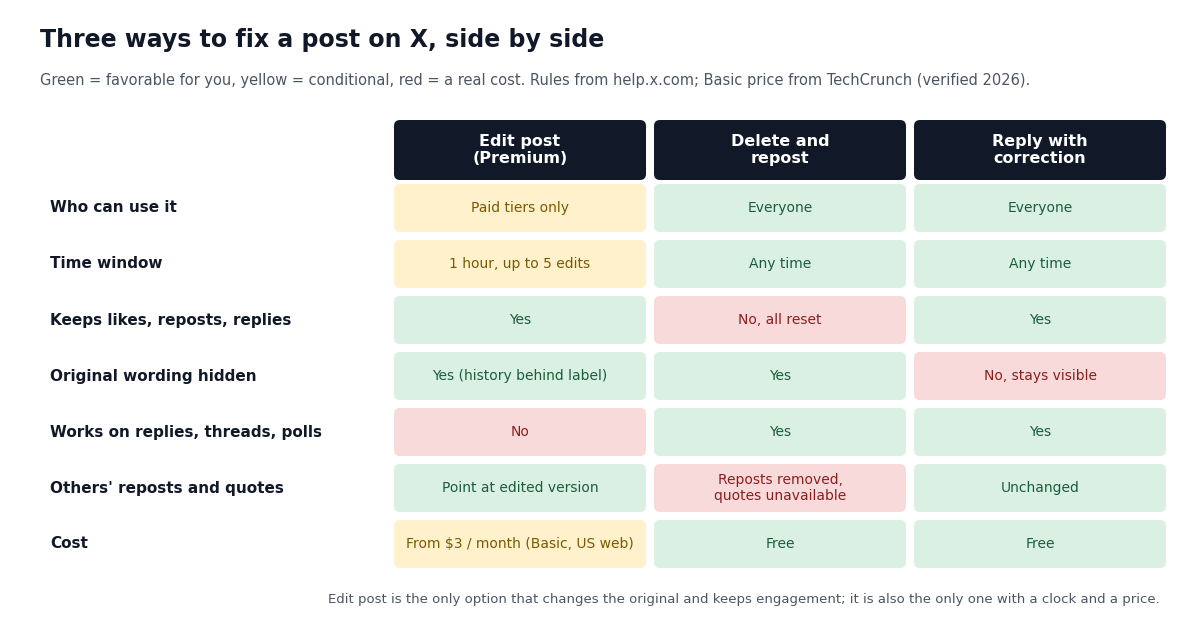
The table lines the three up against each other. The time window and keep-engagement rows come from X's help pages (help.x.com, verified 2026); the cost row uses the US web price of the cheapest Premium tier (TechCrunch, verified 2026).
The decision in the hero diagram follows from this table. If you are inside the hour, the post is an original or a quote, and you have Premium, edit. If the post is minutes old with little engagement, delete and repost. If it is older or already popular, reply with the correction and leave it.
Why the edit option is missing even though you pay: a checklist
Premium subscribers write in with one complaint far more than any other: the menu shows no Edit post. Work through these in order; each one maps to a rule X publishes on its help page (help.x.com, verified 2026).
The hour is up. The window is 1 hour from the original post time, and the option vanishes at the end of it. Check the post's timestamp.
You have used 5 edits. Each press of Update counts. After the fifth, the option is gone even if time remains.
It is a reply, a thread post, a poll, a pinned post, or an ad. None of these are editable.
You replied to your own post. A reply to your own post turns it into a thread, and X lists threads among the posts that cannot be edited, so expect the Edit option to disappear once you reply. A quick "typo, sorry" reply can therefore lock the post you wanted to fix. Edit first, reply second.
You posted from another device or app. X's help page states that edits must be made from the same device you posted from, and that posts from third-party services or X Pro cannot be edited at all. A post sent from a scheduling tool will never show the option.
Your subscription has not activated. If you subscribed in the last few minutes, sign out and back in, or restart the app; the window is still counting down while you do this, so be quick.
You are looking at someone else's post. Obvious, but the menu on other people's posts has no edit entry on any tier. Only the author can edit.
If none of these apply and the post is clearly an original post inside the window, the remaining explanation is a client bug, and the pragmatic answer is to decide between the two workarounds above rather than wait for a fix that may arrive after the window closes.
For data collectors: spotting edited posts in what you have already stored
If you archive posts through an API, edits create a quiet problem: the copy you stored last week may no longer match what the post says today, and the usual tweet object gives you no warning. The official X API exposes edit_history_tweet_ids and an edit_controls object with is_edit_eligible, editable_until, and edits_remaining (docs.x.com, verified 2026), at $0.005 per post read on its pay-per-use pricing (docs.x.com, verified 2026). The twitterapi.io tweet object returned by GET /twitter/tweets carries id, text, createdAt, source, the engagement counts, author, entities, and the reply and quote fields, but no edit field of any kind at the time of writing (docs.twitterapi.io, verified 2026). We would rather say that plainly than invent a flag.
The honest technique is a diff: keep the text you stored, re-fetch the post by ID, and compare. The script below reads a JSON file of previously stored posts, fetches the current version of each one through GET /twitter/tweets (the tweet_ids parameter accepts a comma-separated list), and prints a line-level diff for any post whose text changed, plus a separate note for posts that no longer come back at all, which is what a deleted chain looks like. Set TWITTERAPI_IO_KEY to a key from your dashboard.
Cost is small enough to run this on a schedule. Reading posts costs $0.15 per 1,000 on twitterapi.io, so re-checking 1,000 stored posts costs about $0.15 (twitterapi.io/pricing, verified 2026), against $5.00 for the same 1,000 reads at the official $0.005 per post, roughly 33 times less. A nightly diff over a few thousand posts is pocket change either way; the point of the comparison is that the cheaper route does not carry the edit metadata, so you have to compute the change yourself.
One caveat on interpretation. Because each edit creates a new post ID on X's side (docs.x.com, verified 2026), what a re-fetch of an old ID returns depends on how the provider resolves the chain. Treat a changed text as an edit, and a missing post as deleted or made private; calibrate against a handful of posts you know were edited before trusting the script at scale. The character-count rules in the sibling post on post length still apply to whatever you compare, since Premium accounts can post up to 25,000 characters (help.x.com, verified 2026) and a diff over long posts is easier to read line by line.
import difflib
import json
import os
import requests

HEADERS = {"X-API-Key": os.environ["TWITTERAPI_IO_KEY"]}  # from twitterapi.io/dashboard


def fetch_current(tweet_ids):
    """Return {id: text} for the posts X still serves. Missing ids are deleted or private."""
    r = requests.get(
        "https://api.twitterapi.io/twitter/tweets",
        params={"tweet_ids": ",".join(tweet_ids)},
        headers=HEADERS,
        timeout=30,
    )
    r.raise_for_status()
    return {t["id"]: t.get("text", "") for t in r.json().get("tweets") or []}


def diff_against_stored(stored):
    """stored = {id: text_you_saved_earlier}. Prints a diff for every changed post."""
    current = fetch_current(list(stored))
    for tweet_id, old_text in stored.items():
        new_text = current.get(tweet_id)
        if new_text is None:
            print(f"{tweet_id}: no longer returned (deleted, private, or suspended)")
            continue
        if new_text == old_text:
            continue
        print(f"{tweet_id}: TEXT CHANGED")
        for line in difflib.unified_diff(
            old_text.splitlines(), new_text.splitlines(), "stored", "current", lineterm=""
        ):
            print("   ", line)


if __name__ == "__main__":
    # stored_posts.json: {"1234567890123456789": "text as you saved it", ...}
    with open("stored_posts.json") as f:
        diff_against_stored(json.load(f))
"""Re-check a list of stored posts for edits or deletion, in batches.

Usage: python check_edits.py stored_posts.json
stored_posts.json maps post id -> text you saved earlier. Needs TWITTERAPI_IO_KEY.
"""
import json
import os
import sys
import requests

HEADERS = {"X-API-Key": os.environ["TWITTERAPI_IO_KEY"]}
BATCH = 50  # ids per request; the tweet_ids parameter takes a comma-separated list


def fetch_batch(ids):
    r = requests.get(
        "https://api.twitterapi.io/twitter/tweets",
        params={"tweet_ids": ",".join(ids)},
        headers=HEADERS,
        timeout=30,
    )
    r.raise_for_status()
    return {t["id"]: t.get("text", "") for t in r.json().get("tweets") or []}


def main(path):
    with open(path) as f:
        stored = json.load(f)
    ids = list(stored)
    changed, missing = [], []
    for i in range(0, len(ids), BATCH):
        current = fetch_batch(ids[i : i + BATCH])
        for tweet_id in ids[i : i + BATCH]:
            if tweet_id not in current:
                missing.append(tweet_id)
            elif current[tweet_id] != stored[tweet_id]:
                changed.append(tweet_id)
    print(f"checked {len(ids)} posts: {len(changed)} changed, {len(missing)} missing")
    for tweet_id in changed:
        print("changed:", tweet_id)
    for tweet_id in missing:
        print("missing:", tweet_id)
    # Cost reminder: $0.15 per 1,000 posts read (twitterapi.io/pricing)


if __name__ == "__main__":
    main(sys.argv[1] if len(sys.argv) > 1 else "stored_posts.json")
Questions readers ask
Can you edit a tweet without X Premium?
No. Edit post is only available on the paid tiers (Basic, Premium, and Premium+). A free account can either delete the post and post it again, which loses all likes, replies, and reposts, or reply to the post with a correction and leave the original as it is.
How long do you have to edit a post on X?
X's help page states a 1-hour window from the moment you post, with up to 5 edits inside it. The clock runs from the original post, not from your last edit, and the Edit post option disappears from the menu when either limit is reached.
Can you edit a reply or a thread on X?
No, on any tier. X's help page lists replies, threads, polls, pinned posts, promoted posts, posts from third-party services or X Pro, and subscriber posts as types that cannot be edited. Replying to your own post turns it into a thread, which is on that list, so edit before you reply.
Does editing a post remove the likes and reposts?
No. X's help page says you keep the engagement of earlier versions, so likes, reposts, quotes, and replies stay attached to the edited post. Deleting and reposting is the option that resets everything.
Can people see that a post was edited?
Yes. The post shows an edited label with a timestamp, and tapping it opens the full edit history with every earlier version. There is no private edit and no way to remove one version from the history without deleting the whole post.
Why do I not see the Edit post option even though I have Premium?
Usually one of these: the hour has passed, you have used all 5 edits, the post is a reply, thread post, poll, pinned post, or ad, you already replied to your own post (which makes it a thread), you are on a different device from the one you posted from, or the post was sent from a scheduling tool or X Pro. Check them in that order.
How do I quickly delete and repost a tweet on a free account?
Copy the text first, then open the post, tap or click the three-dot icon, choose Delete post, and confirm. Paste the corrected text into a new post. Reposts of the deleted post are removed and its likes and replies are lost, so do this within minutes of posting if you do it at all.
Does the twitterapi.io tweet object tell me if a post was edited?
Not at the time of writing: the tweet object from GET /twitter/tweets has text, counts, author, entities, and reply and quote fields but no edit field. The official X API exposes edit_history_tweet_ids and edit_controls at a higher per-read price. The practical approach is to store the text and diff it against a fresh fetch, as the script on this page does.
Continue
- X Help Center: About Edit post (1-hour window, 5 edits, eligible post types, edit label and history, engagement kept)
- X Help Center: About X Premium (Basic, Premium, and Premium+ feature lists; Edit post on every tier)
- X Help Center: How to delete a post (steps on app and web; reposts removed with the post)
- X developer docs: edited posts (new post ID per edit, edit_history_tweet_ids, edit_controls, chain deletion), the official and more expensive route to edit metadata
- TechCrunch: X raises Premium+ to $40 a month in the US while Basic stays $3 and Premium $8
- twitterapi.io docs: Get Tweets by IDs (tweet object fields; no edit field)
- Twitter (X) API overview: the hub for reading X data
- How to delete tweets in bulk, free and through the API
- Scheduling posts on X: what schedulers can and cannot do
- Tweet character count: the 280 and 25,000 character rules
- X post templates that are easy to proofread before posting
- Tweet metadata fields reference: every field in the tweet object
- twitterapi.io pay-per-call pricing
Stop reading. Start building.
Starter credits cover real testing on real data. Google sign-in, no card, no application queue.
Get an API key