How to Turn Off Autoplay on Twitter (X): App, Web and Auto-Advance
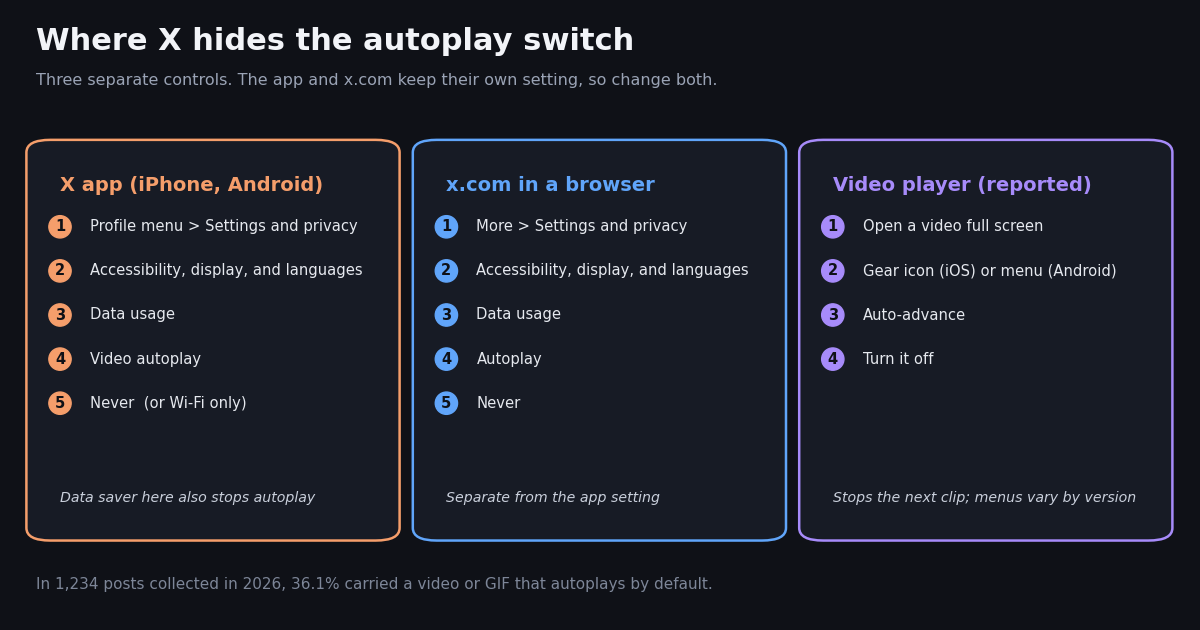
- App (iPhone and Android): Settings and privacy, Accessibility, display, and languages, Data usage, Video autoplay, then Never (or Wi-Fi only).
- x.com: More, Settings and privacy, Data usage, Autoplay, then Never. It is a separate setting from the app, so change it in both places.
- Data saver on the same Data usage screen also stops autoplay and lowers image quality: a one-switch option on mobile data.
- Auto-advance (the next clip starting by itself) is a player menu option, reported since July 2024; X's Help Center does not document it, so check your player's gear or three-dot menu.
- Our study: 36.1% of 1,234 posts carried autoplay-capable video or GIF; for Top search results it was 47.1%, for @NFL 75%.
- Data: a 100-post scroll held an estimated 111 MB of video at the lowest MP4 quality and about 2,167 MB at the highest, if every clip played to the end.
Video autoplay on X is on by default. Scroll your timeline and every native video and GIF starts moving, muted, as soon as it reaches the screen. People turn it off for different reasons: mobile data, battery, motion sensitivity, graphic news footage they did not choose to watch, or simply a calmer feed. The fix is a single setting, but X spreads the related controls across three places, and the app and the website do not share them.
This guide gives the exact paths X's Help Center documents for the app and for x.com, explains what Wi-Fi only and Data saver change, separates feed autoplay from the auto-advance behavior in the full-screen player, and covers the cases where videos keep playing after you think you switched it off. To show what the setting saves you, we also measured how much of a typical scroll is video: 1,234 recent posts from ten large organization accounts and three broad Top searches, collected in 2026.
36.1%
Turn off autoplay in the X app on iPhone and Android
The app setting lives on the Data usage screen. X's Help Center article on watching videos (help.x.com/en/using-x/x-videos) gives the same path for iOS and Android: navigate to Settings and privacy, then under Accessibility, display, and languages tap Data usage, then tap Video autoplay.
Step 1: open Settings and privacy. Tap your profile picture (or the menu icon) to open the side menu, then tap Settings and privacy. Menu layouts shift between app versions, but Settings and privacy is the entry point on both platforms.
Step 2: open Accessibility, display, and languages. This group holds display, motion and data options.
Step 3: tap Data usage. The screen lists Data saver, the high-quality image and video options, Video autoplay and, on iPhone, media and web storage.
Step 4: tap Video autoplay and choose Never. The Help Center lists three options: Mobile data & Wi-Fi, Wi-Fi only, and Never. Never stops autoplay everywhere in the app; videos then show a still frame and a play button, and play only when you tap them.
The change takes effect at once. If you use X on more than one phone or tablet, open the setting on each device and confirm it shows Never; after a reinstall or a major app update, check it again.
Turn off autoplay on x.com (desktop and mobile browser)
On the website the option is called Autoplay rather than Video autoplay, and the choices are On cellular or Wi-Fi and Never, according to the same Help Center article.
Step 1: in the left sidebar click More (on narrow screens, open your profile menu), then Settings and privacy.
Step 2: open Accessibility, display, and languages, then Data usage. The Help Center shortens this to Settings and privacy, then Data usage; the screen itself sits inside the Accessibility, display, and languages group.
Step 3: click Autoplay and select Never.
The web and the app do not sync. X's page on recommendations (help.x.com/en/rules-and-policies/recommendations) says your settings for video autoplay can be adjusted independently on x.com and in your X app. That is the reason many people believe the setting did not work: they turned it off on their phone and still see moving video on a laptop, or the reverse. Change it everywhere you use X.
If you use x.com in more than one browser, open the Autoplay setting in each one and confirm it says Never. Browsers also have their own autoplay site settings, but those mainly target video with sound, while X's feed videos start muted, so X's own Never option is the switch to rely on.
Wi-Fi only, Data saver and the quality settings: which one you want
If your reason is mobile data rather than motion, you have three tools on the same Data usage screen, and they stack.
Wi-Fi only. Videos autoplay at home or work but wait for a tap on mobile data. It keeps the feed lively where data is free.
Data saver. The Help Center describes it plainly: in this mode, images load in lower quality and videos will not autoplay. It is one switch that covers autoplay and image size together, which makes it the quickest choice while roaming or near a data cap. The catch is that images look softer until you tap them.
High-quality video and images. The app also lets you choose when high-quality video and high-quality images load (on mobile data and Wi-Fi, or on Wi-Fi only). Leaving autoplay on but restricting high quality to Wi-Fi is the middle ground: clips still move, but at a lower bitrate on mobile data.
Why the quality setting matters is visible in the data. Every one of the 460 videos in our sample was offered in more than one MP4 quality, and the top-quality file was a median 16.4x the size of the lowest one for the same clip. A median clip was about 1.75 MB at the lowest quality and about 32.45 MB at the highest. The quality choice changes your data use far more than you would guess from looking at the picture on a phone screen.
Auto-advance and "auto scroll": stopping the next video from starting
A lot of searches for turning off auto scroll on Twitter are about something else: you open a video full screen, it ends, and the player slides straight into another clip you never picked. That is not feed autoplay, and the Video autoplay setting does not control it.
X began offering a toggle for this in July 2024, when news accounts that track X features reported an Auto-advance setting for the video player. Current how-to guides describe it the same way: start a video, open the player's settings (the gear icon on iPhone, the three-dot menu on Android), and switch Auto-advance off. It is on by default.
What we could not confirm. X's Help Center pages that we could reach this session do not mention Auto-advance, and help.x.com blocks automated reading, so we could not check whether a newer article covers it. We are reporting the toggle from those secondary descriptions, not from X documentation. Menus in the player change between app versions; if you do not see the gear or the option, update the app and look in the player's overflow menu.
X has no timeline auto-scroll. The feed itself does not scroll on its own. If your timeline moves without you, check for an accessibility feature such as Switch Control or Voice Access, a stuck touch on the screen, or a browser extension that scrolls pages.
How much of your feed autoplays: what we measured
To see what the setting actually saves you, we collected 1,234 posts in 2026 and classified each one by the media X attached to it: native video, animated GIF, photo only, or nothing. Video and GIF are the two types X says autoplay in timelines, Explore and across X.
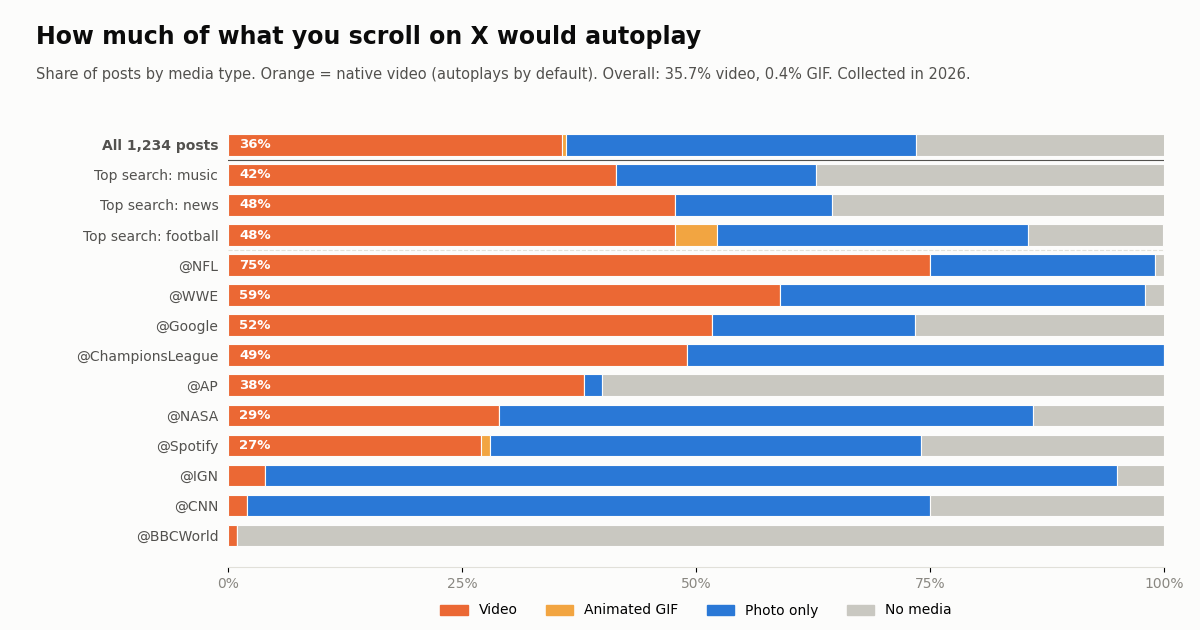
Overall, 35.7% of posts carried a native video and 0.4% an animated GIF, so 36.1% would start playing as you scroll with the default setting. Another 37.4% carried photos only, and 26.6% had no attached media (text, or a link card, which does not play inline).
The Top search results, which look like what Explore and an algorithmic For You feed surface, were more video-heavy than the organization timelines: 47.1% versus 32.9%. Video spreads well, so a ranked feed tends to show more of it than a plain list of an account's posts.
Accounts differ enormously. Sports accounts were the heaviest on video: @NFL 75%, @WWE 59%, @ChampionsLeague 49%. News organizations split: @AP posted video in 38% of its posts, while @CNN (2%) leaned on photos and @BBCWorld (1%) on link cards. If you follow a lot of sports, league or entertainment accounts, close to every other post in your feed moves.
Read the small-count rows with care: @IGN, @CNN and @BBCWorld posted 4, 2 and 1 videos in their samples, so their median clip length rests on very few clips.
How long the videos are, and what autoplay costs in data
Every video in the sample carried its length (duration_millis in the API, duration_ms in X's own data dictionary). The median clip ran 30.9 seconds, one in ten ran longer than about 102 seconds, and 26.5% were longer than a minute. The longest Top search result ran about 28 minutes.
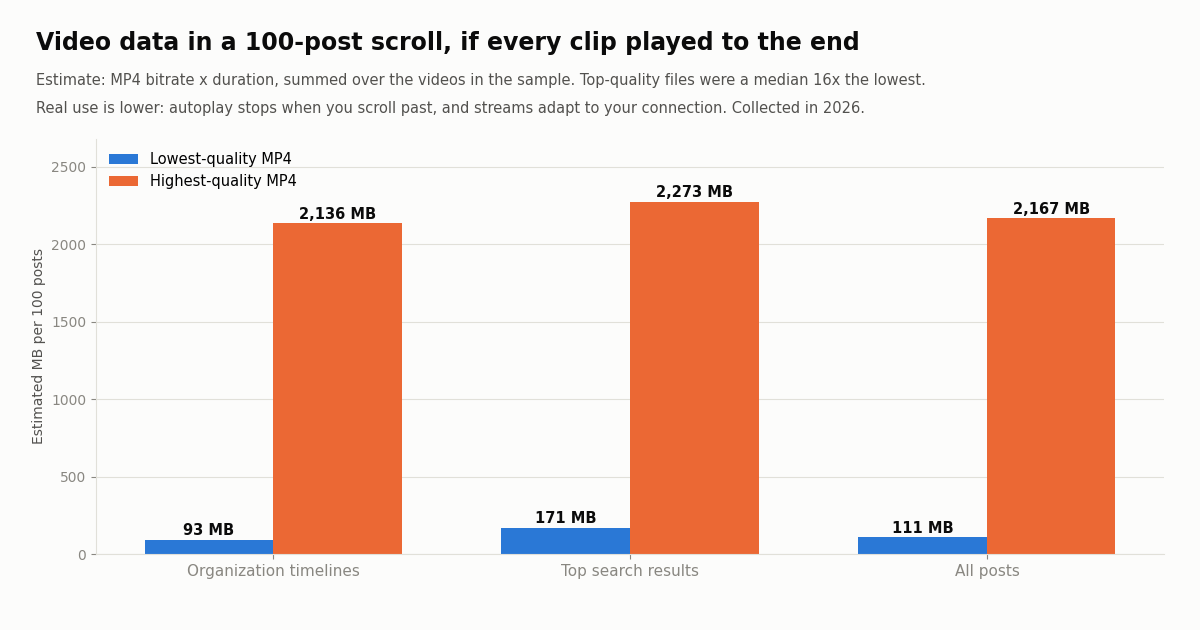
To turn that into data, we multiplied each clip's MP4 bitrate by its length. At the lowest offered quality, the videos in a 100-post scroll added up to an estimated 110.6 MB; at the highest, about 2,167 MB. That is the ceiling if every clip played to the end, which autoplay does not do: a muted video stops when it leaves the screen, and the app streams adaptive quality rather than whole files. Real use sits somewhere between the two bars, closer to the bottom for a quick scroll.
The practical reading: autoplay itself is not what drains a data plan, the quality level is. If you want moving video but a smaller bill, set high-quality video to Wi-Fi only. If you want neither, Never or Data saver removes nearly all of it.
Still autoplaying? Fixes, plus the settings next to autoplay
You changed one platform only. The app and x.com keep separate settings. Set Never in both.
Another device or a second account. The app setting is per device; on the web it is per account. If you switch accounts in the app, check the setting again.
You are in the full-screen player. Autoplay settings cover the feed. In the immersive video viewer, the next clip is driven by Auto-advance, a separate toggle in the player menu.
Promoted video. X's Help Center does not say whether promoted posts follow the autoplay setting in every format. If a promoted clip keeps playing with Never set, use the post's menu to report the ad or mark it as not relevant.
A GIF that seems to play. With Never, GIFs wait for a tap too, according to the Help Center's description that the setting covers native videos and GIFs. Link previews from other sites can show their own animated thumbnails, which X does not count as GIFs.
An old app version. Update the X app from the App Store or Google Play, then check the Data usage screen again. Labels move between versions; if Video autoplay is missing, look for the Data usage screen first, since X keeps its media options there.
Videos not playing at all after the change. Never means tap to play, not never play. If tapping does nothing, that is a playback problem, not this setting; our guide to videos that will not play walks through Data saver, cache, network and region causes.
Related settings people change at the same time. These sit next to autoplay and solve the neighboring problems.
Sensitive media. Autoplay off does not hide graphic content; it only stops it moving. To get a warning screen before sensitive images and video, leave the option to display media that may contain sensitive content switched off under Content you see in Privacy and safety. Our page on X's sensitive content warning covers how the label works.
Media storage. Every clip you watch leaves cached segments on the phone. On iPhone, the same Data usage screen has Media storage and Web storage with clear options.
Reduce motion. X's accessibility pages list a Reduce motion setting alongside the option to prevent video autoplay. It is a separate control that limits in-app animation; if motion is the problem, set autoplay to Never and turn Reduce motion on.
Sound. Feed videos start muted. Sound only plays when you tap the speaker icon, and on iPhone the ring/silent switch can keep video muted even then.
What you watched. Turning autoplay off also means fewer clips count as viewed. X does not show a list of the videos that autoplayed in your feed; our guide to Twitter watch history explains what X does and does not keep.
For developers: reading the media type before anything plays
Apps, readers and research tools that show X posts often want the opposite of the feed default: show a still frame and let the user decide. You can do that because every post's media object says what it is before you load a byte of video. In our JSON each item in extendedEntities.media[] carries type (photo, video or animated_gif), media_url_https for the poster frame, and for video a video_info object with duration_millis and the variants[] list of MP4 bitrates plus an HLS stream. Pick the lowest MP4 for previews and the highest only on request.
The study above was collected exactly this way, with GET /twitter/user/last_tweets for the organization timelines and GET /twitter/tweet/advanced_search with queryType=Top for the searches. Reads need no X account. TwitterAPI.io bills $0.15 per 1,000 posts returned; the official X API's pay-per-usage rate card lists $0.005 per post read, or $5 per 1,000, so the same read volume costs about 33x more there. New accounts that pass the automatic bot check get free starter credits (no card, one per person or network, expiring after 31 days). The full example sits in the code block below.
How we collected this
Question. How much of what you scroll on X would autoplay by default, how long are the clips, and how much data would they use?
Accounts and queries. The latest posts of ten large public organization accounts (@BBCWorld, @CNN, @AP, @NFL, @ChampionsLeague, @IGN, @Spotify, @Google, @NASA, @WWE), up to 100 each, replies excluded; plus the Top search results for three broad queries (news, football and music, English only), up to four pages each.
Window and size. Collected in 2026; 960 timeline posts and 274 Top search posts after removing duplicates, 1,234 in total, with 460 videos. The study used 63 API requests.
Method. A post counts as video if any attached media is a native video, else GIF, else photo, else none; a repost is classified by the reposted post's media. Video size is estimated as MP4 bitrate times duration, at the lowest and highest MP4 the post offers. Link cards are counted as no media because they do not play inline.
What the sample cannot show. Your own feed depends on whom you follow and on X's ranking; we did not read anyone's personal timeline. The data figures are estimates from bitrates, not measured downloads. Ten accounts and three searches are a snapshot, not a census, and Top results change by the hour.
Privacy. Aggregates only. Organization accounts are named; the Top search results came largely from private individuals, so their posts were counted and discarded, and no handle, post text or ID from them is stored or shown.
import requests

API_KEY = "YOUR_API_KEY"  # from https://twitterapi.io/dashboard
BASE = "https://api.twitterapi.io"
HEADERS = {"X-API-Key": API_KEY}


def classify(tweet):
    """video > animated_gif > photo > none; reposts use the reposted post's media."""
    src = tweet.get("retweeted_tweet") or tweet
    media = (src.get("extendedEntities") or {}).get("media") or []
    types = {m.get("type") for m in media}
    for kind in ("video", "animated_gif", "photo"):
        if kind in types:
            return kind, media
    return "none", media


def autoplay_share(user_name, pages=5):
    counts = {"video": 0, "animated_gif": 0, "photo": 0, "none": 0}
    durations, cursor = [], ""
    for _ in range(pages):
        r = requests.get(
            f"{BASE}/twitter/user/last_tweets",
            headers=HEADERS,
            params={"userName": user_name, "cursor": cursor},
            timeout=30,
        )
        r.raise_for_status()
        body = r.json()
        data = body.get("data") or {}
        for t in data.get("tweets", []):
            kind, media = classify(t)
            counts[kind] += 1
            for m in media:
                ms = (m.get("video_info") or {}).get("duration_millis")
                if m.get("type") == "video" and ms:
                    durations.append(ms / 1000)
        if not body.get("has_next_page"):
            break
        cursor = body.get("next_cursor") or ""
    total = sum(counts.values()) or 1
    auto = counts["video"] + counts["animated_gif"]
    durations.sort()
    median = durations[len(durations) // 2] if durations else None
    print(f"@{user_name}: {total} posts, {100 * auto / total:.1f}% would autoplay "
          f"(video {counts['video']}, GIF {counts['animated_gif']}), median clip {median} s")


if __name__ == "__main__":
    for account in ["NFL", "NASA", "AP"]:
        autoplay_share(account)
Researching this?Free starter credits cover end-to-end testing — Google sign-in, no card. Get a key.
Questions readers ask
How do I stop videos from autoplaying on Twitter (X)?
In the X app, go to Settings and privacy, Accessibility, display, and languages, Data usage, Video autoplay, and choose Never. On x.com, go to More, Settings and privacy, Data usage, Autoplay, and choose Never. The two are separate settings, so change both if you use both.
Why do videos still autoplay after I turned it off?
Usually because you changed it in one place only: X keeps the app and x.com settings independent. Also check other devices, a second account, and whether you are in the full-screen player, where Auto-advance controls the next clip.
How do I turn off auto scroll or auto-advance for X videos?
Feed autoplay and auto-advance are different. Auto-advance starts the next clip after a full-screen video ends. Guides describe switching it off from the player's gear icon on iPhone or three-dot menu on Android; X's Help Center does not document it, so the label may differ in your app version. X's timeline itself does not scroll automatically.
What does Wi-Fi only do for autoplay on X?
With Video autoplay set to Wi-Fi only, videos and GIFs play automatically on Wi-Fi and wait for a tap on mobile data. It saves mobile data without changing your feed at home.
Does Data saver stop autoplay on Twitter?
Yes. X's Help Center says that in Data saver mode images load in lower quality and videos do not autoplay. It is on the same Data usage screen as Video autoplay.
How much data does Twitter video autoplay use?
It depends mainly on the quality setting. In our 2026 sample, the videos in 100 posts added up to an estimated 111 MB at the lowest MP4 quality and about 2,167 MB at the highest, if every clip played to the end. Real use is lower because muted clips stop when you scroll past.
Does turning off autoplay hide sensitive videos?
No. It stops videos from moving until you tap them. To get a warning screen before sensitive media, use the sensitive content setting under Privacy and safety, Content you see.
Continue
- X Help Center: How to share and watch videos on X (Video autoplay options, Data saver)
- X Help Center: Our approach to recommendations (autoplay set independently on x.com and the app)
- X Help Center: Accessibility features of X
- X API data dictionary: media object type, duration_ms, variants
- TwitterAPI.io docs: GET /twitter/user/last_tweets
- TwitterAPI.io docs: GET /twitter/tweet/advanced_search
- Twitter (X) not loading: diagnosis by symptom
- Twitter (X) video not playing: settings, cache and network fixes
- Sensitive content warning on X: how the label works
- Twitter (X) watch history: what X keeps
- Twitter (X) video length limits by account type
- Search X videos through the API
- TwitterAPI.io pricing: $0.15 per 1,000 posts returned
- 01How to Translate Tweets on Twitter (X): Auto-Translate, the Gear Icon and Language Settings
- 02Twitter (X) and the EU Digital Services Act (DSA): What the Commission Found, and What It Means for X Data
- 03Twitter (X) and Firebase: store posts in Firestore with a scheduled Cloud Function
- 04Twitter (X) Network Analysis with Python and networkx: A Real #reInvent Graph
- 05Analyze Twitter (X) Data with pandas: A Worked Example on 1,800 Real Posts
- 06How to Clear Twitter (X) Cache on iPhone, Android and Desktop
- 07Who Blocked Me on Twitter — The Methods That Actually Work
- 08How to Pin Someone Else's Tweet on Twitter (X): What Works in 2026
Writing about something you built with TwitterAPI.io? Our community rewards program pays API credits for honest tutorials, build logs and videos.
Stop reading. Start building.
Starter credits cover real testing on real data. Google sign-in, no card, no application queue.
Get an API keyAlready building with TwitterAPI.io? Publish an honest tutorial or build log about it and earn up to $200 a month in API credits.