Twitter (X) Posts Not Loading? How to Fix It
"Posts aren't loading right now." "Something went wrong. Try reloading." A timeline that stays blank, images that come up as grey boxes, or one profile that shows nothing while the rest of X works. These are different failures with different causes, and most troubleshooting guides flatten them into the same four steps: check your internet, clear the cache, update the app, wait for X. That advice is not wrong, it is just unsorted, and it ignores the cases where nothing on your device is broken at all.
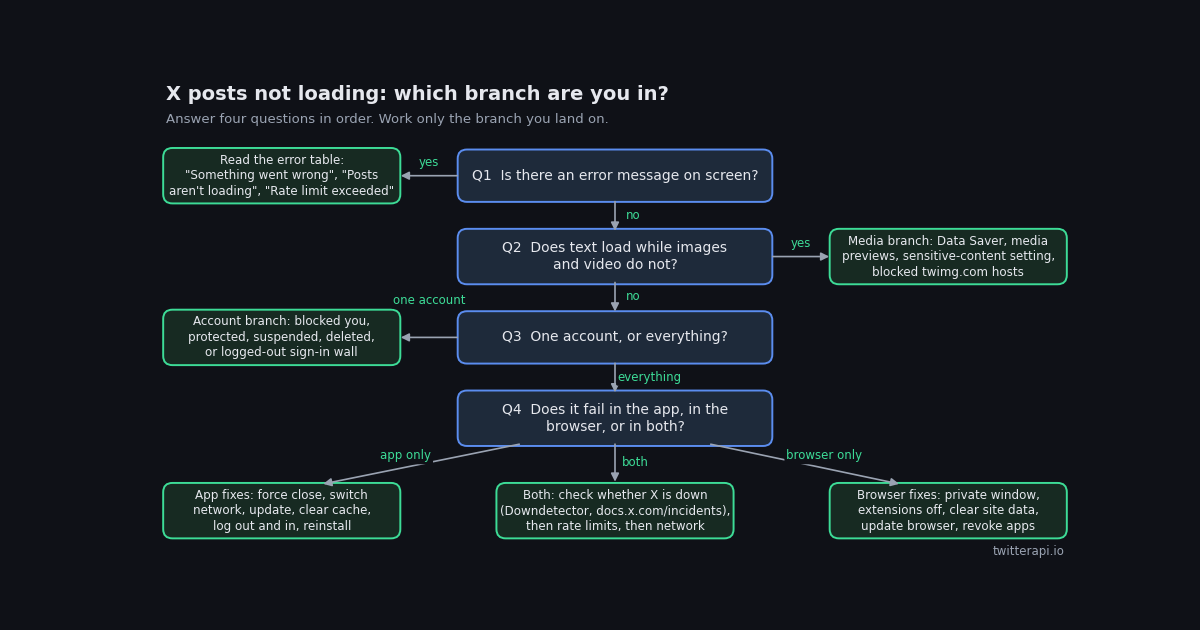
This page sorts it. It opens with a decision tree that takes about a minute to walk, a table that translates each X error string into a cause, and a one-minute method to tell a platform outage from a problem on your side. Then it gives the fixes for each branch: the X app on iPhone and Android, x.com in a browser, media that will not load while text does, and the account-level cases that no cache clearing will touch: X's read limits, its sign-in walls for logged-out visitors, blocks, protected accounts, suspensions, and sensitive-media gating.
Two scope notes. Video that will not play has its own page, linked where relevant, because the player has failure modes of its own. And the last section is for developers and power users only: a short Python probe that asks X, through an independent path, whether a given account's posts are being served at all.
Start here: a 60-second diagnosis
Before you clear anything, look carefully at what the screen is doing and answer four questions in order: is there an error message, does text load while images and video do not, is it one account or everything, and does it fail in the app, in the browser, or in both. Each combination points at one layer, and each layer has its own short fix list in the sections that follow. The table maps what you see to where to go.
Two patterns are worth knowing before you start. A platform-wide problem starts suddenly, looks the same on every device and network you own, and usually comes with an error string rather than silence. A problem that is only yours usually began after you installed something, changed a setting, or moved to a new network, and it often affects one client (the app or the browser) but not the other. If you can test on a second device or a second network, do that first; it is the single most informative step on this page.
What each X error message actually means
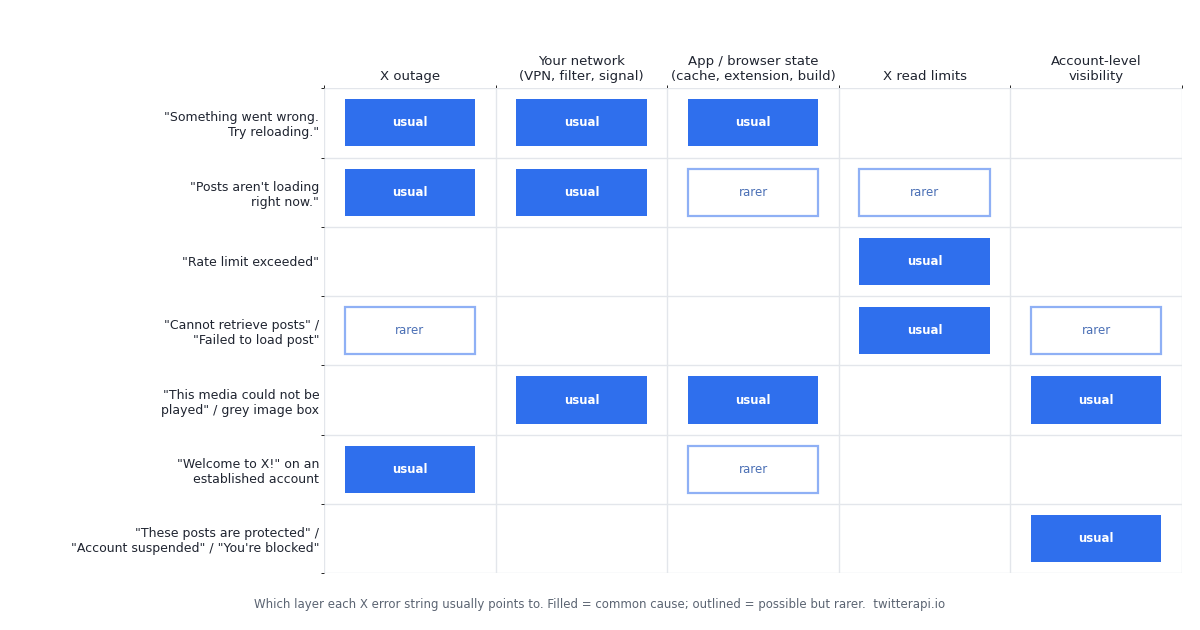
X's error strings are short and generic, but they are not random; each one is tied to a specific request that failed. The table pairs the exact text with the request behind it and the first fix to try. Wording differs slightly between app versions and between the app and the web, so match the sense rather than the punctuation.
If the screen shows no text at all, just a spinner or a blank page, treat it as the second row: an outage or a network path problem until proven otherwise. And if you see two different strings on two different screens, for example "Something went wrong" on the home timeline and "Rate limit exceeded" on a profile, the rate-limit string wins; X degrades a capped session in several ways at once, and the specific message is the honest one. The matrix below condenses the table into a single view of which layer each string usually belongs to, so you can confirm your branch at a glance before working the fixes.
Is X down? How to check in under a minute
Every troubleshooting list ends with "it might be X", but few tell you how to find out, and the answer matters: if X is down, every other step on this page wastes your time. Three checks, in order of speed, plus the developer probe at the end of the page, cover it.
How outages look from the inside. X has had several widely reported outages where "posts not loading" was the headline complaint, including two 2026 incidents covered live by TechRadar and Tom's Guide, and a 2023 outage in which existing accounts saw an empty "Welcome to X!" timeline. In each case the failure began suddenly, affected app and web at once, and ended without anyone changing a setting. If Downdetector shows a spike and the error string matches the table above, close the app and come back later; nothing else is required.
What outages do not look like. A failure that affects only one of your devices, only one browser, only one network, or only one account is not an outage, no matter what the tracker says, because trackers always show some baseline of reports. Use the tracker to confirm a platform-wide problem, not to rule out a local one.
Fixes in the X app (iPhone and Android), in order
Do these in order and stop as soon as posts load. Each step rules out one cause, which is why the order matters more than the count. Menu labels move between app releases; the paths below match what the app showed in 2026 guides and X's own help pages, so if a label differs, search the settings screen. X's help page for the mobile site and app (help.x.com, verified 2026) covers the same ground in less detail.
1. Pull to refresh once, then force close. Swipe the app away in the app switcher; minimising it does nothing. Reopen and check the timeline before doing anything else.
2. Switch networks and drop the VPN. Move from Wi-Fi to mobile data or back. If posts load on one and not the other, the network is the cause and the rest of this list does not apply. If a VPN is on, turn it off; some VPN exit locations can be throttled or refused by X, and that produces "Posts aren't loading right now" with no other symptom.
3. Update the app. Old builds lose compatibility with X's backend changes first, and the symptom is usually a timeline that stops loading while notifications still arrive. Check the App Store or Google Play even if auto-update is on.
4. Clear the cache without signing out. Android: system Settings, Apps, X, Storage, Clear cache (not Clear data, which signs you out). iPhone: inside the X app, Settings and privacy, Accessibility, display, and languages, Data usage, then clear Media storage and "Clear web page storage" (not "Clear all web storage", which signs you out). iOS has no system-level cache button for apps; offloading the app keeps its data, so the only full reset is deleting and reinstalling, which signs you out.
5. Check Data Saver. Same Data usage screen. When it is on, media loads late or not at all on mobile data, and people often read that as posts failing. Turn it off while you test.
6. Log out and back in. A stale session token produces "Something went wrong" on every request while the app otherwise looks fine. Signing out and in issues a fresh one.
7. Restart the phone, then reinstall. Restarting clears a stuck network stack more often than it should. Reinstalling is the last resort; it removes any corrupted local database the cache clear missed.
If all seven fail and x.com works in the phone's browser, the app is the problem and reinstalling usually resolves it. If x.com fails in the browser as well, the problem is the network, the account, or X itself; go back to the outage check and the account section.
Fixes on x.com in a browser, in order
X publishes its own checklist for web problems on the "Help with X.com" page (help.x.com, verified 2026): check your network connection, try a private browser window, update your browser, log out of your account, clear your cache and cookies, turn off browser add-ons, and revoke third-party access to your account. That list is correct, but it is a list, not a procedure. Here is the same material in the order that finds the cause fastest.
1. Hard refresh, then open x.com in a private window. Private windows run without extensions and with a clean cookie jar. If posts load there, the cause is an extension or stale site data, and steps 2 and 3 will fix it. If posts still fail, skip to step 4.
2. Disable the ad or tracker blocker for x.com. X loads its timeline through API calls and serves media from twimg.com hosts; blocklists that classify those hosts as trackers break the feed while the page shell loads normally. Add x.com and twimg.com to the blocker's allow list rather than uninstalling it. Privacy extensions that strip cookies or rewrite scripts have the same effect.
3. Clear site data for x.com only. In Chrome, the lock icon, Site settings, then Clear data; the equivalent in Firefox is under the padlock, Clear cookies and site data. This signs you out of X and nothing else, and it removes the corrupted service worker or local storage that produces a permanent "Something went wrong".
4. Update the browser. X's web app depends on current browser APIs; a browser more than a few versions behind can lose the timeline while static pages still render.
5. Revoke third-party app access. Settings and privacy, Security and account access, Apps and sessions, Connected apps. X's help page lists this step because a misbehaving connected app can trigger errors on your session; it is rare, but it is free to try.
6. Test another network. Corporate and school networks often block twimg.com while leaving x.com reachable, which gives you a feed with no media and sometimes no posts at all. Tether to your phone and compare.
If a second browser on the same machine works and the first does not, the fault is in the first browser's profile, and clearing site data or creating a new profile ends it.
Text loads, media does not: the media branch
When posts arrive but images and video show as grey boxes, spinners, or "This media could not be played", the timeline request succeeded and the media requests failed. Media comes from different hosts and is governed by settings that the rest of X ignores, so this branch has its own short list. Video that starts and then fails, plays without sound, or shows a black box is a player problem with separate causes; the video page covers those.
Data Saver. Settings and privacy, Accessibility, display, and languages, Data usage. With Data Saver on, X delays or skips media on mobile data. Turn it off, or accept that media only loads on Wi-Fi.
Media previews. Same section, under Display and sound. When previews are off, posts show a link to the media instead of the media itself, which looks like a loading failure.
Sensitive-content display. Settings and privacy, Privacy and safety, Content you see, then "Display media that may contain sensitive content". Off means every post flagged as sensitive shows a cover instead of the media. It is widely reported that the control only appears for accounts whose birth date shows they are an adult, and that visitors who are not signed in cannot view sensitive media at all; age-verification rules also vary by country. If you are logged out, or your account has no birth date, the media is usually not failing; X is declining to serve it.
Blocked media hosts. X serves images and video from pbs.twimg.com and video.twimg.com. Network-level ad blocking (Pi-hole, NextDNS, some router firmware) and corporate filters often block twimg.com while allowing x.com, and the result is exactly this symptom on every device on that network. Test on mobile data; if media appears, check the filter's block log.
The post's media was removed. A single post whose text is intact but whose image is gone, often with a short notice, has had its media taken down after a copyright or policy complaint. The text survives; the file does not, and no setting brings it back.
One check that resolves most media cases in ten seconds: open a media post from a large news account. If its image loads and the one you were looking at does not, the problem is that post or your sensitive-content setting, not your connection.
When it is your account, not the app: read limits, sign-in walls, blocks, and suspensions
This is the branch most guides skip, and it is where the "I tried everything" cases live. In each situation below X is working normally and has decided, for a reason tied to your account or session, not to show you the posts. Cache clearing cannot help; knowing the rule can.
Read limits. Since 2023, X has capped how many posts an account can read per day. The announcement set the limits at 10,000 posts for verified accounts, 1,000 for unverified, and 500 for new unverified accounts, after two upward revisions on the first day (X announcement in 2023, as reported by Business Standard and others). X has described the cap as a response to scraping, and the exact enforcement has changed since without a public schedule, so treat those numbers as the published reference point rather than a guarantee. The symptom is "Rate limit exceeded" or an empty timeline after heavy scrolling, and the only fix is to stop and wait. Automation tools that refresh on your behalf count against the same cap. The full story, including what developers should do, is on the rate-limit page linked below.
Sign-in walls for logged-out visitors. In the same 2023 episode X briefly required a login to view any post, then reversed that within days (reported by multiple outlets). The current rule, as widely observed in 2026, is narrower: a single post link generally opens without an account, while search, the home timeline, and most of a profile beyond its first screen prompt for sign-in, and sensitive media is never shown to logged-out visitors. If posts load when you sign in and fail when you do not, you are hitting these walls, not a bug.
Blocked. Since late 2024, X lets blocked accounts see a public account's posts: if a public account blocked you, its profile shows a "You're blocked" notice but the posts still load; you just cannot like, reply, or repost. A block only hides posts when the account is also protected. A separate page covers how to tell who blocked you.
Protected and suspended accounts. A protected account shows "These posts are protected" unless you are an approved follower; a suspended account shows a suspension notice; a deleted account shows that it does not exist. All three are final from your side.
Your own posts missing. If your own profile looks empty or your likes tab shows less than you expect, check the page on likes visibility before assuming a loading fault; X changed what is visible in 2024 and the change is easy to mistake for a bug.
If none of these fit and X is not down, go back to the client fixes for whichever surface fails, and run the developer probe if you have a key; it settles the question of whether the account's posts are being served at all.
For developers and power users: is X serving this account's posts right now?
Everything above is inference from symptoms. If you have an API key, you can ask the question directly: through a path that bypasses your app, your cookies, your extensions, and your session's read limits, is X currently returning this account's posts? On twitterapi.io the call is GET /twitter/user/last_tweets with a userName parameter; the response carries a status field and a tweets array, newest first (docs.twitterapi.io, verified 2026). The outcomes map cleanly onto the branches of this page: a successful response with posts means X is serving the account and your problem is local; a successful response with an empty list means the account resolved but has no public posts to serve (protected, suspended, or genuinely empty); an error status means X would not return the account at all; and a gateway error means retry before concluding anything.
Be clear about what this does and does not do. It does not fix a consumer's app, and it does not reach into your X session. It separates "X is broken" from "my app, network, or account is the problem", which is the one thing a phone cannot tell you from the inside. The end-to-end script at the bottom of the page extends the idea: it probes your target account alongside three large control accounts and prints a verdict (platform-wide, account-level, or local) from the pattern of results.
Cost, for completeness: twitterapi.io bills tweet reads at $0.15 per 1,000 tweets with a $0.00015 minimum per call (twitterapi.io/pricing, verified 2026), so a probe of four accounts costs well under a cent. The official X API offers the same read through its paid tiers at a considerably higher per-post price and with a developer-app approval step (docs.x.com, verified 2026); for a diagnostic you run a few times a year, a key from the dashboard is the simpler route. Set TWITTERAPI_IO_KEY in your environment before running either script.
import os
import requests

BASE = "https://api.twitterapi.io"
HEADERS = {"X-API-Key": os.environ["TWITTERAPI_IO_KEY"]}  # key from twitterapi.io/dashboard


def probe(handle):
    """Ask X, through an independent path, for this account's newest posts."""
    r = requests.get(
        f"{BASE}/twitter/user/last_tweets",
        params={"userName": handle},
        headers=HEADERS,
        timeout=30,
    )
    if r.status_code != 200:
        return f"@{handle}: gateway returned HTTP {r.status_code}; retry before concluding anything"
    body = r.json()
    if body.get("status") != "success":
        return f"@{handle}: X did not return posts ({body.get('message') or body.get('msg')})"
    tweets = body.get("tweets") or []
    if not tweets:
        return f"@{handle}: account resolved but no public posts served (protected, suspended, or empty)"
    newest = tweets[0]
    return f"@{handle}: X is serving posts; newest {newest.get('createdAt')} -> {newest.get('url')}"


if __name__ == "__main__":
    print(probe("XDevelopers"))  # replace with the account that will not load for you
"""Is it X, or is it my app? Probe a few accounts through the API and compare.

If every account fails, X (or the gateway) is having a bad moment: wait.
If only your target fails, the cause is that account's visibility, not your device.
If everything succeeds, X is serving posts and the fix is local: cache, network, app.
Needs TWITTERAPI_IO_KEY in the environment.
"""
import os
import sys
import requests

BASE = "https://api.twitterapi.io"
HEADERS = {"X-API-Key": os.environ["TWITTERAPI_IO_KEY"]}

# Large, always-active accounts act as the control group.
CONTROL = ["XDevelopers", "NASA", "BBCBreaking"]


def served(handle):
    """Return (ok, detail) for one account."""
    try:
        r = requests.get(
            f"{BASE}/twitter/user/last_tweets",
            params={"userName": handle},
            headers=HEADERS,
            timeout=30,
        )
    except requests.RequestException as exc:
        return False, f"network error: {exc}"
    if r.status_code != 200:
        return False, f"HTTP {r.status_code}"
    body = r.json()
    if body.get("status") != "success":
        return False, str(body.get("message") or body.get("msg") or "no posts returned")
    tweets = body.get("tweets") or []
    if not tweets:
        return False, "no public posts (protected, suspended, or empty)"
    return True, f"newest post {tweets[0].get('createdAt')}"


def main():
    target = sys.argv[1] if len(sys.argv) > 1 else "XDevelopers"
    results = {h: served(h) for h in [target] + CONTROL}
    for handle, (ok, detail) in results.items():
        print(f"{'OK ' if ok else 'ERR'} @{handle:<16} {detail}")

    control_ok = sum(1 for h in CONTROL if results[h][0])
    target_ok = results[target][0]
    print()
    if control_ok == 0:
        print("Verdict: nothing is being served. Platform-side problem; wait and retry.")
    elif not target_ok:
        print(f"Verdict: X serves other accounts but not @{target}. Account-level cause.")
    else:
        print("Verdict: X is serving posts normally. Your app, browser, or network is the problem.")


if __name__ == "__main__":
    main()
Questions readers ask
Why does X say "Posts aren't loading right now"?
The app asked X for your timeline, a search, or a profile and the request failed. The most common causes are an X-side problem, a VPN or weak mobile signal, and an outdated app. Tap retry, switch between Wi-Fi and mobile data, and check an outage tracker; if other people are reporting the same thing, wait it out.
Why does Twitter (X) say "Something went wrong. Try reloading."?
A request to X's servers returned an error. Reload once; if it persists, open x.com in a private window. If posts load there, a browser extension or stale cookies are the cause: allow-list x.com in your blocker and clear site data for x.com. If the private window fails too, switch network or check whether X is down.
How do I know if X is down or if it is just me?
Three quick checks: an outage tracker such as Downdetector for a spike in reports, X's developer incident log at docs.x.com/incidents, and a search on X for "X down" sorted by Latest. A platform-wide outage starts suddenly and affects every device and network you own; a problem limited to one device, browser, network, or account is local. Developers can also run the API probe on this page.
Why do Twitter posts load but images and videos do not?
The media requests are failing while the timeline request works. Check Data Saver and Media previews under Data usage and Display and sound, the sensitive-content display setting under Content you see, and whether your network blocks twimg.com, the host X serves media from. If you are logged out, X will not show sensitive media at all.
What does "Rate limit exceeded" mean on X?
You have read more posts today than X allows for your account tier. The caps published in X's 2023 announcement were 10,000 posts per day for verified accounts, 1,000 for unverified, and 500 for new unverified accounts; enforcement has shifted since. Stop refreshing and wait; automation tools that refresh for you count against the same cap.
Why can I not see posts on X without logging in?
X limits what logged-out visitors can see. A single post link generally opens, but search, the home timeline, and most of a profile prompt for sign-in, and sensitive media is never shown without an account. This has been the pattern since a brief login requirement in 2023 was relaxed, so it is a rule, not a loading failure.
Why does one person's profile show no posts while everything else works?
That account is protected and you are not an approved follower, was suspended, or was deleted. The web profile usually says which. A block alone no longer hides a public account's posts: you see a "You're blocked" notice, but the posts still load. No cache or network fix changes this.
Does clearing the X app cache sign me out?
Not if you clear the right thing. On Android, Settings, Apps, X, Storage, Clear cache keeps your login; Clear data signs you out. On iPhone, use the X app itself: Data usage, then clear Media storage and "Clear web page storage" (not "Clear all web storage", which signs you out). Offloading the app does not clear its cache; deleting and reinstalling does, but signs you out.
Continue
- X Help Center: Help with X.com, the official browser troubleshooting checklist
- X Help Center: Help with mobile.x.com and the X app
- X Help Center: your media settings (marking sensitive media)
- X developer platform incident log, X's own record of platform incidents
- Business Standard: the 2023 read-limit announcement (10,000 / 1,000 / 500 posts per day)
- twitterapi.io docs: Get User Last Tweets endpoint used by the probe
- Twitter (X) API overview: the hub for reading X data
- Fix "Rate limit exceeded" on X and in the API
- Twitter (X) video not playing: player-specific fixes
- Why your likes tab looks empty on X
- How to tell who blocked you on X
- Free X shadowban checker
- twitterapi.io pay-per-call pricing
Stop reading. Start building.
Starter credits cover real testing on real data. Google sign-in, no card, no application queue.
Get an API key