How Do You Turn On Twitter (X) Dark Mode, and What Are Its Exact Colors?
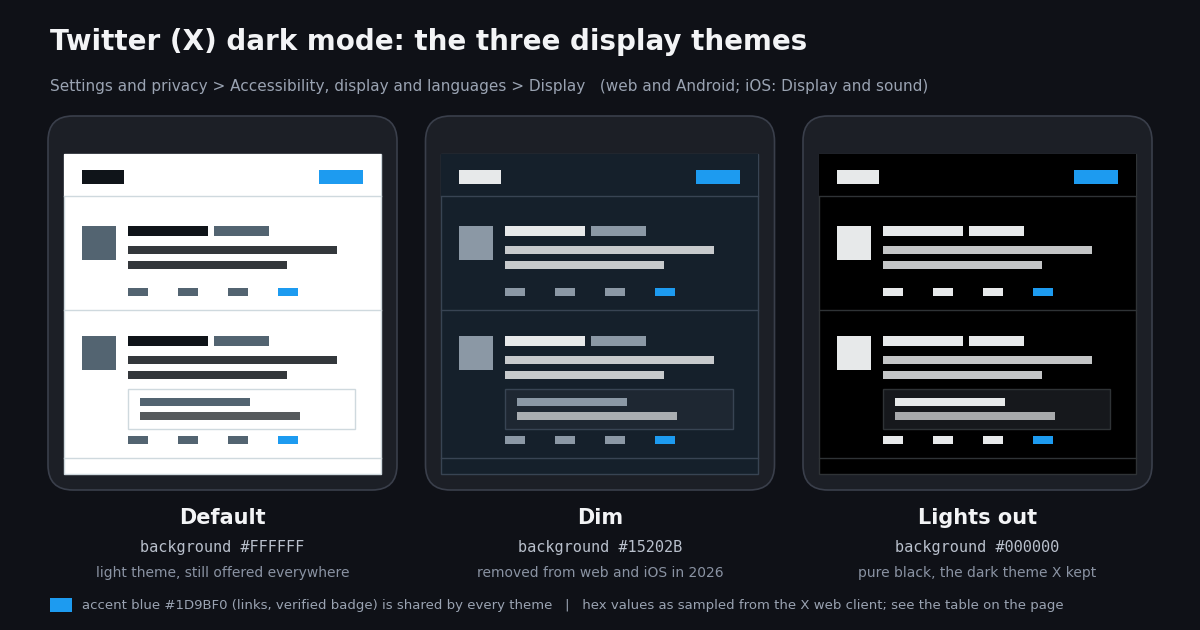
Twitter dark mode is one of those settings that everybody has touched and nobody can find twice. Part of that is the menu, which lives three levels deep and has a different name on iPhone than on the web. Part of it is that the choice has changed under people's feet: in 2026 X dropped the blue-grey Dim theme from its web client and iOS app, removed the in-app light/dark toggle on iPhone for about a week, and then put the toggle back. If your X suddenly turned pure black, or suddenly turned white, that is the story behind it.
The other reason this page exists is the colours themselves. The most-searched variant of the term is twitter dark mode color: people building a theme, a browser extension, a mockup, or a banner want the hex values, not a screenshot of a toggle. So after the menu paths you will find a theme-by-surface table with every value sourced, a swatch figure drawn from only those values, and the measured evidence for why Lights out, specifically, saves battery on an OLED screen.
If what you actually have is a loading or playback problem rather than a colour one, the fixes live on the posts not loading and video not playing pages; this one stays on the display settings.
The Twitter (X) display themes: Default, Lights out, and the retired Dim
X's dark mode is not one setting but a Background choice with named themes. For most of the product's life there were three. Default is the white theme the service launched with. Dim is the dark blue-grey theme that Twitter shipped as Night mode on Android in June 2016, described at the time as switching the whole interface to a dark shade of blue (Android Police, 2016). Lights out is the pure black theme that arrived on iPhone in March 2019, built for OLED screens where a black pixel is simply off (GadgetMatch, 2019), and reached Android in October 2019 (GSMArena, 2019).
That three-way choice ended on the web in February 2026. X removed Dim from the web client's Display settings, leaving Default and Lights out, and head of product Nikita Bier said the platform did not have the capacity to support more than two colours at present and that the team was considering making Lights out a little brighter (Roboin, 2026; PiunikaWeb, 2026). Dim then disappeared from the iOS app in updates that followed, while PiunikaWeb reported it still present in Android version 11.69.0 in March 2026, with removal expected (PiunikaWeb, 2026). We could not confirm the Android state after that report, so treat Dim on Android as a setting to look for rather than one to count on.
The practical result is that twitter dark mode now almost always means Lights out. If you preferred the softer blue-grey, the section on browser extensions below explains how people are getting it back on the web, and the hex table gives you the values to do it yourself.
One more wrinkle belongs up front: the Dark mode switch is separate from the theme. On the phone apps, Dark mode has three positions, Off, On, and Use device settings, and only when it is On or the device is dark does the Dark theme choice (Dim or Lights out, where both still exist) apply (X Help Center, X for Android; MobileSyrup, 2021). On the web there is no separate switch: you pick the Background directly.
How to turn on dark mode on the X website (x.com)
Step 1. On x.com, click More in the left navigation, then Settings and privacy.
Step 2. Open Accessibility, display and languages, then Display. The same panel also holds the font-size slider and the Color picker for the accent colour (Pureinfotech, 2024).
Step 3. Under Background, choose Lights out for black or Default for white. The change applies instantly and there is no save button. If you still see a Dim option, you are on an older build or an extension is adding it back; X removed Dim from this panel in February 2026 (Roboin, 2026).
What you will not find on the web: a Use device settings option. The web client's theme is a plain choice stored by that browser. If x.com looks dark on your laptop and light on your desktop, that is expected; see the section on why themes revert.
How to turn on dark mode in the X app on iPhone and Android
iPhone and iPad. Tap your profile picture, then Settings and privacy, then Accessibility, display, and languages, then Display and sound. Tap the Dark mode control and choose On, Off, or Use device settings; when dark is active, pick the Dark theme underneath. X's own iOS help page still lists Dim or Lights out at that step (X Help Center, How to use X for iOS), but PiunikaWeb reported Dim gone from the iOS app in the updates after the February 2026 web removal, so expect only Lights out on a current build (PiunikaWeb, 2026).
The iOS detour of March 2026. For about a week in early March 2026 the iOS app had no theme control at all: an update removed it and the app simply followed the iPhone's Appearance setting, with Bier explaining that the theme was now controlled at the operating-system level and that app-level colour controls had been causing problems throughout the app (Social Media Today, 2026; Roboin, 2026). The next update restored the in-app light/dark toggle, and Bier quoted a post about the return with the words We all make mistakes (Roboin, 2026). If a tutorial tells you the only way to change the X theme on iPhone is Settings > Display & Brightness, it was written during that week.
Android. Tap your profile icon, then Settings and privacy, then Accessibility, display and languages, then Display, then Dark mode. Choose Off, On, or Use device settings, and under Dark theme pick Dim or Lights out (X Help Center, How to use X for Android). Use device settings arrived on Android in October 2021, about two years after the same option reached iPhone (MobileSyrup, 2021). Android was also the last place Dim was still listed as of March 2026 (PiunikaWeb, 2026).
twitter black mode android, in one line: Display > Dark mode > On > Dark theme > Lights out. That gives you the #000000 background that people searching for black background twitter usually mean.
Make it follow the phone. If you want X dark at night and light by day without touching it, set Dark mode to Use device settings and schedule the appearance in the phone: Settings > Display & Brightness > Automatic on iPhone, or the Dark theme schedule under Display on Android. X then switches whenever the phone does, which is also the most common reason a theme appears to change on its own.
Twitter (X) dark mode colors: background, card, text, and accent hex values
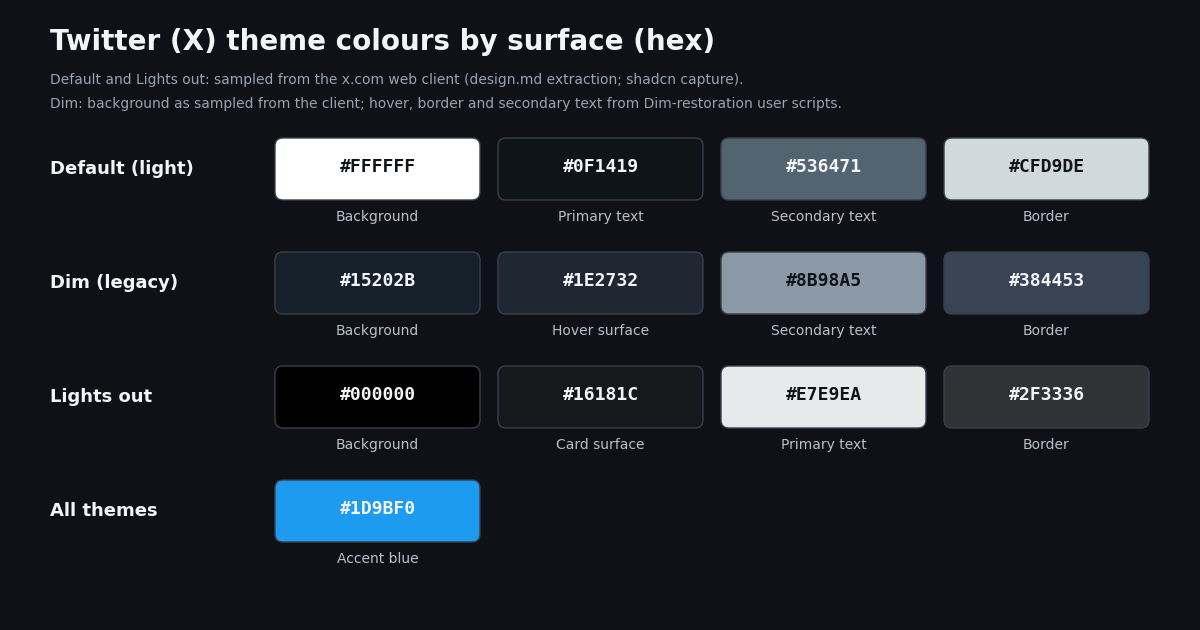
These are the values people building themes, extensions, and mockups ask for. None of them come from a published X palette; X does not release its interface tokens, so every value here is a sample of the live product. The Default and Lights out values below are editorial extractions from the live x.com client: a design.md token sheet that describes itself as an extraction of publicly observable tokens from x.com and a shadcn capture of the light-mode login page (webdesignhot.com design.md for X; shadcn.io X capture, both 2026). The Dim background is the one value every source agrees on; the other Dim surfaces are taken from the user scripts that recreate Dim on top of Lights out, and are marked as such. Where no source gave a value, the cell says so rather than guessing.
Three notes on reading the table. First, #15202B is 21, 32, 43 in RGB, which is why Dim reads as navy rather than grey: the blue channel is twice the red. Second, Lights out text is not pure white; #E7E9EA is a slightly cool off-white that keeps contrast below the maximum, and the design.md sheet reserves #FFFFFF for display headings. Third, the accent is the one colour the 2023 rebrand did not remove: X's chrome is now black and white, but #1D9BF0, the former Twitter blue, still colours links, the verified badge, and the Lights out focus ring (webdesignhot.com design.md, 2026).
If you are matching a brand against these backgrounds, the thing that usually breaks is the banner rather than the avatar: a header that looked fine on white can vanish into #000000. The banner size and safe-zone guide covers the crop; the last section of this page shows how to pull a profile's banner and avatar URLs so you can preview them on all three backgrounds.
Why Lights out matters on OLED screens, and when it does not
The battery argument for Lights out is specific to OLED and AMOLED panels, which is most flagship phones and many laptops. On an OLED every pixel emits its own light, so a black pixel draws almost nothing, whereas an LCD lights the whole panel from behind and a black pixel merely blocks the backlight. Google made this point at its Android Dev Summit in November 2018, showing that white is the least efficient colour on the Pixel's AMOLED panel at maximum brightness and that a dark theme helps OLED devices in a way it cannot help an LCD, which shares one light source across all pixels (GSMArena, 2018).
How much it helps depends on brightness more than on the theme. A Purdue University team that built a per-pixel power model for OLED phones measured four Android phones running popular apps and found that switching to dark mode saved only 3 to 9 percent of display power at the 30 to 50 percent brightness people typically use indoors, but 39 to 47 percent at 100 percent brightness, the setting you reach for in sunlight (Purdue University, 2021). Professor Charlie Hu, who led the work, put it as: switching to dark mode is only one of the knobs that controls the OLED display power draw; the other significant knob is the brightness (Purdue, 2021). Hu added that the findings should carry to iPhones, since both use similar OLED hardware from the same display makers.
What that means for X specifically: Dim, with its #15202B background, lights every pixel a little, so it never gets the full OLED saving; Lights out does. Twitter said as much when it launched the theme on iPhone in 2019, pointing at OLED-equipped models where black backgrounds do not draw power (GadgetMatch, 2019). If your phone has an LCD, choose by eye comfort alone; the battery difference will not be measurable.
The eye-comfort trade-off runs the other way. Pure black behind light text produces the highest contrast the panel can show, which some readers find harsh and which is the reason Dim existed and why users campaigned to get it back; Bier's note that X was considering making Lights out brighter is an acknowledgement of that complaint (PiunikaWeb, 2026). For an OLED user who wants both, the practical compromise is Lights out plus a lower brightness, because the Purdue numbers show brightness, not theme, is the bigger lever indoors.
Why your Twitter dark mode keeps turning off or changing by itself
It is a device setting, not an account setting. X's help pages describe the Display setting separately for the web, iOS, and Android and nowhere describe it syncing between them (X Help Center, iOS and Android app pages). In practice the theme is stored per device and, on the web, per browser; widely reported, though X has not published a statement on where the value is kept. If you set Lights out on your phone and open x.com on a laptop you get that browser's choice, and a new browser or a cleared profile starts from Default. There is nothing to fix; set it on each device once.
Use device settings follows the phone. With Dark mode set to Use device settings, X changes whenever the phone's appearance does, including on a schedule you may have set months ago. If X goes dark at sunset and light at sunrise, that is the phone, not X. Set Dark mode to On to pin it.
The web client once reset dark users to light. When Twitter updated its web dark mode in 2019 to line up with operating-system preferences, desktop users who had chosen a dark theme while their OS was set to light found the site reverted to the white theme; TechRadar reported it as a bug tied to that mismatch and noted the fix at the time was to reselect the theme (TechRadar, 2019). The lesson survives: a change in how X reads the system preference can reset what you picked.
The 2026 changes moved people. When Dim was removed from the web in February 2026, anyone who had it was left with the remaining options, and Lights out is the dark one; when the iOS app lost its theme toggle for a week in March 2026, every iPhone followed the system appearance instead of the in-app choice (Roboin, 2026; Social Media Today, 2026). Both looked like the theme changing on its own.
Extensions that restore Dim. If the blue-grey theme is what you miss on the web, the Dim-restoration options that appeared within days of the removal are a Stylus user style, the Control Panel for Twitter extension from version 4.22.0, and standalone Chrome Web Store and Firefox add-ons such as X Dim Mode (Roboin, 2026). They work by overriding the Lights out tokens with the Dim values in the table above, which is also why an extension can make the Display panel show a theme X no longer offers. Review any extension's permissions before installing it; it necessarily reads and modifies x.com pages.
A short history, for anyone who wonders why the options keep moving. Night mode (the blue theme) came to Android in June 2016 (Android Police, 2016). Lights out came to iPhone in March 2019 and Android in October 2019 (GadgetMatch, 2019; GSMArena, 2019). A system-following option reached iPhone first; in September 2019 Twitter product manager Patrick Traughber said the company planned to support automatic dark mode when the device was dark (MobileSyrup, 2019), and Android got Use device settings in October 2021 (MobileSyrup, 2021). In July 2023 Elon Musk posted that the platform would soon have only dark mode and reversed that a day later, saying light mode would remain but dark would be the default (BGR, 2023; Disassociated, 2023). Dim was removed from the web in February 2026 and from iOS afterwards (Roboin, 2026; PiunikaWeb, 2026).
Checking how a profile reads on each theme (for designers and brand teams)
The one case where dark mode becomes a data question is a brand or client audit: you have twenty accounts and need to know how each banner and avatar looks against white, blue-grey, and black. X shows you one theme at a time and one profile at a time, so the faster route is to pull the image URLs once and preview them locally against the three backgrounds from the hex table.
GET /twitter/user/info?userName= on twitterapi.io returns the profile as a data object whose profilePicture field is the avatar URL and whose coverPicture field is the banner URL, alongside name, isBlueVerified, and followers (docs.twitterapi.io, Get User Info, 2026). Profile lookups cost 18 credits each, which is $0.18 per 1,000 profiles (twitterapi.io/pricing, 2026). The official X API prices a user read at $0.010 on its pay-per-use tier, so the same 1,000 profiles cost $10 there (docs.x.com pricing, 2026), about 55 times more. Only reads are involved; nothing here posts or changes a profile.
The script below takes a list of handles, fetches each profile, and writes a small HTML file that shows the avatar and banner on all three backgrounds side by side. Set TWITTERAPI_IO_KEY in your environment; the key is on the dashboard after sign-up. New accounts that pass the automatic bot check get $1 of free credits (100,000 credits, no card, one per person or network, expiring after 31 days), which covers a few thousand of these lookups (twitterapi.io/pricing, 2026).
import os

import requests

BASE = "https://api.twitterapi.io"
HEADERS = {"X-API-Key": os.environ["TWITTERAPI_IO_KEY"]}  # key from twitterapi.io/dashboard

# Backgrounds from the hex table on this page
THEMES = {"Default": "#FFFFFF", "Dim": "#15202B", "Lights out": "#000000"}


def profile(handle):
    """One profile lookup: 18 credits ($0.18 per 1,000 profiles)."""
    r = requests.get(
        f"{BASE}/twitter/user/info",
        params={"userName": handle},
        headers=HEADERS,
        timeout=30,
    )
    r.raise_for_status()
    return r.json().get("data") or {}


if __name__ == "__main__":
    p = profile("NASA")
    print(p.get("name"), "banner:", p.get("coverPicture"), "avatar:", p.get("profilePicture"))
    for theme, bg in THEMES.items():
        print(f"  preview {theme:<10} on {bg}")
"""Twitter (X) dark mode preview helper: fetch each profile's avatar and banner URLs,
then write an HTML sheet showing them on the Default, Dim, and Lights out backgrounds.

Usage: python theme_preview.py NASA SpaceX ...
Needs TWITTERAPI_IO_KEY in the environment (twitterapi.io/dashboard).
Cost: GET /twitter/user/info = 18 credits per profile ($0.18 per 1,000 profiles),
see twitterapi.io/pricing. Read-only; nothing is posted or changed.
"""
import html
import os
import sys

import requests

BASE = "https://api.twitterapi.io"
HEADERS = {"X-API-Key": os.environ["TWITTERAPI_IO_KEY"]}

# Background and text values from the hex table on this page
THEMES = {
    "Default": ("#FFFFFF", "#0F1419"),
    "Dim": ("#15202B", "#E7E9EA"),
    "Lights out": ("#000000", "#E7E9EA"),
}


def profile(handle):
    r = requests.get(
        f"{BASE}/twitter/user/info",
        params={"userName": handle},
        headers=HEADERS,
        timeout=30,
    )
    r.raise_for_status()
    body = r.json()
    data = body.get("data") or {}
    if not data.get("userName"):
        raise SystemExit(f"no profile for @{handle}: {body.get('msg')}")
    return data


def card(p, theme, bg, fg):
    banner = p.get("coverPicture") or ""
    avatar = p.get("profilePicture") or ""
    name = html.escape(p.get("name") or p["userName"])
    banner_html = (
        f'<img src="{html.escape(banner)}/1500x500" style="width:100%;display:block">'
        if banner else '<div style="height:120px;background:#2F3336"></div>'
    )
    return (
        f'<div style="background:{bg};color:{fg};width:360px;border:1px solid #2F3336;"'
        f' title="{theme}">{banner_html}'
        f'<img src="{html.escape(avatar)}" style="width:72px;height:72px;border-radius:50%;'
        f'margin:-36px 0 0 16px;border:4px solid {bg}">'
        f'<div style="padding:8px 16px 16px;font-family:sans-serif"><b>{name}</b> '
        f'<span style="color:#1D9BF0">@{html.escape(p["userName"])}</span><br>'
        f'<small>{theme} {bg}</small></div></div>'
    )


if __name__ == "__main__":
    handles = sys.argv[1:] or ["NASA"]
    rows = []
    for h in handles:
        p = profile(h)
        print(f"@{p['userName']:<16} banner={'yes' if p.get('coverPicture') else 'none'} "
              f"avatar={'yes' if p.get('profilePicture') else 'none'}")
        cards = "".join(card(p, t, bg, fg) for t, (bg, fg) in THEMES.items())
        rows.append(f'<div style="display:flex;gap:16px;margin:16px 0">{cards}</div>')
    with open("theme_preview.html", "w", encoding="utf-8") as f:
        f.write("<body style='background:#555;margin:16px'>" + "".join(rows) + "</body>")
    print(f"wrote theme_preview.html ({len(handles)} profile(s), {18 * len(handles)} credits)")
Questions readers ask
How do I turn on dark mode on Twitter (X)?
Open Settings and privacy, then Accessibility, display and languages, then Display (on iPhone, Display and sound). On the web, choose Lights out under Background. In the apps, set Dark mode to On or Use device settings, then pick the Dark theme. The menu names are from X's help pages for the iOS and Android apps.
What are the Twitter (X) dark mode colors in hex?
Lights out uses a #000000 background with #E7E9EA text, #16181C card surfaces, and #2F3336 dividers. Dim used a #15202B background. Default is #FFFFFF with #0F1419 text. The accent blue on links and the verified badge is #1D9BF0 in every theme. These are sampled from the x.com web client rather than published by X, which does not release interface tokens.
What happened to Dim mode on Twitter (X)?
X removed the blue-grey Dim theme from its web client in February 2026 and from the iOS app in the updates that followed, leaving Default and Lights out. Head of product Nikita Bier said X could not support more than two colour schemes for now and was considering making Lights out brighter. Dim was still listed in the Android app in March 2026; browser extensions and user styles restore it on the web.
How do I make the X background black on Android?
Tap your profile icon, then Settings and privacy, then Accessibility, display and languages, then Display, then Dark mode. Set it to On (or Use device settings to follow the phone) and choose Lights out under Dark theme. Lights out is the pure black #000000 theme; Dim is the blue-grey one.
Does Twitter (X) dark mode save battery?
Lights out does on an OLED screen, because black pixels are off. A Purdue University study measured 39 to 47 percent lower display power at full brightness and 3 to 9 percent at the 30 to 50 percent brightness used indoors. Dim lights every pixel a little, so it saves less, and on an LCD neither theme saves measurable power because the backlight stays on.
Why does my Twitter (X) dark mode keep turning off?
The theme is stored per device and per browser, not on your account, so each device needs its own setting. On the phone apps, Use device settings makes X follow the phone's appearance schedule; set Dark mode to On to pin it. Past platform changes have also reset people: a 2019 web update reverted dark users whose OS was light, and in 2026 the Dim removal and a week-long iOS change moved users to Lights out or to the system theme.
Is dark mode synced across my devices on X?
No, as far as X's help pages describe it. The Display setting is documented separately for web, iOS, and Android with no mention of syncing, and in practice a theme chosen on one device does not follow you to another. X has not published a statement on where the value is stored, so this is the widely reported behaviour rather than an official rule.
Can I get a profile's banner and avatar to test them against each theme?
Yes. GET /twitter/user/info?userName= on twitterapi.io returns coverPicture (the banner) and profilePicture (the avatar) as URLs at 18 credits per profile, $0.18 per 1,000, versus $0.010 per user read ($10 per 1,000) on the official X API pay-per-use tier. The script on this page writes an HTML sheet that previews both images on the Default, Dim, and Lights out backgrounds.
Continue
- X Help Center: How to use X for iOS (Display and sound, Dark mode, Dim and Lights out)
- X Help Center: How to use X for Android (Display, Dark mode, Use device settings, Dark theme)
- PiunikaWeb: X removes the blue-grey Dim theme from web, then iOS; Nikita Bier on supporting only two colours; Dim still on Android 11.69.0
- Social Media Today: X removes the in-app dark mode option and follows the device setting; Bier's explanation
- Purdue University: dark mode saves 3 to 9 percent of OLED display power at 30 to 50 percent brightness and 39 to 47 percent at full brightness
- design.md for X: editorial extraction of x.com colour tokens (#000000, #15202B, #FFFFFF, #E7E9EA, #16181C, #2F3336, #1D9BF0)
- Twitter (X) API overview: the hub for reading X data
- Twitter (X) banner size: 1500 x 500 px and the safe zone that survives every crop
- Twitter (X) posts not loading: causes and fixes
- Twitter (X) video not playing: what to check first
- twitterapi.io pay-per-call pricing: profiles, tweets, and followers
- Get an API key on the twitterapi.io dashboard
- 01How Do You Create a Second Twitter (X) Account, and What Does X Allow?
- 02What Was Twitter (X) Circle, and What Can You Use Instead?
- 03What Percentage of Twitter (X) Is Bots? Every Published Estimate and Its Method
- 04Can You Hide Who You Follow on Twitter (X)?
- 05Deactivating a Twitter (X) Account: What Happens, Step by Step
- 06Tweet Character Count — Limits and How Counting Really Works
- 07Twitter API with Python — Practical Examples
- 08TwitterAPI.io vs the Official X (Twitter) API — A 2026 Comparison
Stop reading. Start building.
Starter credits cover real testing on real data. Google sign-in, no card, no application queue.
Get an API key