How to Log Out of Twitter (X) on Web, iPhone and Android
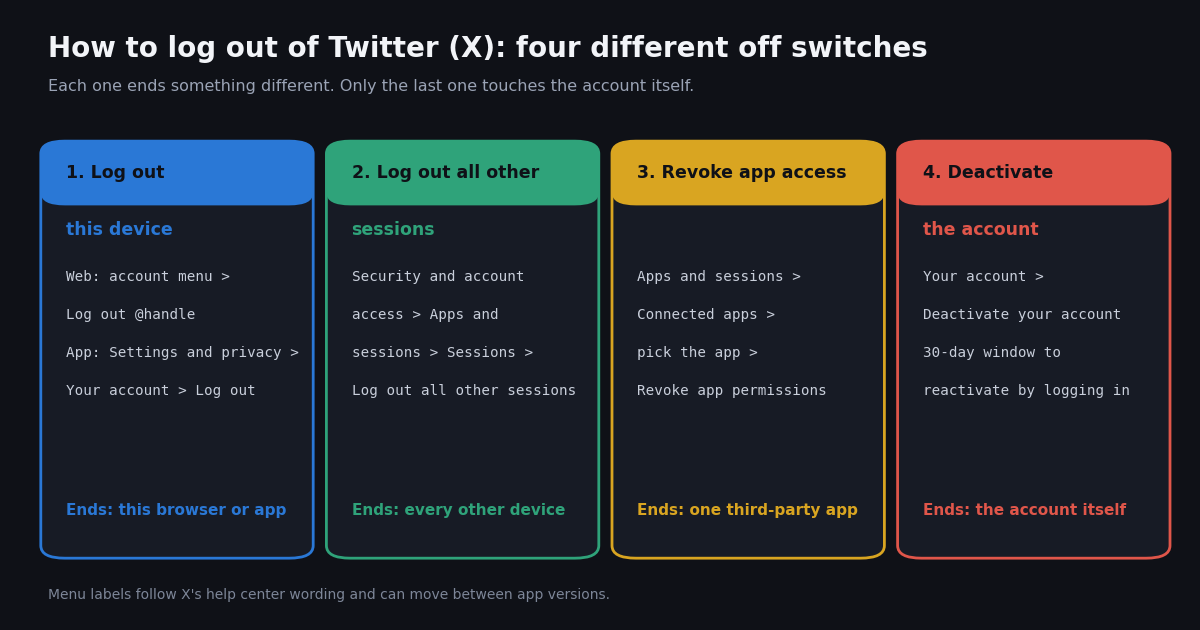
- Web: profile picture and name at the bottom left, then Log out @handle, then confirm Log out.
- iPhone and Android: profile picture, Settings and privacy, Your account, Log out. Labels can shift between app versions.
- Everywhere else at once: Security and account access, Apps and sessions, Sessions, Log out all other sessions. Your current device stays signed in.
- Logging out is not deactivating: nothing about the account changes; you just need your password (and any login code) to get back in.
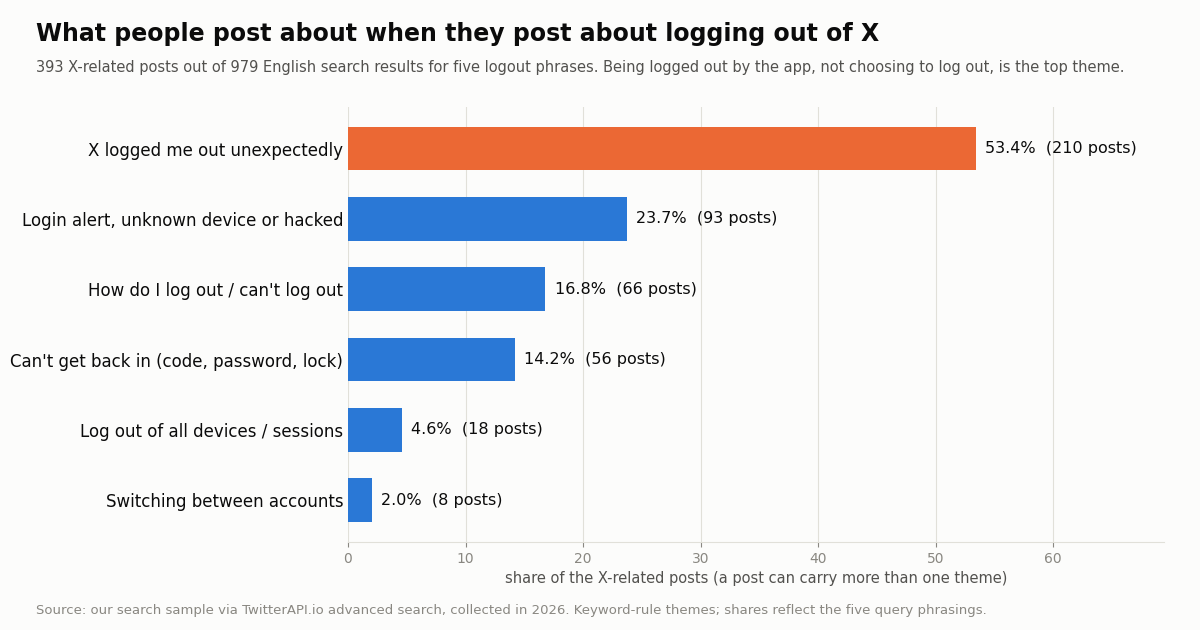
- What people actually post about: in 393 X-related posts about logging out (collected in 2026), 53.4% were about X logging them out unexpectedly, more than any other theme.
- Suspect a break-in? End other sessions, change the password, turn on two-factor authentication, and revoke third-party apps you do not recognize.
Logging out of Twitter (X) takes three taps, but the right three taps depend on what you are actually trying to do. Signing out of a shared laptop, kicking a lost phone off your account, cutting off an app you once connected, and taking a break from X entirely are four different actions with four different buttons, and only one of them is called Log out.
This page gives the current steps for the web, the iPhone app and the Android app, then the security-relevant part most guides skip: how to end every other session at once, how that differs from revoking an app, and what none of these do to your account. We also looked at what people really post when they post about logging out of X, from a search sample we collected ourselves, because the problems people hit are not the ones the how-to guides answer.
53.4% of 393 X-related posts were about X logging people out unexpectedly; only 16.8% asked how to log out (collected in 2026).
Log out of Twitter (X) on the web
On x.com in a desktop browser, your account button sits at the bottom of the left-hand navigation: your profile picture, display name and @handle. Click it and a small menu opens with Add an existing account and Log out @yourhandle. Click Log out @yourhandle, and X shows a confirmation panel in the middle of the screen; click Log out again. The page reloads to the logged-out home screen.
If you have several accounts added in this browser, the same menu lists them. Logging out from it signs out the account shown in the menu entry; X's help center notes that removing an account from the app is the same as logging out of it, so you may need to repeat the step for each account you added.
On a narrow window or a phone browser, the left-hand menu collapses to icons. Tap your profile picture in the top corner (or the menu icon) to open the side panel, then look for Settings and privacy, Your account, Log out, the same path the apps use.
Private or shared computer? Logging out is the step that matters, not closing the tab. A closed tab keeps the session cookie, so the next person who opens x.com on that browser lands in your account. A private (incognito) window drops its cookies when every private window is closed, which is why it is the safer choice on a computer you do not own.
Log out of the X app on iPhone and iPad
X's help center page for iOS (help.x.com/en/using-x/revoke-x-access-on-ios-app) gives the path as: tap your profile icon in the top menu, tap Settings and privacy, tap Your account (shown as Account on some versions), then tap Log out and confirm.
On some app versions the profile panel groups settings under a Settings and support heading; expand it and Settings and privacy is inside. Menu labels move between app versions, so if a step looks different, look for the same words one level up or down.
More than one account in the app? Switch to the account you want to remove first (tap the small profile pictures at the top of the side panel), then log out. The help center notes that removing an account from the app logs it out without deleting it, and you can add it back later with the Log in button.
Deleting the app is not the same as logging out. Uninstalling removes the app from that phone, but it does not end the session anywhere else, and it does not tell X you meant to sign out. Log out first, then delete the app if you want it gone.
Log out of the X app on Android
X's Android help page (help.x.com/en/using-x/log-out-of-x-app-on-android) says you will see either a navigation menu icon or your profile icon at the top; tap whichever you have, then Settings and privacy, then Your account, then Log out, and tap OK to confirm. Older versions put the button one level deeper, under Account information.
Save your drafts first. X's help center warns that logging out clears your drafts. If you have half-written posts sitting in Drafts, post them or copy the text out before you log out.
Log out of all devices at once (Apps and sessions)
Signing out of one device does nothing to the others: your laptop stays logged in when you log out on your phone, and an old tablet in a drawer stays logged in for months. To end every other session in one move, open Settings and privacy, then Security and account access, then Apps and sessions, then Sessions. You may be asked for your password before the list appears.
The Sessions list shows the places your account is logged in, typically with the device or browser and an approximate location. X's help center (help.x.com/en/managing-your-account/connect-or-revoke-access-to-third-party-apps) says you can click Log out next to any single session, or click Log out all other sessions at the top of the list to end all other sessions at once. The device you are using stays signed in; every other one has to log in again.
Do this when: you lost a phone, you sold or gave away a device, you logged in on a friend's or a library computer and forgot to sign out, or the Sessions list shows a device or location you do not recognize.
Then change your password. Logging out other sessions only removes them for now. Anyone who knows your password can simply log back in, so after an unknown session, change the password (under Security and account access) and turn on two-factor authentication in the same area so a password alone is not enough.
Log out vs log out of all sessions vs revoke access vs deactivate
These four actions get mixed up constantly. Here is what each one ends, where it lives, and how you undo it.
Read the table row by row, not column by column. The first three are reversible security tools that leave your profile, posts and followers alone. Deactivation is the only one that changes what other people see, and it starts a 30-day countdown after which the account is permanently deleted; our guide on deactivating a Twitter account covers that path step by step.
Revoking an app is separate from sessions. A third-party app you once authorized (a scheduler, an analytics dashboard, a game that asked to post for you) keeps its access through a token, not a login session, so Log out all other sessions does not necessarily cut it off. Open Connected apps under Apps and sessions, pick the app, and revoke its permissions.
Switching accounts vs logging out
If you run a personal and a work account, you probably do not want to log out at all. X lets you add several accounts to the same app or browser and switch between them: on the web through the account menu at the bottom left (Add an existing account), in the apps through the small profile pictures at the top of the side panel. Switching keeps both accounts signed in; logging out removes one from that device.
When logging out is the better choice: a shared device, a work account you no longer manage, or an account whose notifications you want gone from that phone. Our guide to creating a second Twitter account covers how the switcher behaves once more than one account is added.
What people actually post about logging out of X
How-to guides assume people want to log out and cannot find the button. We checked that assumption. Using TwitterAPI.io's advanced search, we pulled the most recent English posts for five logout phrases (logged me out, keeps logging me out, can't log out or how to log out, log out of all devices or sessions, and someone logged into my account), 984 posts in total and 979 after removing duplicates. 393 of them (40.1%) were clearly about X itself (they mention Twitter, X, the app or @Support and name no other platform); the rest were about other services, games or unrelated jokes. We tagged those 393 posts with simple keyword rules.
Being logged out is a bigger topic than logging out. 53.4% of the X-related posts complain that X signed them out on its own, often after an app update, a new phone or a locked account. If that happens to you, it is usually not a sign of a break-in: log back in, then open Sessions and check that every device listed is yours.
Security worries come second. 23.7% mention a login email, an unknown device or a hacked account, and 14.2% are stuck getting back in (login codes, passwords, locks). That is the case for the Log out all other sessions plus password change routine above.
Few posts are about the button itself. Only 16.8% ask how to log out or say they cannot, and 4.6% talk about signing out of all devices. The phrase sign out of all devices is searched often, but on X itself people rarely post about it: the all-devices query matched 200 posts in about 21 days, yet only 15 of them were about X.
One honest caveat about the shares: each phrase contributed up to 200 posts, so the theme mix follows the five queries we chose rather than the whole of X. The ranking within the X-related posts is the useful part; the exact percentages are not a census.
How we collected this
Question. When people post about logging out of X, what goes wrong for them? Query. Five English searches on /twitter/tweet/advanced_search with queryType=Latest, excluding reposts, up to 10 pages each; the exact query strings and keyword rules are in the study's results file. Window. The most recent matching posts at collection time; the busiest phrase (all devices or sessions) covered about 21 days, the quietest (can't log out or how to log out) reached back about 2.4 years. Sample. 984 posts, 979 unique, 393 about X. Collected in 2026.
Account checks. We confirmed that X's own @Support account (official support account, about 6.3 million followers) and @Safety account exist with /twitter/user/info. We had planned to measure how much of @Support's timeline is about logins, but its timeline returned no posts through the API, so we report nothing about it rather than guess.
What the sample cannot show. Keyword rules miss sarcasm and misread some posts; posts in other languages and private accounts are not included; search results are not a random sample of X; and complaints are over-represented because people rarely post when logging out works. Privacy. Authors are private individuals, so we keep aggregates only: no handles, post text, links or ids are stored or shown. The study used about 66 API requests, roughly $0.154 at the per-result prices below.
For developers: reading X data without logging in
If you landed here because a script or dashboard keeps you logged in to X just to read posts, you do not need an X session for that. TwitterAPI.io's read endpoints (search, timelines, profiles, followers) use an API key in the X-API-Key header and no X account at all, so there is nothing to log out of. Tweets cost $0.15 per 1,000 tweets returned and profiles $0.18 per 1,000; the official X API's pay-per-usage rate card (docs.x.com/x-api/getting-started/pricing) lists $0.005 per post read, which is $5 per 1,000 posts, about 33 times more for the same 1,000 tweets. New accounts that pass the automatic bot check get up to $1 of free credits (at most 100,000 credits, no card, one per person or network, expiring after 31 days).
Writes are different. Posting, liking or following through TwitterAPI.io runs through an authenticated session: one /twitter/user_login_v2 login ($0.10, with a proxy you supply) returns login_cookies, and each write is then $0.0006. The call acts as that account, so X can rate-limit, lock or suspend it; keep a normal human pace on your own account only; the session can need a fresh login; and each HTTP 200 call is billed. Logging that account out of all other sessions on x.com can end the API session too, which is a useful kill switch.
import os
import requests

BASE = "https://api.twitterapi.io"
HEADERS = {"X-API-Key": os.environ["TWITTERAPI_IO_API_KEY"]}

# Read public posts without any X login: no session, nothing to log out of.
resp = requests.get(
    f"{BASE}/twitter/tweet/advanced_search",
    headers=HEADERS,
    params={"query": "from:Safety", "queryType": "Latest"},
    timeout=30,
)
resp.raise_for_status()
body = resp.json()
for t in body.get("tweets", []):
    print(t["createdAt"], t["text"][:80])
print("more pages:", body.get("has_next_page"))
"""Check X's own @Support and @Safety accounts and read @Safety's recent posts
with an API key only (no X login).

    pip install requests
    export TWITTERAPI_IO_API_KEY=...
"""
import os
import requests

BASE = "https://api.twitterapi.io"
HEADERS = {"X-API-Key": os.environ["TWITTERAPI_IO_API_KEY"]}


def user_info(handle):
    r = requests.get(f"{BASE}/twitter/user/info", headers=HEADERS, params={"userName": handle}, timeout=30)
    r.raise_for_status()
    body = r.json()
    if body.get("status") == "error":
        return None  # e.g. msg 'user not found' (HTTP 200, data null)
    return body["data"]


def last_tweets(handle, pages=2):
    cursor, out = "", []
    for _ in range(pages):
        r = requests.get(f"{BASE}/twitter/user/last_tweets", headers=HEADERS,
                         params={"userName": handle, "cursor": cursor}, timeout=30)
        r.raise_for_status()
        body = r.json()
        out.extend(body.get("data", {}).get("tweets", []))
        if not body.get("has_next_page"):
            break
        cursor = body.get("next_cursor", "")
    return out


for h in ["Support", "Safety"]:
    u = user_info(h)
    print(h, "->", None if u is None else (u["name"], u["followers"]))

for t in last_tweets("Safety"):
    words = t["text"].lower()
    if any(k in words for k in ("login", "log in", "password", "session", "passkey")):
        print(t["createdAt"], t["url"])
Researching this?Free starter credits cover end-to-end testing — Google sign-in, no card. Get a key.
Questions readers ask
Does logging out of Twitter (X) delete my account?
No. Logging out only signs out the device or browser you are using. Your posts, followers, handle and settings are untouched, and X's help center notes you can add the account back later with the Log in button. Deleting starts with deactivation, which is a separate action under Your account.
How do I log out of Twitter (X) on all devices?
Open Settings and privacy, then Security and account access, then Apps and sessions, then Sessions, and choose Log out all other sessions. Every device except the one you are using is signed out. Then change your password if you think someone else had it.
Why does X keep logging me out?
In our 2026 search sample it was the most common logout complaint. Posts tie it to app updates, a new phone, cleared browser data or a locked account. Log back in, update the app, and check Sessions for devices you do not recognize; if you see one, log out all other sessions and change your password.
Will I lose my drafts if I log out?
On Android, X's help center warns that logging out clears your drafts. Post or copy any drafts before you log out.
Does logging out of all sessions remove connected apps?
Not necessarily. Third-party apps you authorized keep access through their own permission, listed under Connected apps in Apps and sessions. Revoke each one there.
Is deleting the X app the same as logging out?
No. Uninstalling removes the app from that phone, but your sessions on other devices stay active and X still counts the account as logged in there. Log out in the app first, then delete it.
How do I log out of one account but stay in another?
Switch to the account you want to remove (web: account menu at the bottom left; apps: profile pictures at the top of the side panel), then log out. The other accounts stay signed in on that device.
Continue
- X Help Center: How to log out of the X app on an iOS device
- X Help Center: How to log out of X for Android (includes the drafts warning)
- X Help Center: About third-party apps and log in sessions (Log out all other sessions)
- X Help Center: How to deactivate your X account (30-day window)
- X API pricing (official pay-per-usage rate card, for the cost comparison)
- TwitterAPI.io API reference (advanced search, user info, last tweets)
- Deactivating a Twitter (X) account: what happens, step by step
- Fixing the "please use the official X app to sign in" error
- How to create a second Twitter (X) account and switch between them
- Twitter (X) "content is not available": deactivated, suspended or blocked?
- Twitter (X) login and post API guide for developers
- Twitter (X) API overview: reading X data without an X login
- TwitterAPI.io pricing per 1,000 tweets and profiles
- 01How to Change Your Twitter (X) Username, Step by Step
- 02Twitter (X) API timeline: get a user's tweets, page by page
- 03Twitter (X) User API: Get Profiles and Understand Every Field of the User Object
- 04Twitter (X) Feed API: How to Build Your Own Feed in 2026
- 05How to Make Your Twitter (X) Account Private, and Public Again
- 06SKILL.md explained: the Agent Skills format, X's own skill, and a Twitter (X) API skill you can install
- 07How to Embed Tweets on Your Website — 3 Methods, Measured
- 08Nitter Instances in 2026: Which Ones Still Work? We Checked All 18
Writing about something you built with TwitterAPI.io? Our community rewards program pays API credits for honest tutorials, build logs and videos.
Stop reading. Start building.
Starter credits cover real testing on real data. Google sign-in, no card, no application queue.
Get an API keyAlready building with TwitterAPI.io? Publish an honest tutorial or build log about it and earn up to $200 a month in API credits.